Wasabi’s Object Replication feature enables you to replicate or copy your data between Wasabi regions to protect against ransomware attacks, malicious data manipulation, natural disasters, or even accidental deletion. Object replication enables you to replicate objects from an active storage bucket (source) to one or more different buckets (destination).
Follow the steps in our main Arq Integration KB to deploy a primary Wasabi Standard Bucket, then configure your primary Storage Location and Backup Plan.
Take at least one backup of your protected data.
Deploy a new, secondary Wasabi Standard Bucket - See Creating a Bucket
Set up Object Replication from the primary bucket to the new secondary bucket - See Object Replication in the Same Account.
Wait for the Object Replication process to complete.
Add your new secondary Wasabi Standard Bucket as a Storage Location in Arq. Click File and New Storage Location.
Choose Wasabi. Click Continue.
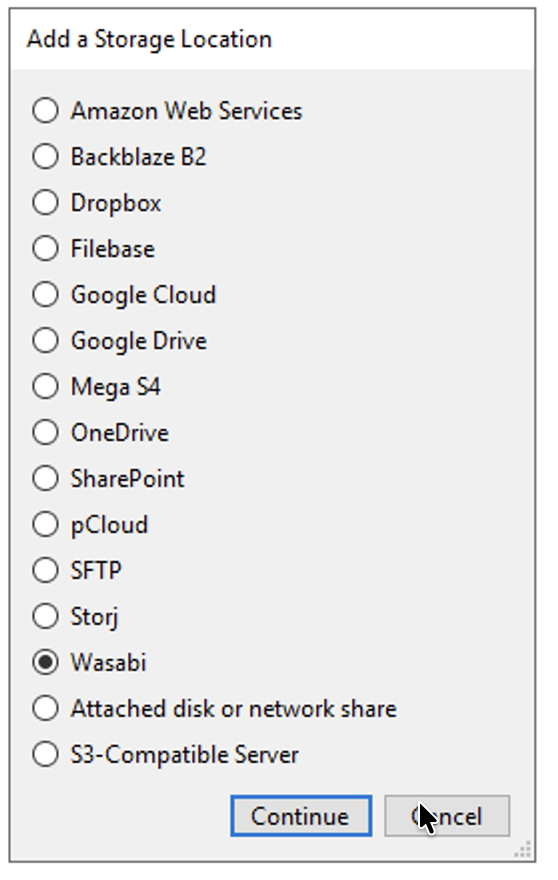
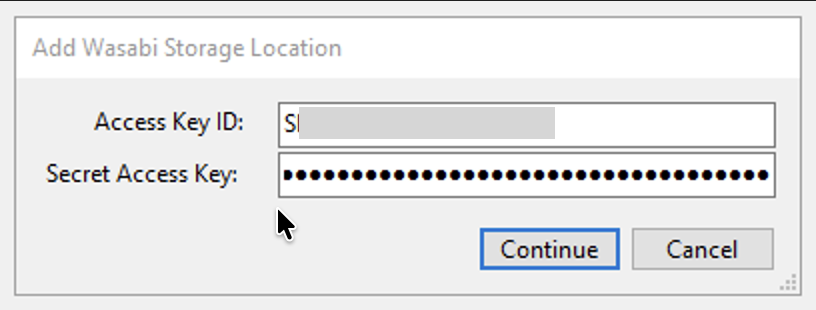
Input Access Key ID and Secret Access Key. Click Continue.
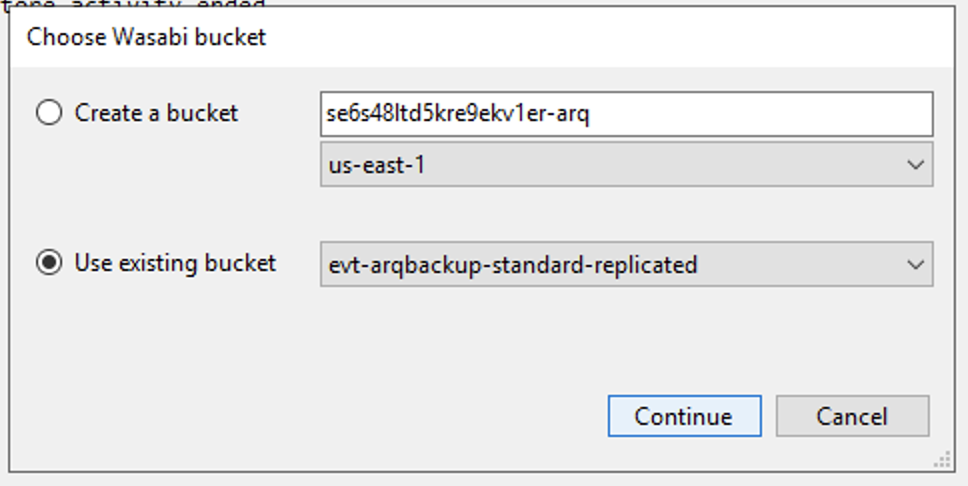
Choose your replicated bucket. Click Continue.
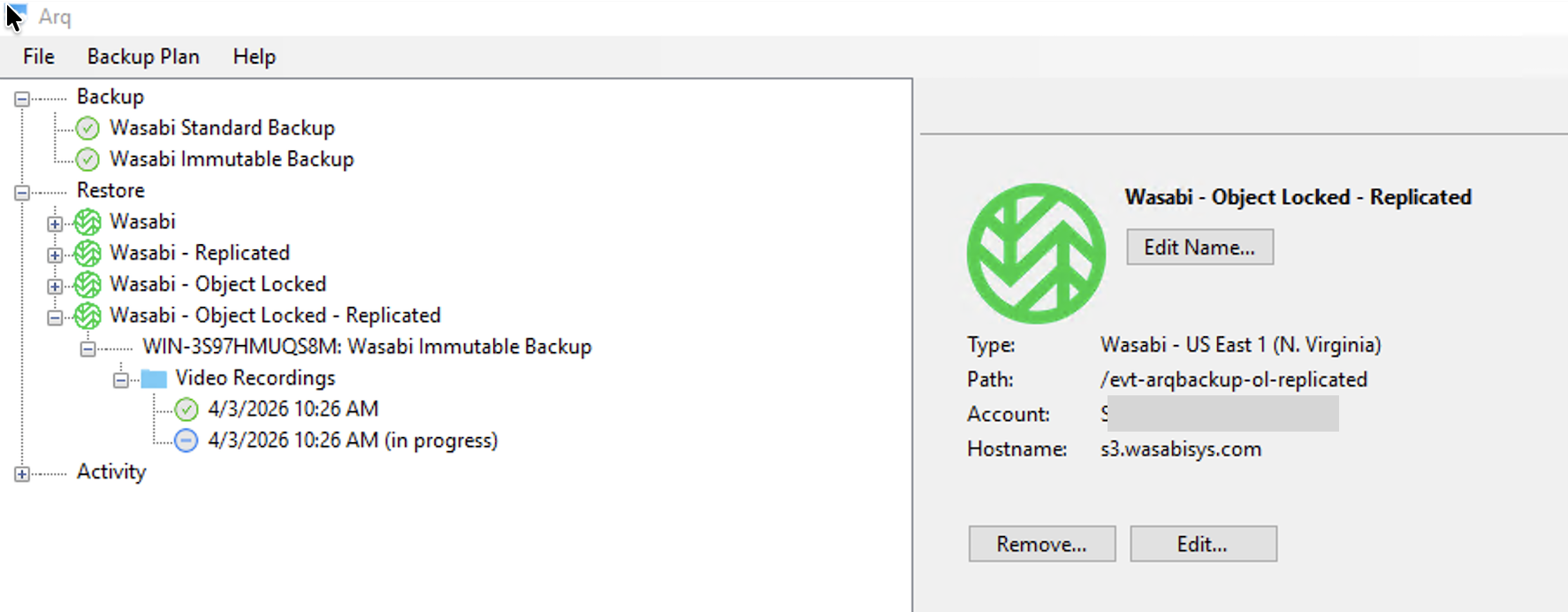
Arq will automatically index and show available backups in the replicated bucket. You may rename the Storage Location in the Arq application to differentiate from the original.

Replicating Data With Wasabi Object Replication - Object Locked Bucket
Wasabi’s Object Replication feature enables you to replicate or copy your data between Wasabi regions to protect against ransomware attacks, malicious data manipulation, natural disasters, or even accidental deletion. Object replication enables you to replicate/copy objects from an active storage bucket (source) to one or more different buckets (destination).
Follow the steps in our main Arq Integration KB to deploy a primary Wasabi Object Locked Bucket, then configure your primary Storage Location and Backup Plan.
Take at least one backup of your protected data.
Deploy a new, secondary Wasabi Object Locked Bucket - See Object Locking
Set up Object Replication from the primary bucket to the new secondary bucket - See Object Replication in the Same Account
Wait for the Object Replication process to complete.
Add your new secondary Wasabi Standard Bucket as a Storage Location in Arq. Click File and New Storage Location.
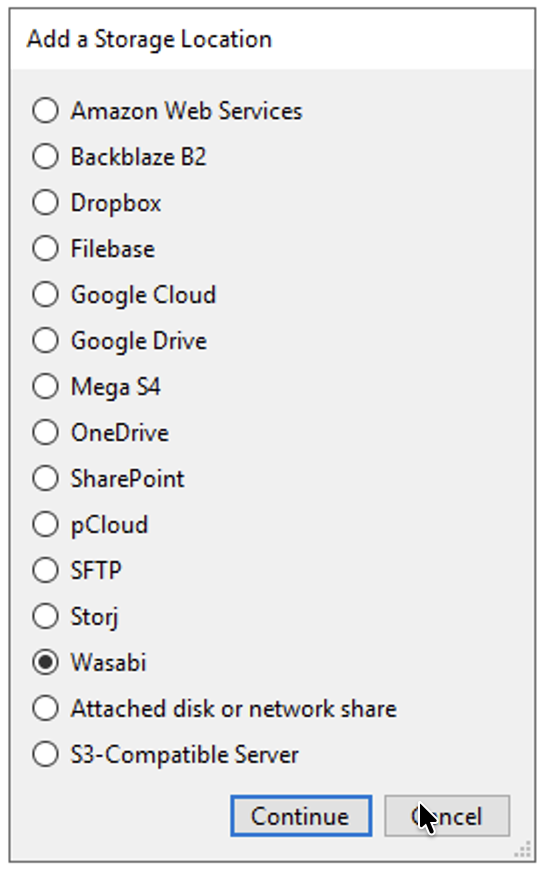
Choose Wasabi. Click Continue.
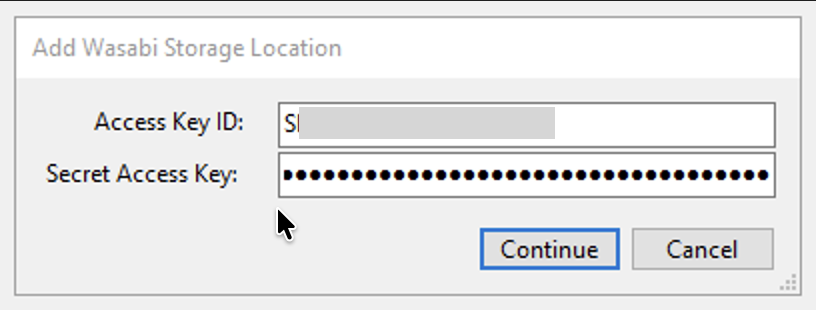
Input your Wasabi Access Key ID and Secret Access Key. Click Continue.
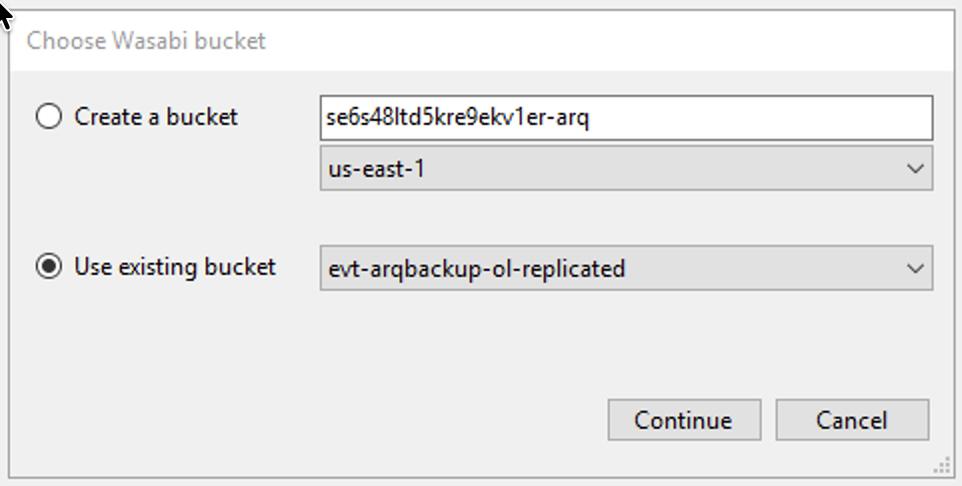
Choose your replicated bucket. Click Continue.
Arq will automatically index and show available backups in the replicated bucket. You may rename the Storage Location in the Arq application to differentiate from the original.