This article describes the procedure to migrate Arq backups to Wasabi using Wasabi Cloud Sync Manager (WCSM). WCSM is a paid managed service that performs cloud-to-cloud migration without requiring the customer to download and re-upload backups.
The data restoration process is handled by your specific backup software application. As there are many potential variables that will affect your unique environment, it is strongly recommended that you seek the guidance of your backup software’s technical support team in the event that you encounter difficulty or have application-specific inquiries.
Requirements
Arq Software Installed (Version 7.39 as of testing)
Arq 7 License - See Arq Pricing FAQ
An active Third-Party Storage Account (AWS/Azure Blob/Generic S3-Compatible Storage)
An active Wasabi Storage Account
Wasabi Bucket—See Creating a Bucket
Wasabi Object Locked Bucket (If using Immutability)—See Object Locking
Please note that Object Locked data migrated with WCSM will not be Object Locked in the Destination Wasabi Bucket. Future backups written to this bucket can be Object Locked.
High-level Migration Steps
Follow the high-level steps below to migrate from third-party cloud storage to Wasabi. These are detailed further in the sections below.
Backups initially reside only in your third-party cloud storage. The WCSM team performs an initial copy from your third-party cloud storage to Wasabi.
The customer disables the backup location for future backups before the final sync.
The WCSM team performs a final sync.
Add the Wasabi bucket as a new Storage Location in Arq.
Resume backups to the Wasabi Bucket.
WCSM Configuration
Wasabi Cloud Sync Manager (WCSM) is a paid managed migration service. Refer to Getting Started With Wasabi Cloud Sync Manager to begin the migration process.
1. You will need to first request a WCSM Account by either completing the WCSM Questionnaire or reaching out to your Wasabi Sales contact.
2. Upon approval and notification of account creation, you will be able to log in to the WCSM Portal and follow the steps outlined in the Entering Credentials for Cloud Migration KB.
This will require you to enter your Source Storage Account credentials and Wasabi Account Credentials along with your Bucket information.
3. The WCSM team will work with you, perform the migration process, and notify you once the migration has been completed and your application data has been successfully uploaded to your Wasabi bucket.
Arq Backup Storage configuration
Once the migration is complete, you can log in to your Arq Backup Server and add the new Wasabi bucket as a Storage Location.
1. Log in to your Backup Server and launch the Arq Backup Application.
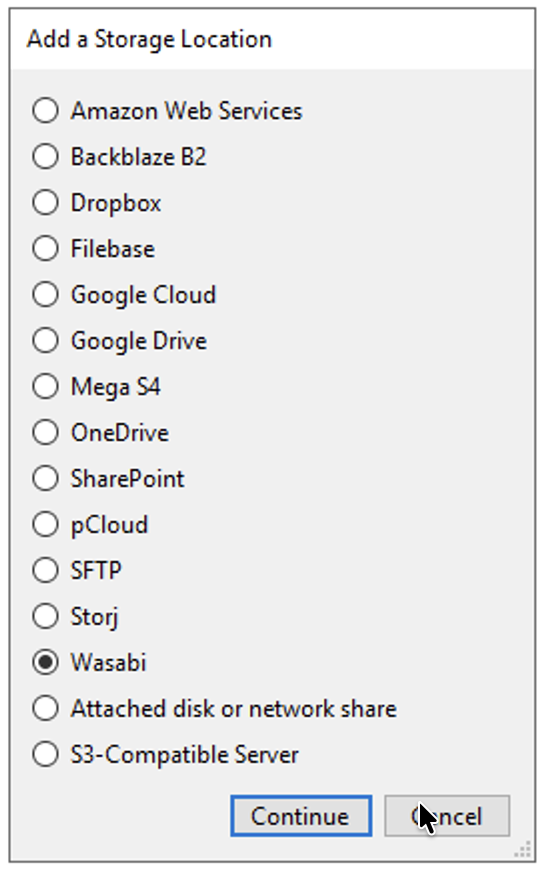
2. Add your Migrated Wasabi Bucket as a Storage Location in Arq. Click File, then New Storage Location.
Choose Wasabi. Click Continue.
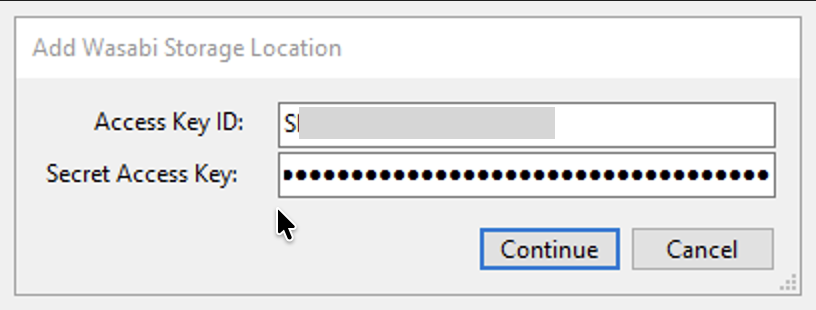
Input Access Key ID and Secret Key, then click Continue.
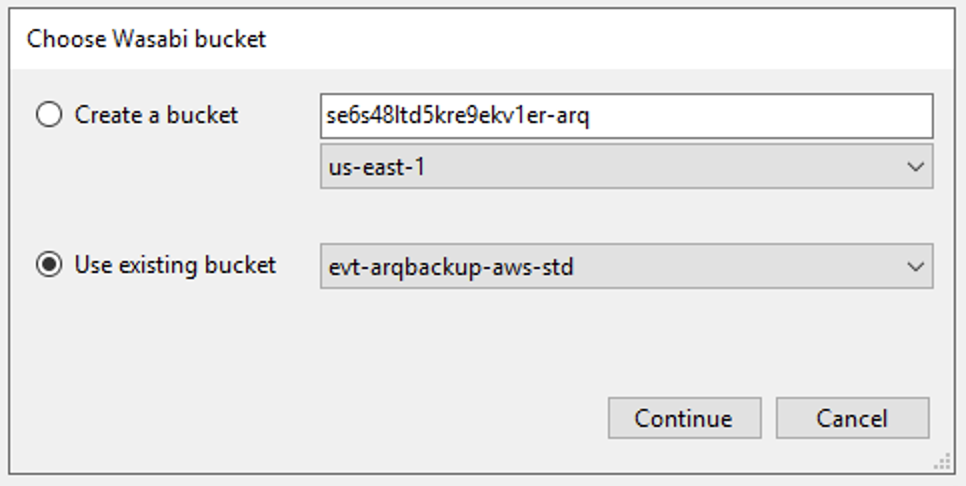
Choose your migrated bucket. Click Continue.
Arq will automatically index and show available backups in the replicated bucket. You may wish to rename the Storage Location in the Arq application to differentiate from the original.
