Mediaflex-UMS (Unified Media Services) by TransMedia Dynamics helps you orchestrate and securely preserve digital and physical assets, transforming media management via workflows. Wasabi has been validated for use with Mediaflex-UMS.
Requirements
Mediaflex release Q1 2024 and later
S3 compatible File Transfer Service
Active Wasabi Cloud Storage Account
Wasabi Bucket - See Working With Buckets and Objects
Reference Architecture Diagram
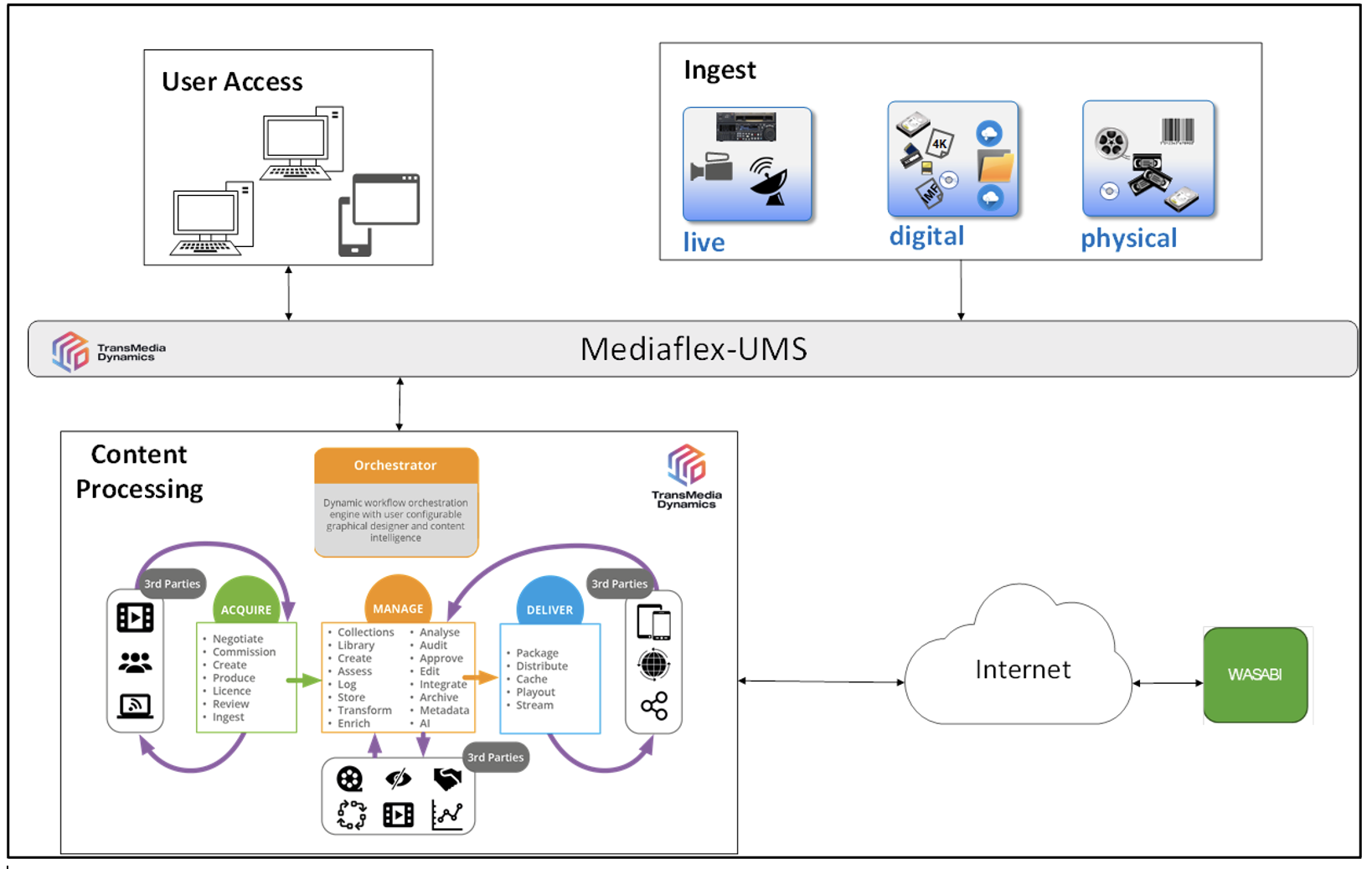
Configuration
Adding a Storage Device for Wasabi Hot Storage
Log in to the Mediaflex Workstation Client.
Navigate to Tools, then Area, then Device Configuration.
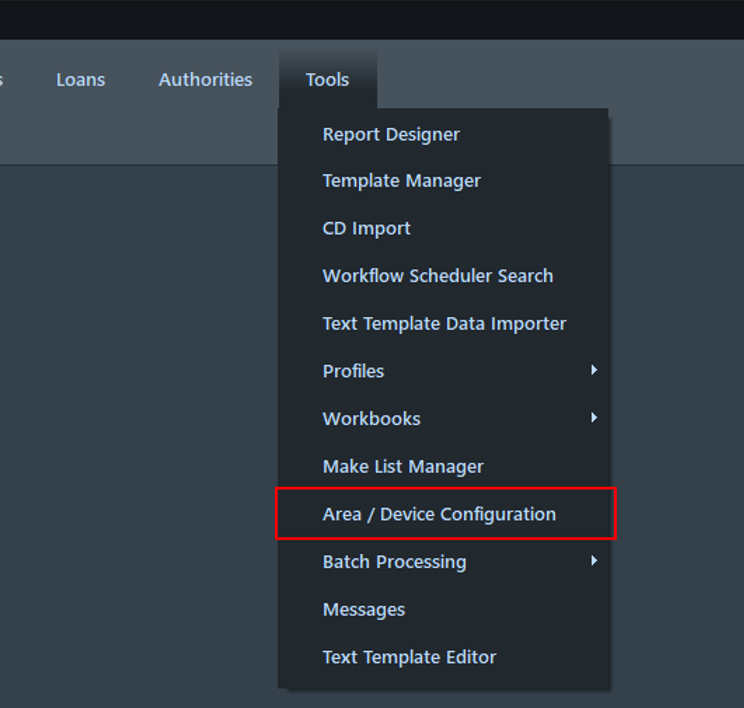
Right-click on an area and select Add New, then Device.
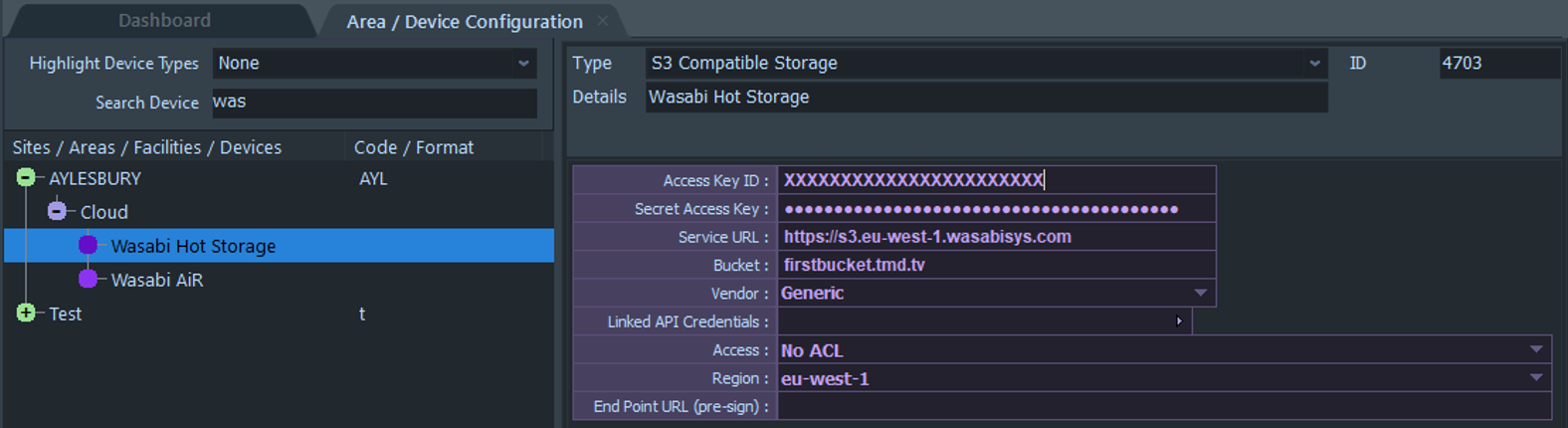
From the Type drop-down box, select S3 Compatible Storage.
In the Details, give it a unique name to identify the Wasabi Hot Storage.
Enter the following information.
Access Key ID—Input your Wasabi Access Key
Secret Access Key—Input your Wasabi Secret Key
Service URL—Enter the Wasabi Storage Region URL that you plan on using
Bucket—Input your bucket name
Vendor—Set to Generic
Region—Input the Wasabi Storage Region
Adding the Transfer.S3 Compatible Service
Log in to UMS Manager in your preferred browser.
Click the ellipsis of a controller that the service should be added to and select Add Service.
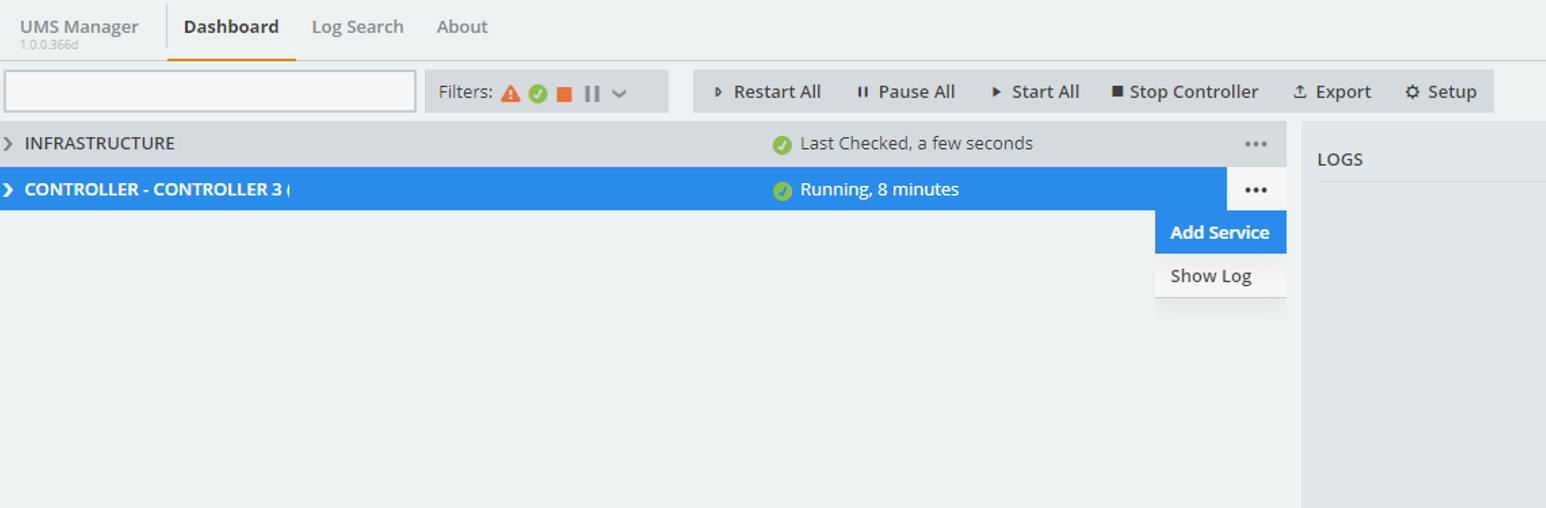
Search for S3 Com and select Transfer.S3 Compatible.
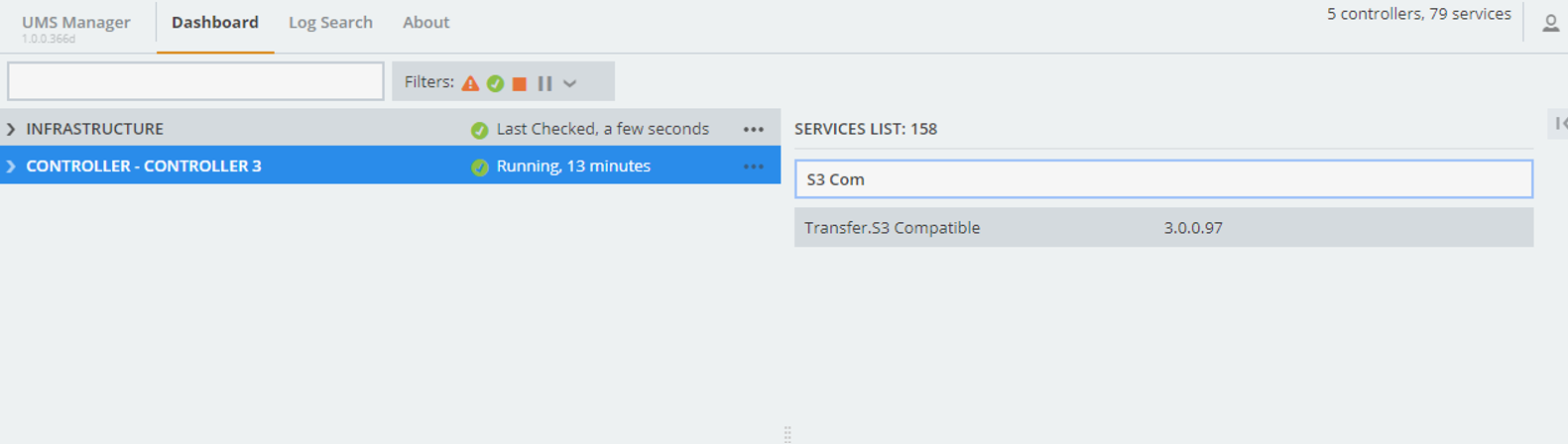
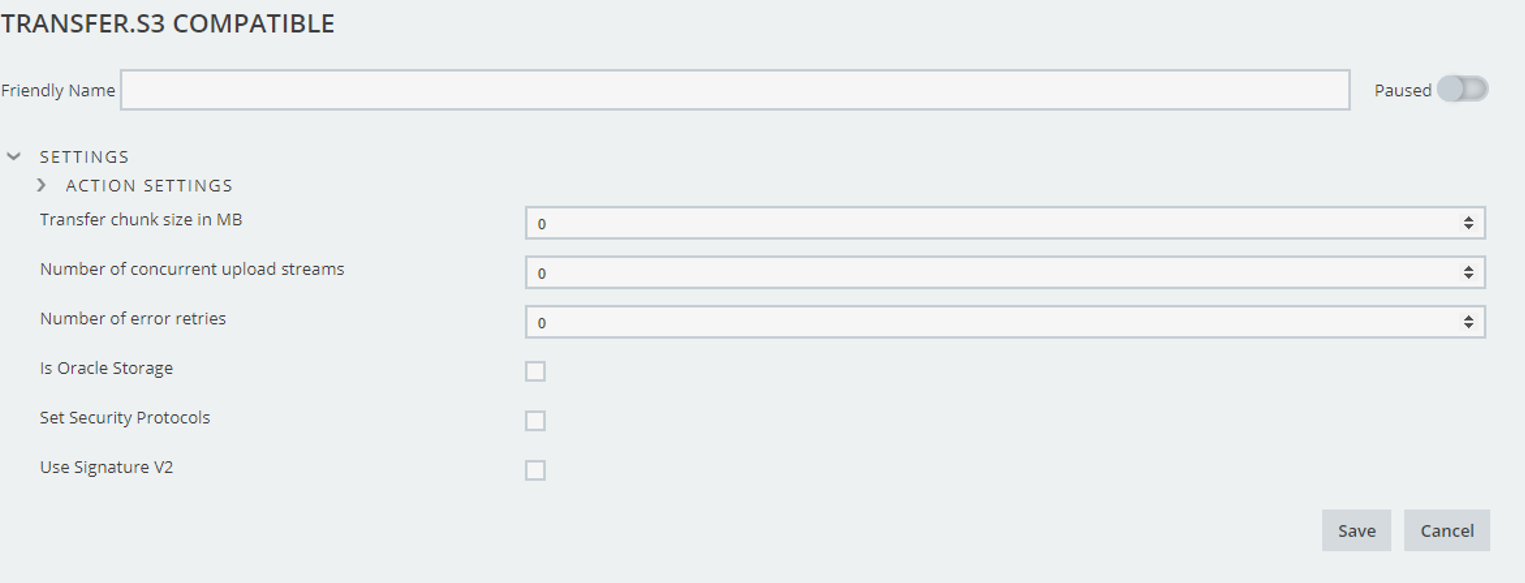
Fill in the settings as required (you can leave them at the default values).
Click Save.
Configuring a Data Move task in a Preset
Log in to the Mediaflex Workstation client.
Navigate to Workflow, then Workflow Designer.
Add a Data Move task to the designer.
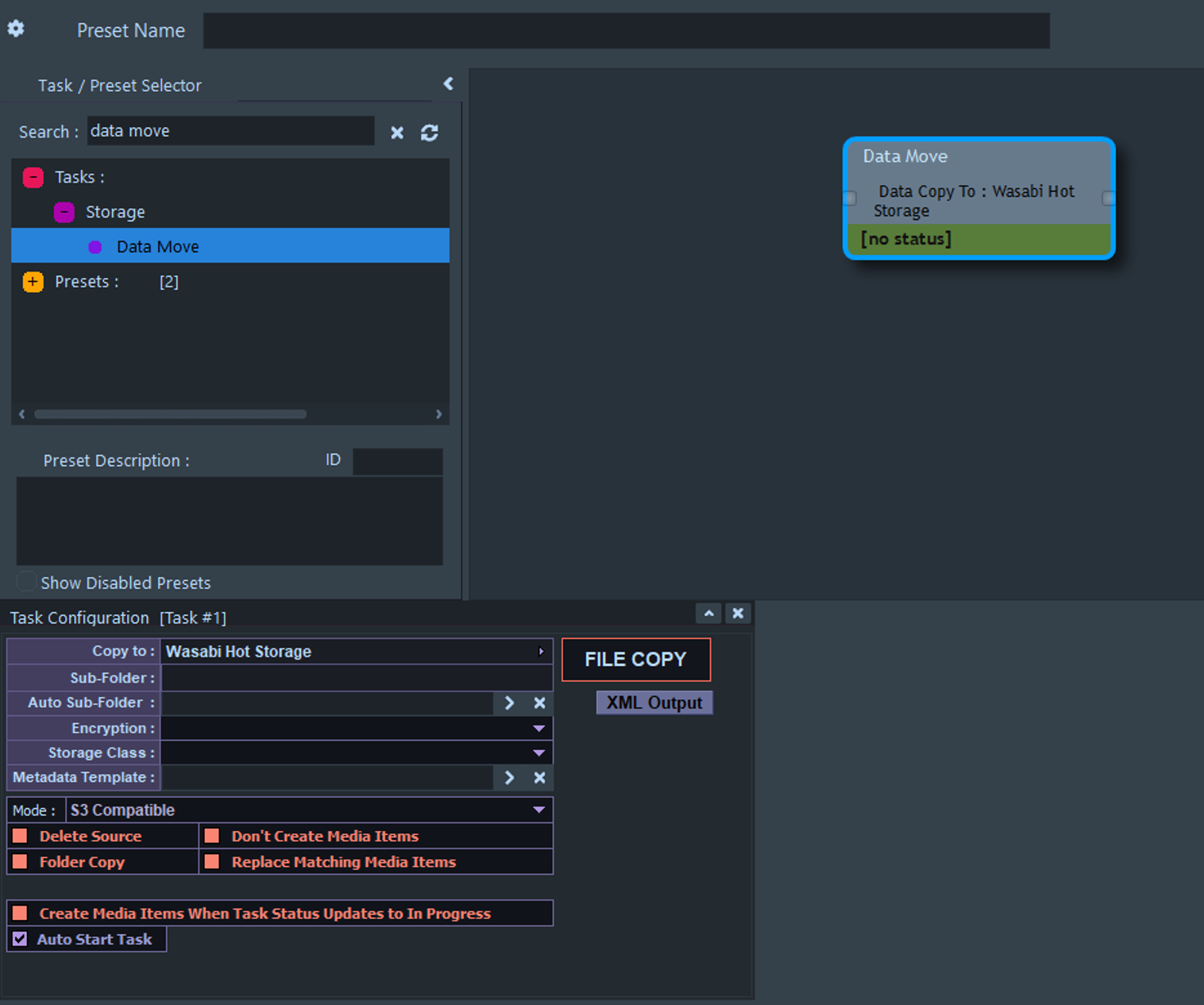
Configure the task, selecting the Wasabi Hot Storage device created in Step 1 in the Copy To section.
Save the preset.
This preset can be raised to copy items to Wasabi Hot Storage.