MATLAB is a numerical computing environment and programming language from MathWorks, widely used for engineering, data analysis, and scientific computing. This article describes how to configure MATLAB to work with Wasabi Hot Cloud Storage using MATLAB's native S3-compatible support, including verifying connectivity and working with files, MATLAB data, tables, and images directly in your Wasabi bucket.
Requirements
MATLAB R2026b or higher. This solution was tested on an Ubuntu 24.04.4 LTS server with no graphical display or X11 available.
Active Wasabi Cloud Storage account.
A Wasabi bucket (see Creating a Bucket).
Wasabi Console access.
Configuring Wasabi
Reference commands in this article use the placeholder YOUR_WASABI_BUCKET_NAME. Replace it with your own bucket name. Commands and output labeled “Example” are copied directly from the terminal during testing for this article, using a real bucket named mt-matlab.
Log in to the Wasabi Console as the account root user.
Configure a policy for a “matlab” user (that will be created in the next step) using the following policy. Change YOUR_WASABI_BUCKET_NAME to your own Wasabi bucket name. See Creating a Policy for instructions on how to create a policy.
{
  "Version": "2012-10-17",
  "Statement": [
    {
      "Effect": "Allow",
      "Action": "s3:ListAllMyBuckets",
      "Resource": "arn:aws:s3:::*"
    },
    {
      "Effect": "Allow",
      "Action": "s3:*",
      "Resource": [
        "arn:aws:s3:::YOUR_WASABI_BUCKET_NAME",
        "arn:aws:s3:::YOUR_WASABI_BUCKET_NAME/*"
      ]
    }
  ]
}
Create a “matlab” user and attach the previously created policy to it. Use the following settings for the user. For more information, see Creating a User.
Allow programmatic-only access, not console access.
Do not require Multi-Factor Authentication (MFA).
It is not necessary to assign the user to a group.
Save the access and secret keys in a secure location.
Configuring Environment Variables
As of R2026b, MATLAB has native support for S3-compatible storage such as Wasabi. MATLAB reads its S3 connection details from standard AWS environment variables.
This configuration example uses Wasabi's us-east-2 storage region. To use another Wasabi storage region, use the appropriate URL for your bucket region as described in Service URLs for Wasabi's Storage Regions.
Add the following lines to ~/.bashrc. Replace YOUR_WASABI_ACCESS_KEY and YOUR_WASABI_SECRET_KEY with the access and secret keys that were created earlier, and use the appropriate URL for your bucket region.
export AWS_ACCESS_KEY_ID="YOUR_WASABI_ACCESS_KEY"
export AWS_SECRET_ACCESS_KEY="YOUR_WASABI_SECRET_KEY"
export AWS_ENDPOINT_URL_S3="https://s3.us-east-2.wasabisys.com"
Reload the profile (or open a new terminal) so the changes take effect.
source ~/.bashrcConfirm all three variables are set correctly.
env | grep AWS
Testing Wasabi Connectivity
MATLAB's built-in remote-data functions accept s3:// paths directly, so no separate connectivity test script is needed. The following shows a full round trip — uploading a file, confirming it in the bucket, downloading it back, and verifying the contents match. Replace YOUR_WASABI_BUCKET_NAME with the name of your bucket.
Create a small local test file.
echo "MATLAB native S3 test $(date)" > ~/native_test.txtLaunch MATLAB. Upload the file to your bucket.
copyfile('~/native_test.txt', 's3://YOUR_WASABI_BUCKET_NAME/native_test.txt');Confirm it appears in the bucket.
bucketContents = dir('s3://YOUR_WASABI_BUCKET_NAME/');
{bucketContents.name}'
Example:
bucketContents = dir('s3://mt-matlab/');
{bucketContents.name}'
Output:
ans =

2×1 cell array

{'native_test.txt'}
{'test.txt' }
Download it back to a new local file.
copyfile('s3://YOUR_WASABI_BUCKET_NAME/native_test.txt', '~/native_test_downloaded.txt');Exit MATLAB and confirm that the downloaded file matches the original (an output of MATCH indicates the files match).
diff ~/native_test.txt ~/native_test_downloaded.txt && echo "MATCH"
Uploading and Downloading Files
Once the environment variables are set, MATLAB treats an s3:// path the same way it treats a local file path for most file operations. Use copyfile to move any type of file to or from your bucket, as shown in the round trip above.
Upload a local file to your bucket.
copyfile('~/native_test.txt', 's3://YOUR_WASABI_BUCKET_NAME/native_test.txt');Download a file from your bucket to a local path.
copyfile('s3://YOUR_WASABI_BUCKET_NAME/native_test.txt', '~/native_test_downloaded.txt');
Working With MATLAB Data Files (.MAT)
Save and load work directly against s3:// paths so MATLAB files can be stored in and retrieved from your bucket without an intermediate local copy.
Save a variable directly to a .MAT file in your bucket.
A = magic(5);
save('s3://YOUR_WASABI_BUCKET_NAME/matrix_test.mat', 'A');
Example:
A = magic(5);
save('s3://mt-matlab/matrix_test.mat', 'A');
Load it back directly from the bucket and confirm that it matches.
clear A
loaded = load('s3://YOUR_WASABI_BUCKET_NAME/matrix_test.mat');
isequal(loaded.A, magic(5))
Example:
clear A
loaded = load('s3://mt-matlab/matrix_test.mat');
isequal(loaded.A, magic(5))

ans =

  logical

   1
Working With Tabular Data
For a table that fits comfortably in memory, writetable and readtable work can be done directly against s3:// paths.
Write a table directly to a CSV file in your bucket. Read it back and confirm that it matches.
T = table((1:10)', (1:10)'.^2, 'VariableNames', {'N','NSquared'});
writetable(T, 's3://YOUR_WASABI_BUCKET_NAME/simple.csv');
T2 = readtable('s3://YOUR_WASABI_BUCKET_NAME/simple.csv');
isequal(T, T2)
Example:
T = table((1:10)', (1:10)'.^2, 'VariableNames', {'N','NSquared'});
writetable(T, 's3://mt-matlab/simple.csv');
T2 = readtable('s3://mt-matlab/simple.csv');
isequal(T, T2)

ans =

  logical

   1
For a dataset too large to fit in memory, point a datastore at the file in your bucket and wrap it as a tall array, so MATLAB processes the data in chunks instead of loading it all at once. Run some calculations, add a derived column, and write the result back to the bucket.
T = table((1:20)', rand(20,1)*100, 'VariableNames', {'ID','Value'});
writetable(T, '~/mathtest.csv');
copyfile('~/mathtest.csv', 's3://YOUR_WASABI_BUCKET_NAME/mathtest.csv');
ds = tabularTextDatastore('s3://YOUR_WASABI_BUCKET_NAME/mathtest.csv');
tt = tall(ds);
meanValue = gather(mean(tt.Value));
totalValue = gather(sum(tt.Value));
disp(meanValue)
disp(totalValue)
tt.ValueSquared = tt.Value.^2;
write('s3://YOUR_WASABI_BUCKET_NAME/mathtest_processed/', tt);
Example:
T = table((1:20)', rand(20,1)*100, 'VariableNames', {'ID','Value'});
writetable(T, '~/mathtest.csv');
copyfile('~/mathtest.csv', 's3://mt-matlab/mathtest.csv');
ds = tabularTextDatastore('s3://mt-matlab/mathtest.csv');
tt = tall(ds);
meanValue = gather(mean(tt.Value));
Evaluating tall expression using the Local MATLAB Session:
- Pass 1 of 1: 0% complete
- Pass 1 of 1: Completed in 0.6 sec

Evaluation completed in 0.87 sec

totalValue = gather(sum(tt.Value));
Evaluating tall expression using the Local MATLAB Session:
- Pass 1 of 1: 0% complete
- Pass 1 of 1: Completed in 0.25 sec

Evaluation completed in 0.34 sec

disp(meanValue)
   64.2033

disp(totalValue)
   1.2841e+03

tt.ValueSquared = tt.Value.^2;
write('s3://mt-matlab/mathtest_processed/', tt);
Writing tall data to folder s3://mt-matlab/mathtest_processed
Evaluating tall expression using the Local MATLAB Session:
- Pass 1 of 1: 0% complete
- Pass 1 of 1: Completed in 0.72 sec

Evaluation completed in 1.2 sec
20 rows, 1 files, and 1.38 KB written.
Read the written result back and verify it.
ds2 = datastore('s3://YOUR_WASABI_BUCKET_NAME/mathtest_processed/');
tt2 = tall(ds2);
result = gather(tt2);
head(result)
isequal(result.ValueSquared, result.Value.^2)
dir('s3://YOUR_WASABI_BUCKET_NAME/mathtest_processed/')
height(result)
Example:
ds2 = datastore('s3://mt-matlab/mathtest_processed/');
tt2 = tall(ds2);
result = gather(tt2);
head(result)
    ID    Value     ValueSquared
    __    ______    ____________

    1     81.472       6637.7
    2     90.579       8204.6
    3     12.699       161.26
    4     91.338       8342.6
    5     63.236       3998.8
    6      9.754       95.141
    7      27.85       775.61
    8     54.688       2990.8

isequal(result.ValueSquared, result.Value.^2)

ans =

  logical

   1

dir('s3://mt-matlab/mathtest_processed/')

array_r1_00001_snapshot_0x1.mat

height(result)

ans =

    20
Working With Images
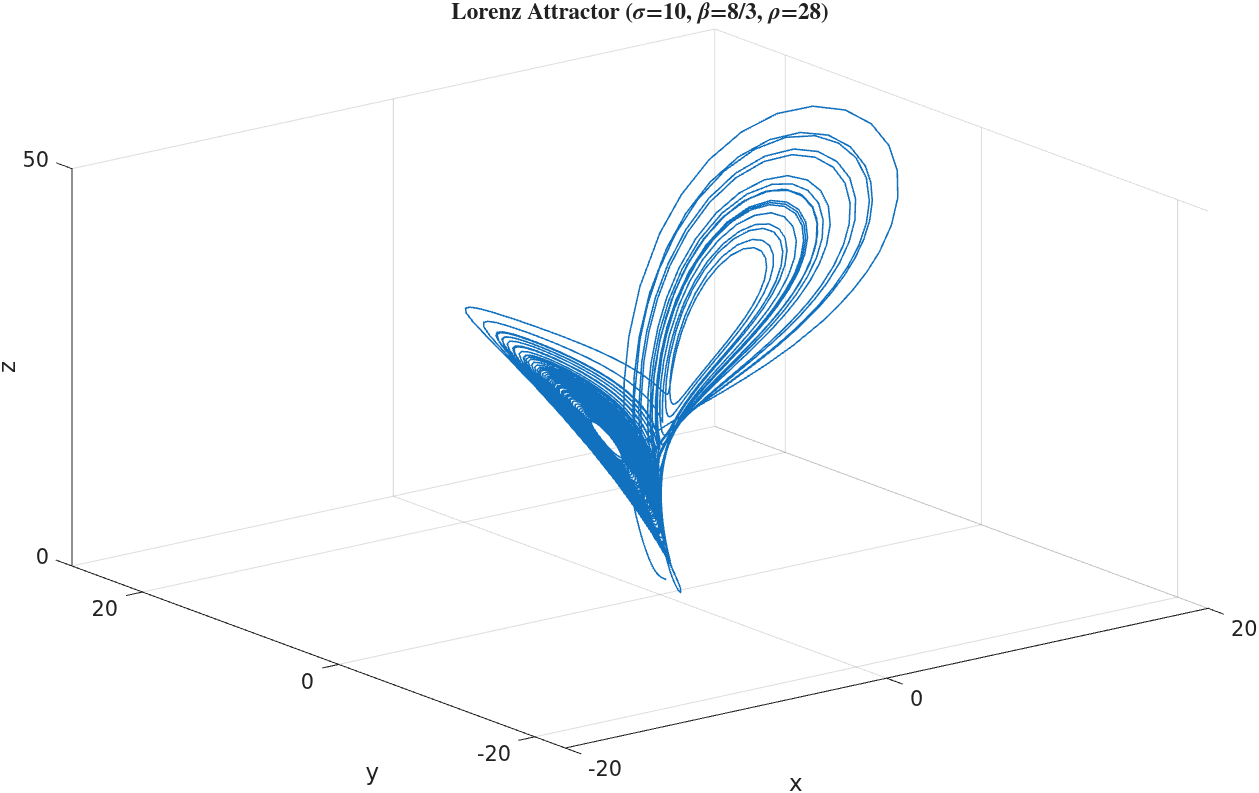
Images can be uploaded the same way as any other file, then read back directly from the bucket using imageDatastore. The example below solves the Lorenz attractor (a classic chaotic system) with ode45, plots it, saves it to your Wasabi bucket, then downloads it from Wasabi.
Solve a system, plot it, and save the figure locally as a .PNG, then upload it to your bucket.
sigma = 10; beta = 8/3; rho = 28;
lorenz = @(t, x) [sigma*(x(2)-x(1)); x(1)*(rho-x(3))-x(2); x(1)*x(2)-beta*x(3)];
[t, x] = ode45(lorenz, [0 50], [1 1 1]);
fig = figure('Visible', 'off');
plot3(x(:,1), x(:,2), x(:,3), 'LineWidth', 0.75);
xlabel('x'); ylabel('y'); zlabel('z');
title('Lorenz Attractor (\sigma=10, \beta=8/3, \rho=28)');
grid on;
exportgraphics(fig, '~/lorenz2.png', 'Resolution', 150);
copyfile('~/lorenz2.png', 's3://YOUR_WASABI_BUCKET_NAME/images/lorenz2.png');
Example:
sigma = 10; beta = 8/3; rho = 28;
lorenz = @(t, x) [sigma*(x(2)-x(1)); x(1)*(rho-x(3))-x(2); x(1)*x(2)-beta*x(3)];
[t, x] = ode45(lorenz, [0 50], [1 1 1]);
fig = figure('Visible', 'off');
plot3(x(:,1), x(:,2), x(:,3), 'LineWidth', 0.75);
xlabel('x'); ylabel('y'); zlabel('z');
title('Lorenz Attractor (\sigma=10, \beta=8/3, \rho=28)');
grid on;
exportgraphics(fig, '~/lorenz2.png', 'Resolution', 150);
copyfile('~/lorenz2.png', 's3://mt-matlab/images/lorenz2.png');
Read the image back directly from your Wasabi bucket and confirm that it matches the original.
imds = imageDatastore('s3://YOUR_WASABI_BUCKET_NAME/images/');
imds.Files
img = imds.readimage(2);
imshow(img)
localCopy = imread('~/lorenz2.png');
isequal(img, localCopy)
Example:
imds = imageDatastore('s3://mt-matlab/images/');
imds.Files

ans =

  2×1 cell array

    {'s3://mt-matlab/images/lorenz.png' }
    {'s3://mt-matlab/images/lorenz2.png'}

img = imds.readimage(2);
imshow(img)

localCopy = imread('~/lorenz2.png');
isequal(img, localCopy)

ans =

  logical

   1
The image returned from the bucket was verified to be identical to the original local file.
Verifying Uploads in the Wasabi Console
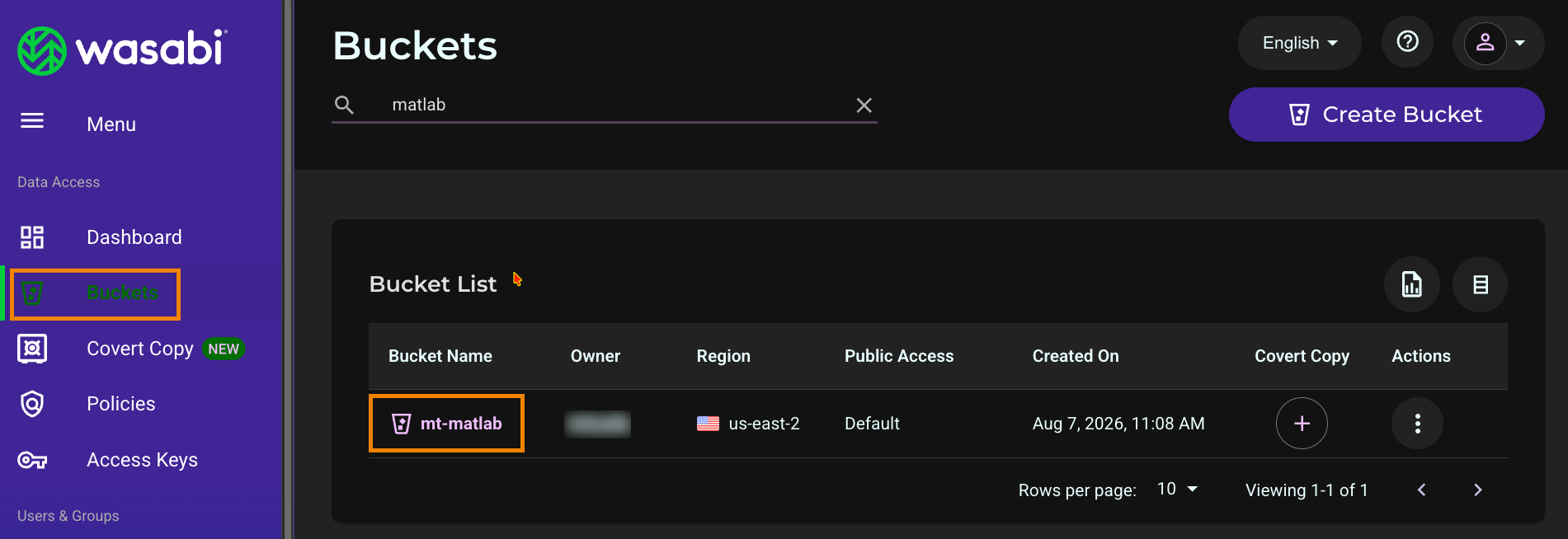
Log in to the Wasabi Console.
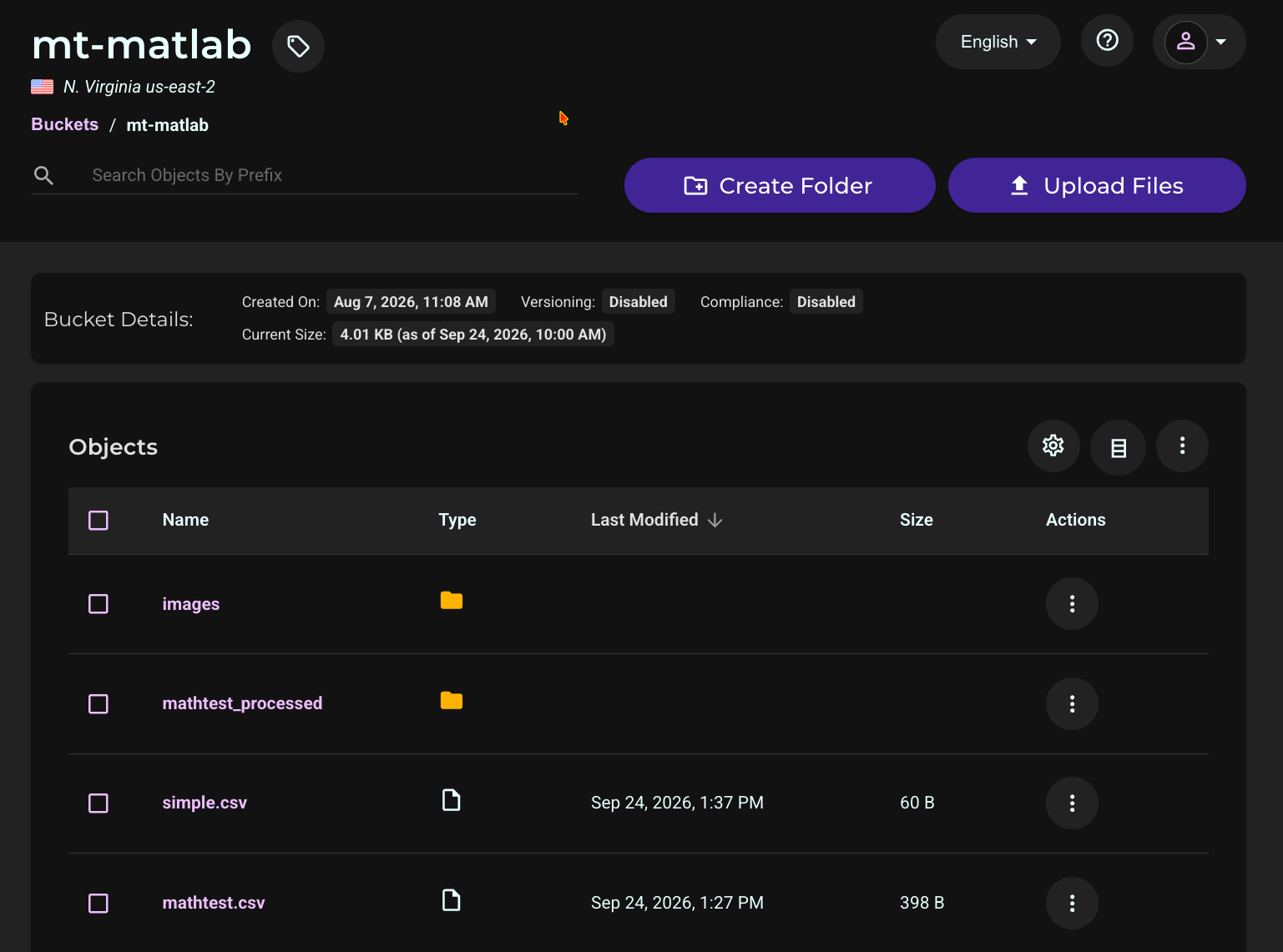
Click Buckets.
Select the name of your bucket.
The uploaded data will be shown in your bucket.