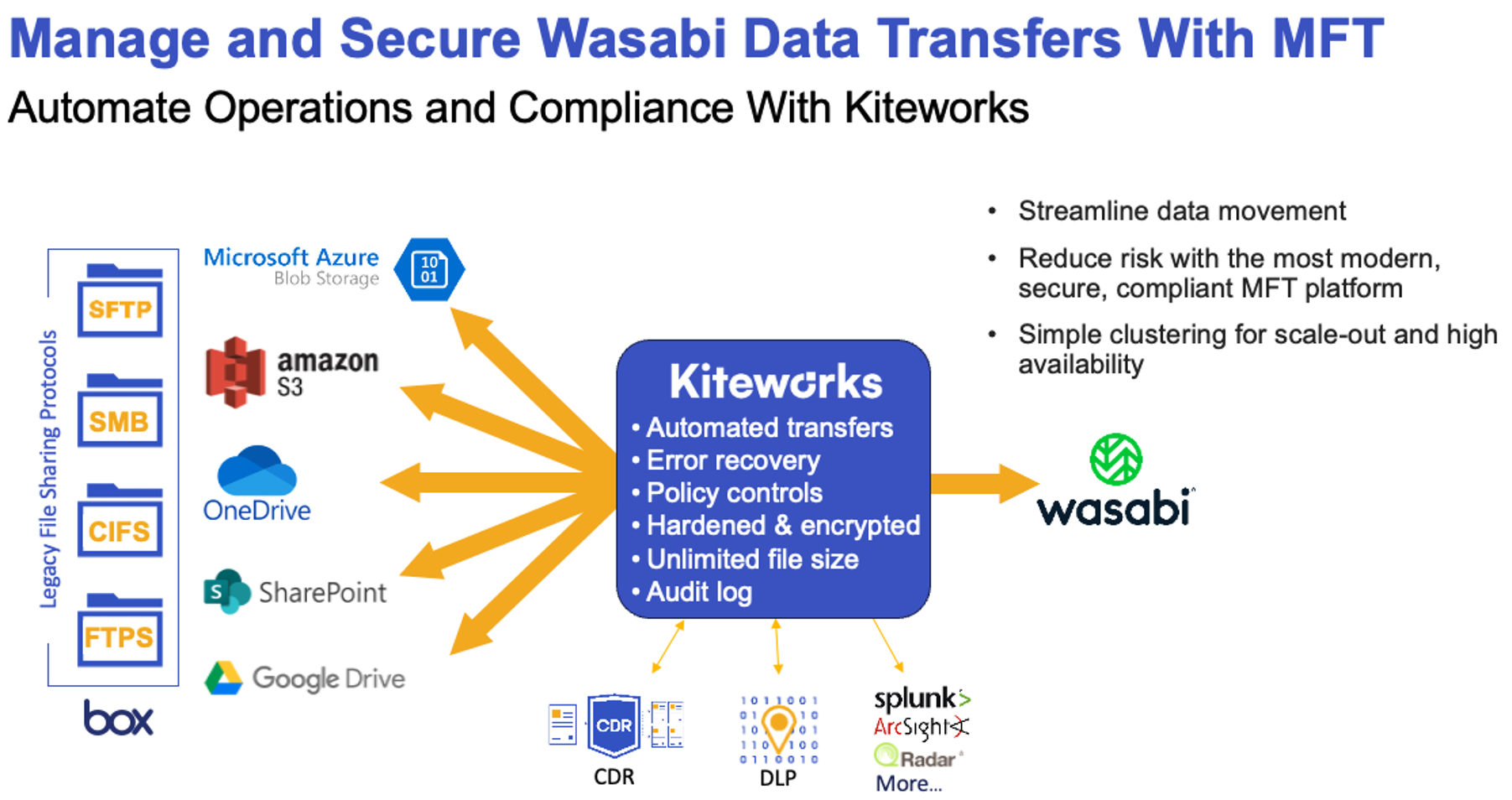
Kiteworks MFT Server has been validated for use with Wasabi. Kiteworks is a secure content communications platform that enables organizations to encrypt, protect, track, and control the sharing of sensitive information across email, file transfers, web forms, MFT, eDRM, and APIs while ensuring compliance with industry regulations. For more information on how Kiteworks MFT works with Wasabi, refer to the Kiteworks and Wasabi Solution Brief.
Requirements
Kiteworks v. 8.7 (or newer)
Kiteworks Core Platform + MFT Server
Kiteworks MFT Server has a direct connector to Wasabi
Active Wasabi Cloud Storage Account
Wasabi bucket (see Working With Buckets and Objects)
Access & Secret Key pair (see our Creating a User Account and Access Key)
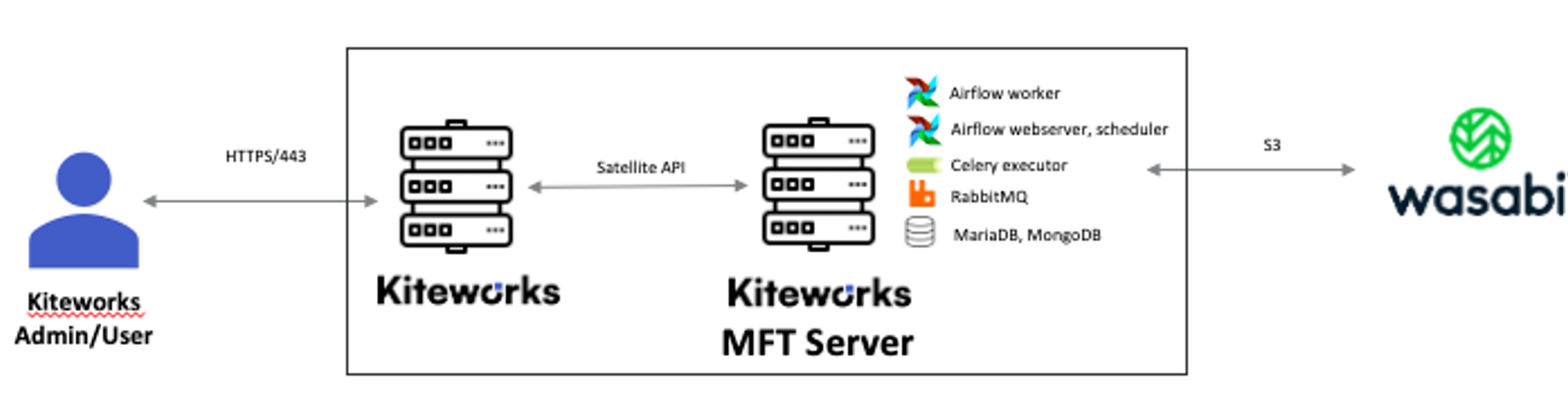
Reference Architecture
Configuring Kiteworks
Stand up Kiteworks core server(s) or use an existing deployment. Attach MFT Server(s) to Kiteworks or use an existing deployment.
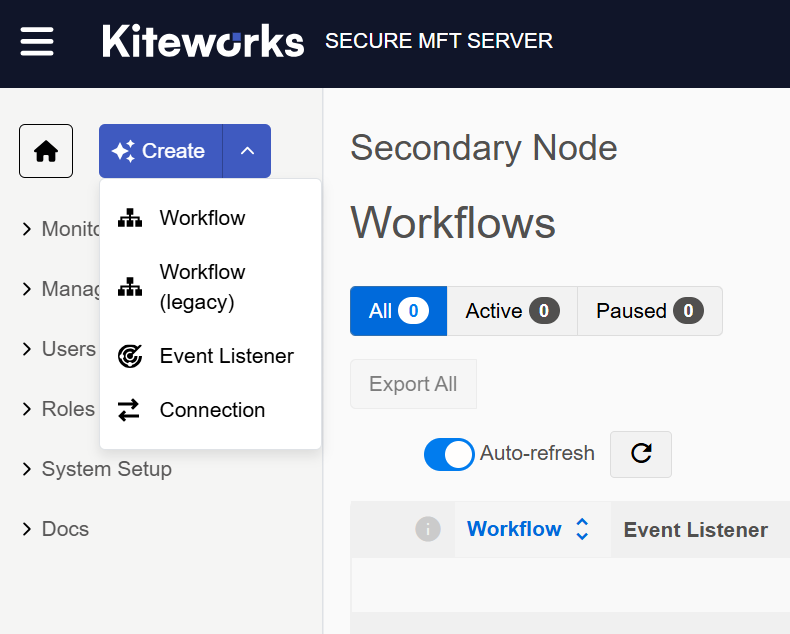
Log in to the MFT server.
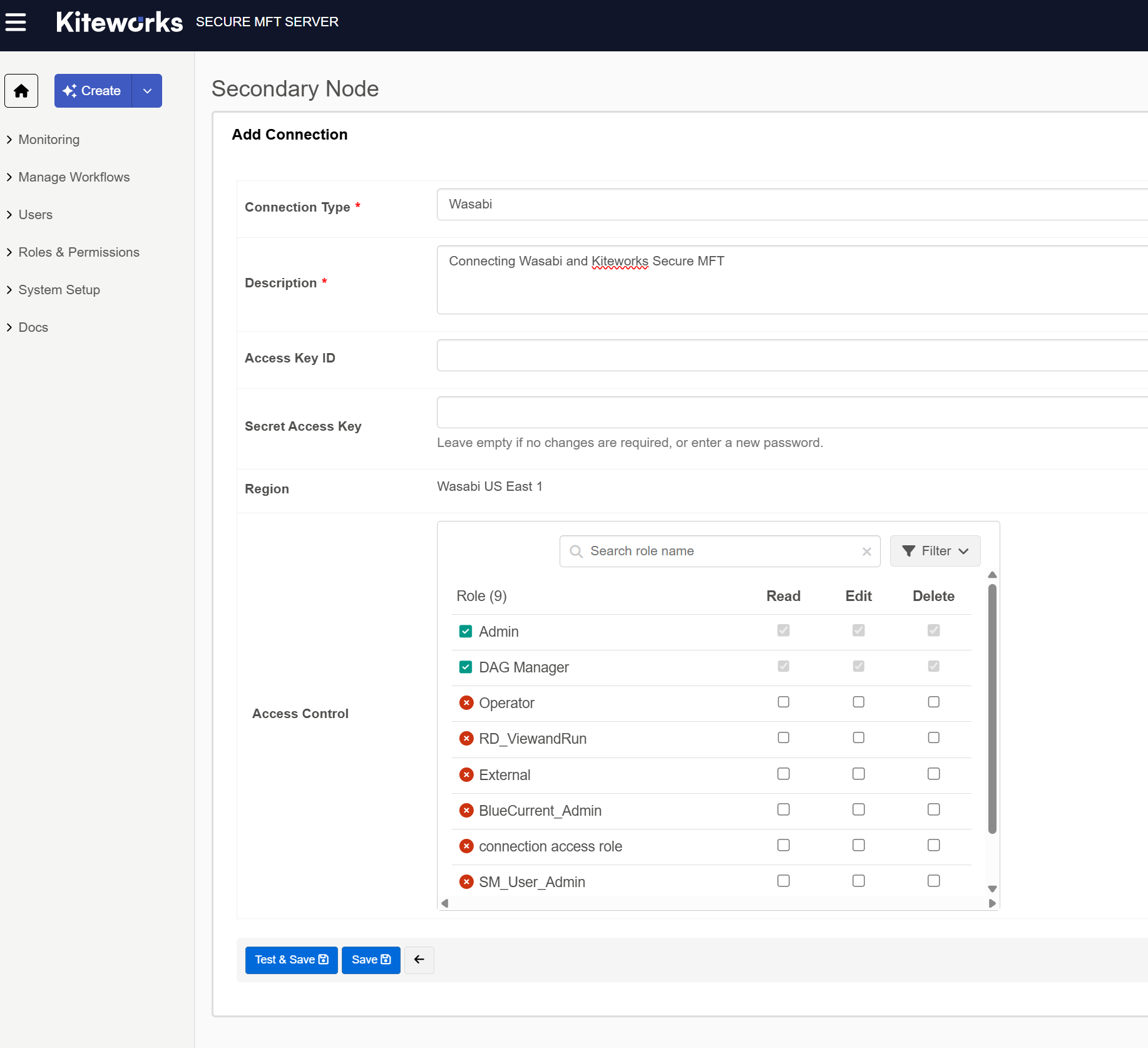
Click Create, then click Connection.
Enter the necessary S3 endpoint information to connect to Wasabi by filling in the available fields.
Connection Type - Select Wasabi.
Description - Give a unique description.
Access Key ID - Input your Wasabi access key.
Secret Access Key - Input your Wasabi secret key.
Region - Select the Wasabi Datacenter region from the drop-down menu.
Click Test & Save.
Connections will be listed.
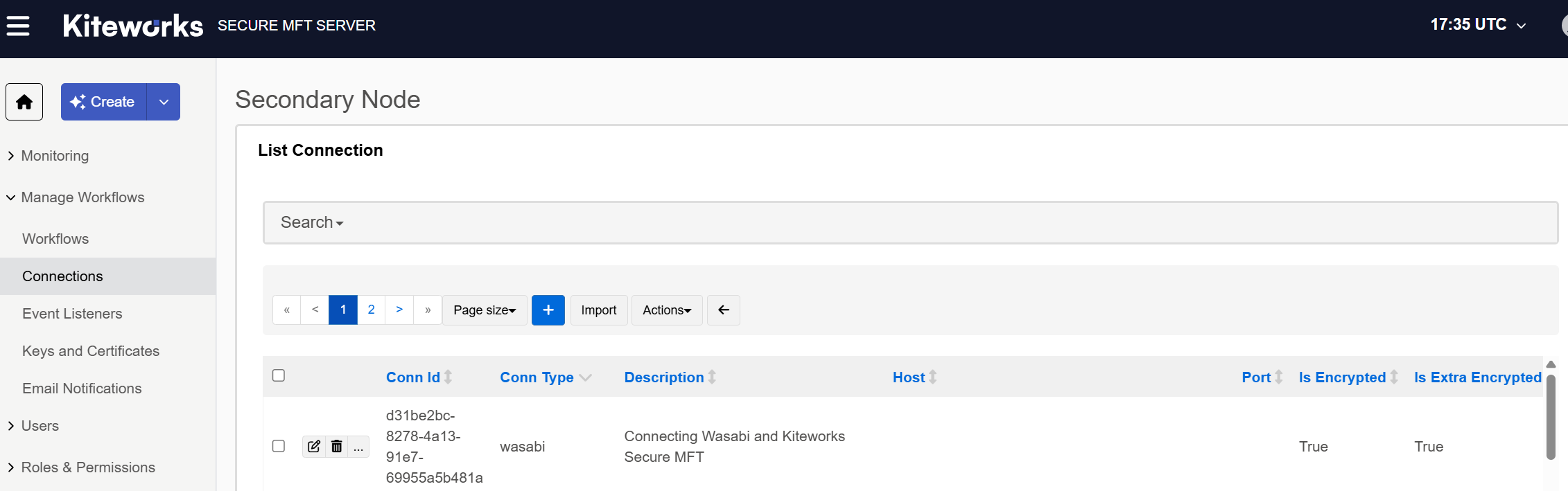
Click on ... next to the Connection ID, and it will prompt you to enter a bucket name.
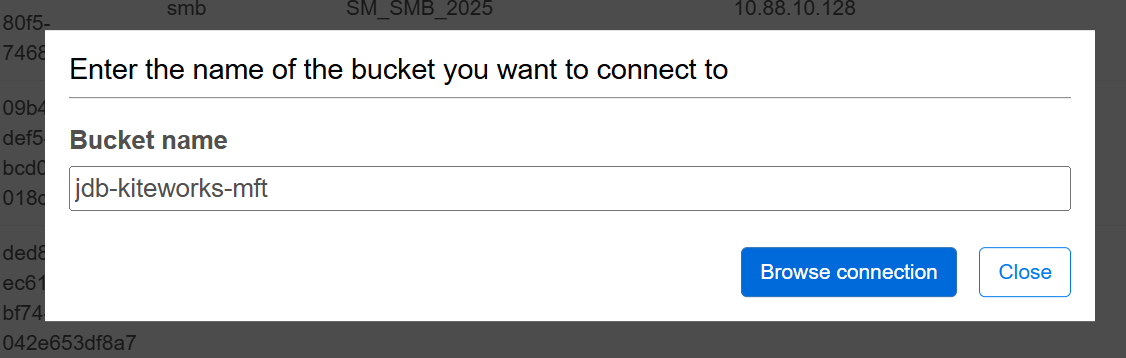
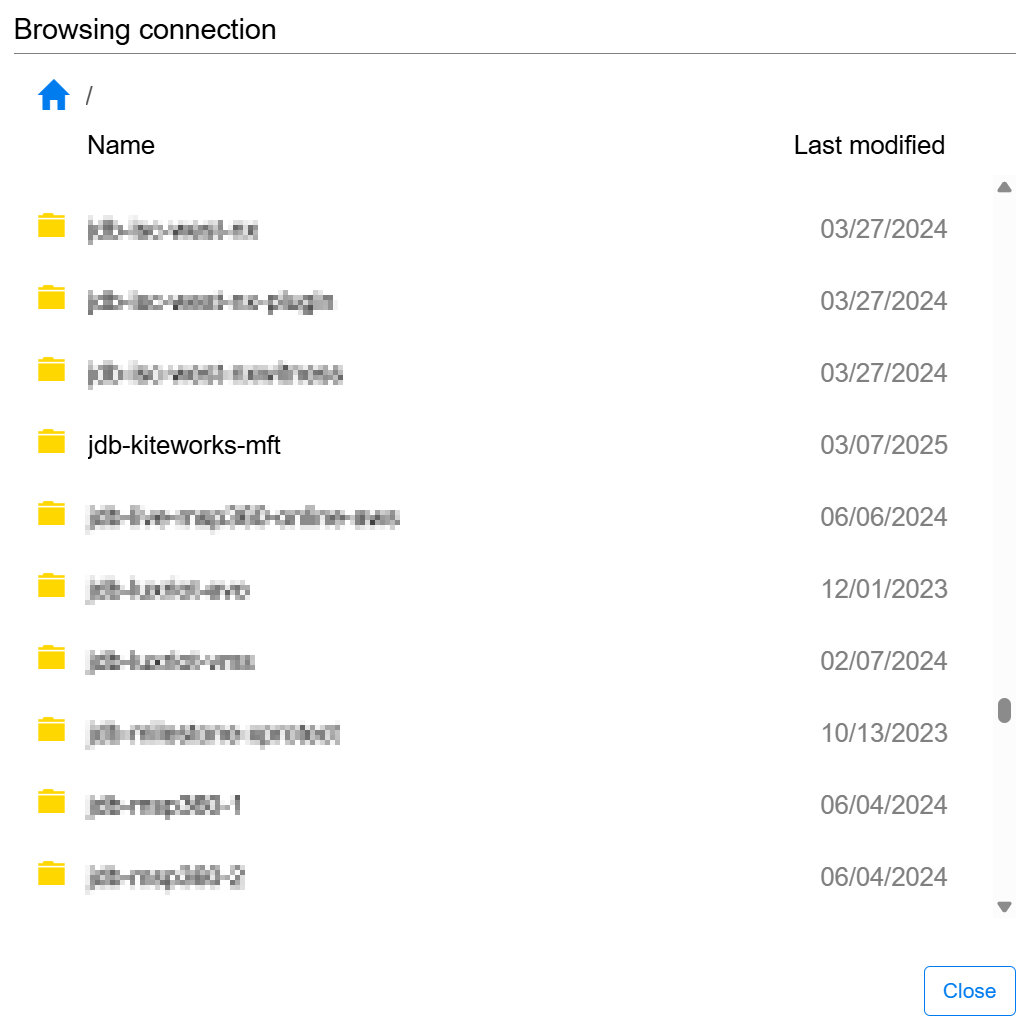
Click Browse connection to ensure you can view all of your buckets. Click Close when you see your bucket.
Create a new Workflow on the MFT server to use the new Wasabi connection created in the previous step. This will allow users to push or pull data to and from Wasabi and create custom workflows as they need.
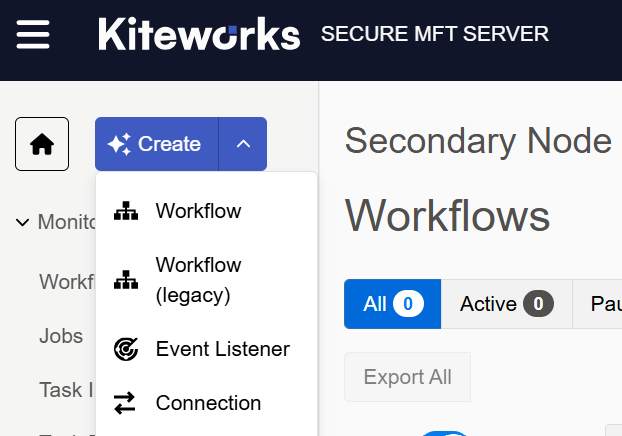
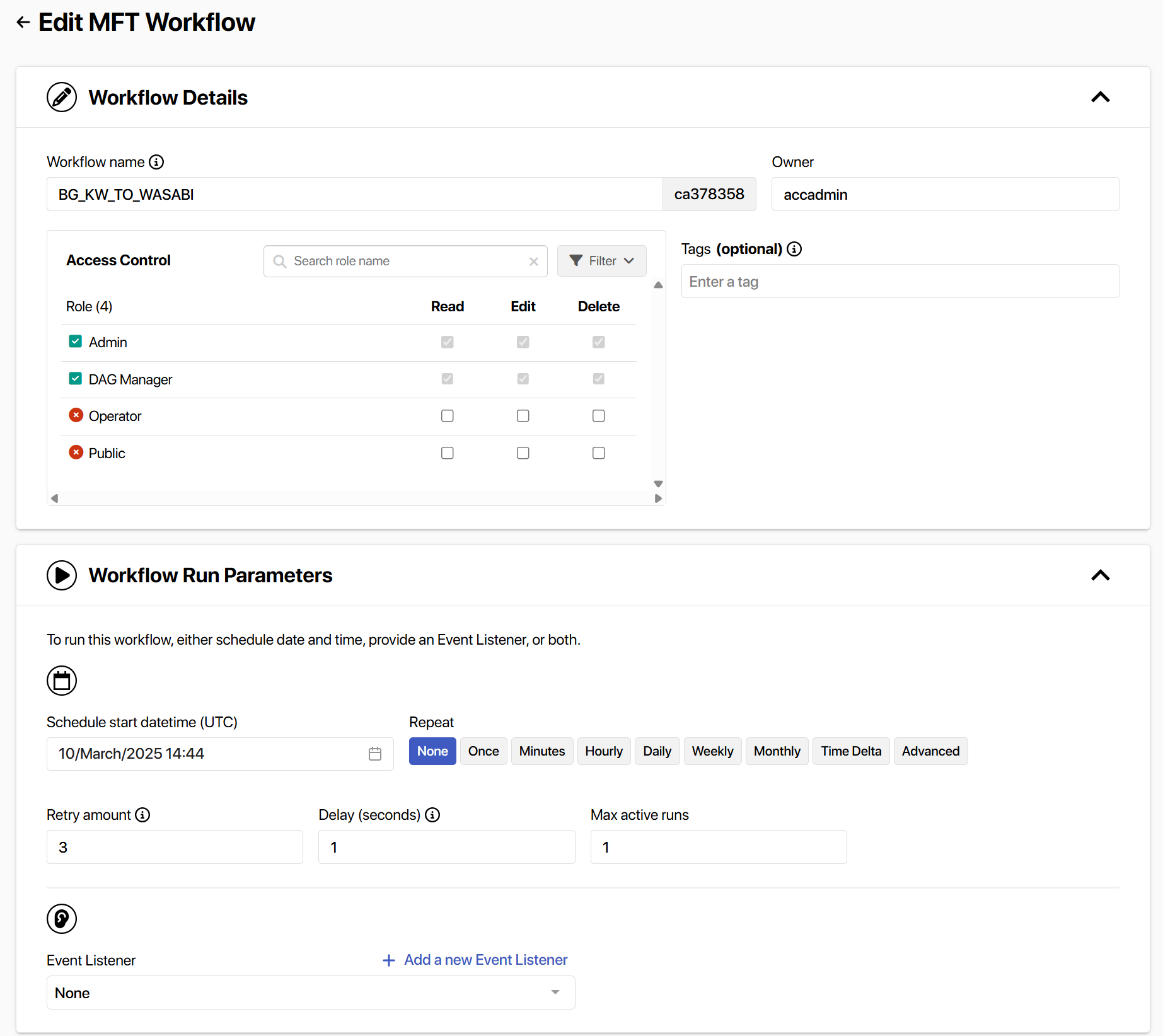
Give the Workflow a unique name. Specify the Run Parameters.
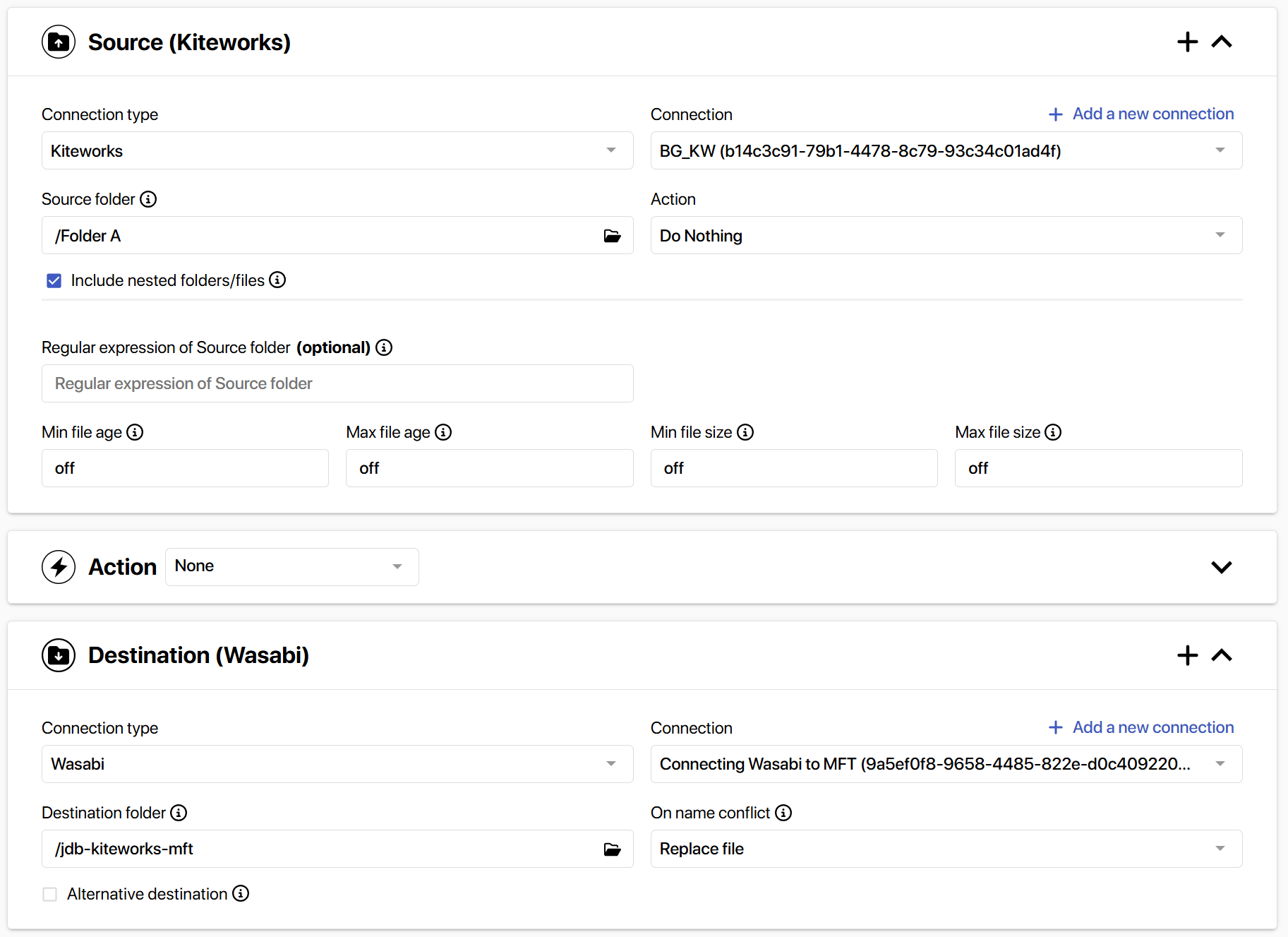
Choose your Source and Destination Connection Types and Connections from the drop-down list.
For the Wasabi destination, click Folder and select the bucket for the data.
Click Save. You will now see your Workflow listed.
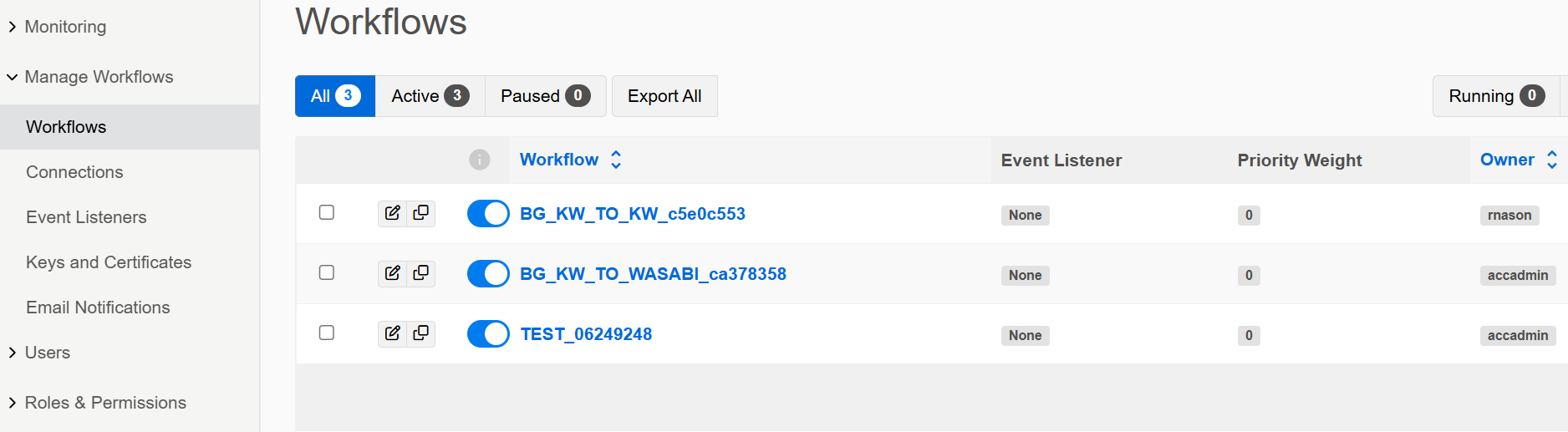
Run the MFT workflow to begin data transfers.
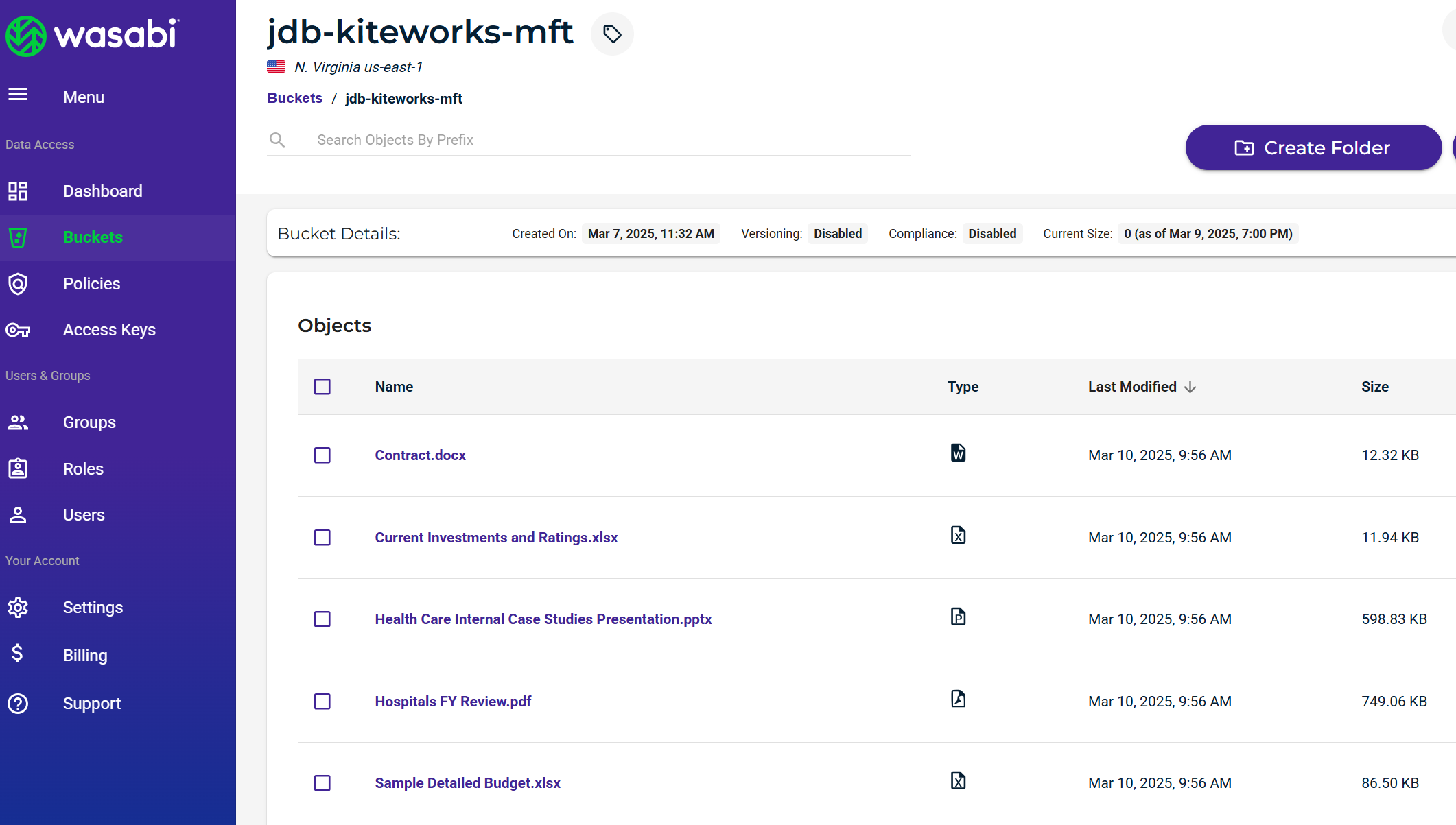
Log in to your Wasabi console and go to your bucket. You will then see the data listed there.