Kopia is an open-source backup tool designed for efficient data management and recovery. This software has been validated for use with Wasabi.
Requirements
Wasabi Hot Cloud Storage account
Wasabi Access/Secret Key (see Creating a User Account and Access Key)
Wasabi bucket (see Creating a bucket)
If using Object Locking Retention, be sure to create an Object Locked bucket
Be sure to configure a Bucket Lifecycle Policy to clean up expired objects
Kopia Installed on your system (For more information, refer to Download & Installation.)
Sample IAM Policies for Use With Kopia
For information about creating a policy and applying it to a sub-user, see:
Standard (non-Object-Locked) Bucket
The example IAM Policy below represents a minimum default permission set to use when setting up Kopia with standard buckets. Be sure to replace instances of BUCKET_NAME with the name of your actual bucket.
{
  "Version": "2012-10-17",
  "Statement": [
    {
      "Effect": "Allow",
      "Action": [
        "s3:PutObject",
        "s3:GetObject",
        "s3:DeleteObject"
      ],
      "Resource": "arn:aws:s3:::BUCKET_NAME/*"
    },
    {
      "Effect": "Allow",
      "Action": "s3:ListBucket",
      "Resource": "arn:aws:s3:::BUCKET_NAME"
    }
  ]
}
Compliance Object-Locked Bucket
The example IAM Policy below represents a minimum necessary permission set to use when setting up Kopia with compliance mode object-locked buckets. Be sure to replace instances of BUCKET_NAME with the name of your actual bucket.
{
  "Version": "2012-10-17",
  "Statement": [
    {
      "Effect": "Allow",
      "Action": [
        "s3:PutObject",
        "s3:GetObject",
        "s3:DeleteObject",
        "s3:PutObjectRetention",
        "s3:GetObjectRetention",
        "s3:PutObjectLegalHold",
        "s3:GetObjectLegalHold"
      ],
      "Resource": "arn:aws:s3:::BUCKET_NAME/*"
    },
    {
      "Effect": "Allow",
      "Action": [
        "s3:ListBucket",
        "s3:GetBucketVersioning",
        "s3:GetBucketObjectLockConfiguration"
      ],
      "Resource": "arn:aws:s3:::BUCKET_NAME"
    }
  ]
}
Configuring Wasabi Bucket Lifecycle Rules
Be sure to note that Kopia will not automatically delete snapshots that have fallen out of the retention window, instead marking old snapshots and object versions with a DELETE marker. For more information, refer to Ransomware Protection.
Users must create a bucket lifecycle policy inside the Wasabi Console to clean up these expired objects. For more information, see Lifecycle Settings: Creating a Rule.
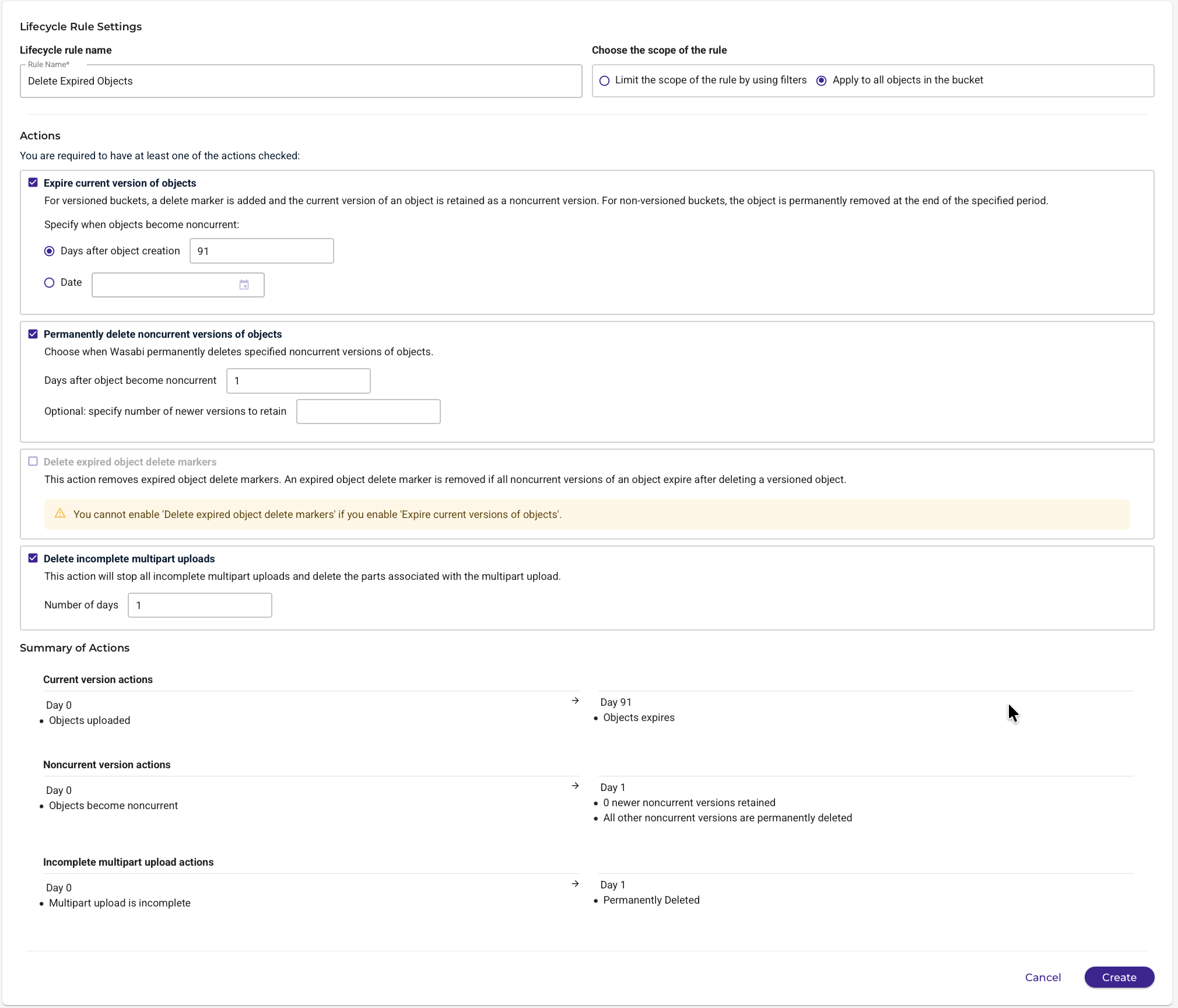
Below is an example policy configured for a bucket with a 90-day Object Lock Retention Time. The example policy will:
Be applied to all objects in the bucket.
Cause objects to expire at the end of 91 days.
Delete objects one day after that.
Delete incomplete multipart uploads (if multipart uploads have been used to upload any snapshots).
Configuring Kopia GUI With Wasabi (Standard Bucket)
Launch the Kopia Application.
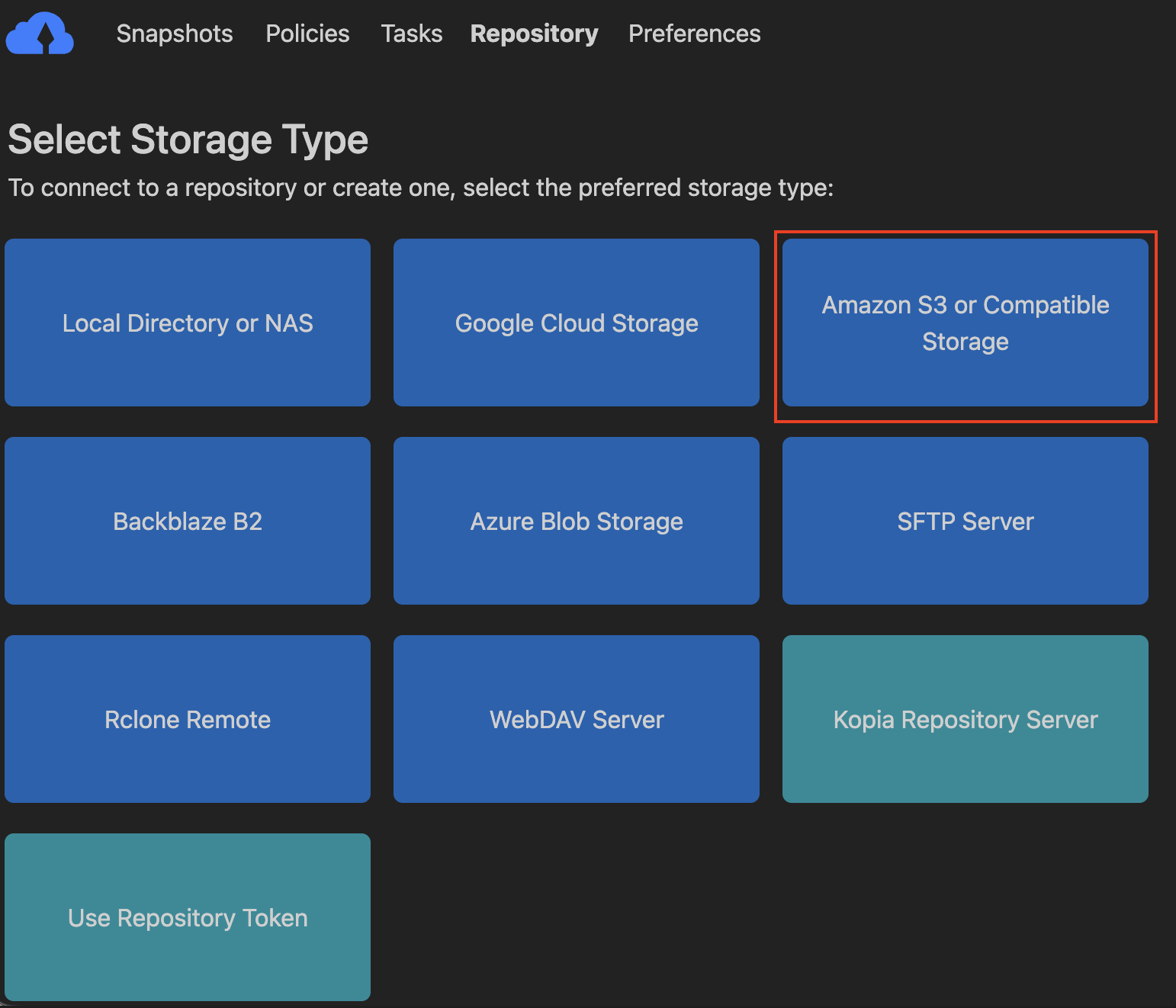
Click Amazon S3 or Compatible Storage.
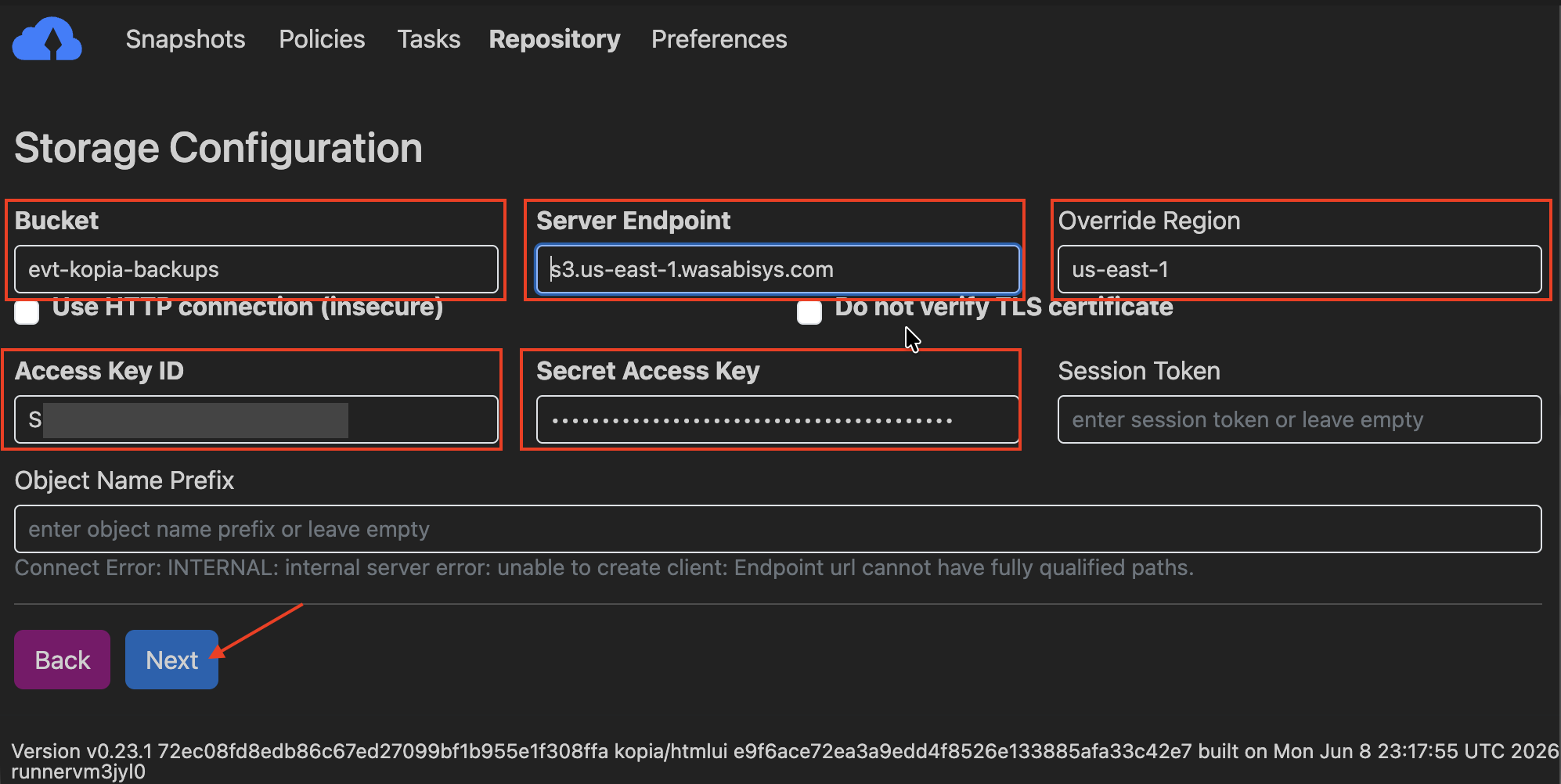
Input the following information.
Bucket—Your Wasabi Bucket Name
Server Endpoint—Your Wasabi Service URL
Override Region—The Region Code for your Wasabi Endpoint
Access Key ID—Your Wasabi Access Key
Secret Access Key—Your Wasabi Secret Key
Click Next.
This configuration example uses Wasabi's us-east-1 storage region. Use the region where your bucket is located. For a list of regions, see Service URLs for Wasabi’s Storage Regions.
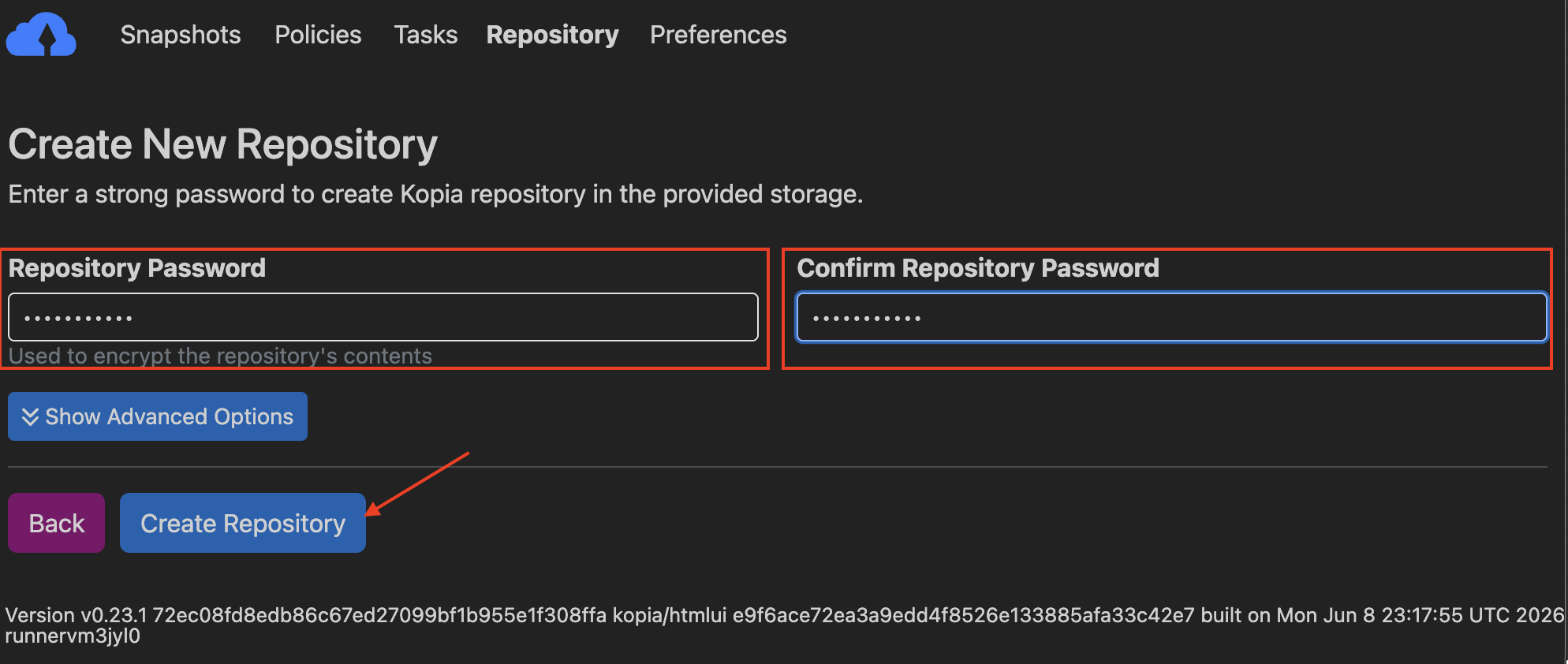
To create a repository, enter a Repository Password.
Re-enter the password to confirm.
Click Create Repository.
Object Locking With Kopia
Configuring Object Locking in Kopia requires the use of the command-line application to make an Object Locked repository. Currently, this cannot be set up within KopiaUI. However, you can view/restore from the repository in KopiaUI after it has been created.
This configuration example uses Wasabi's us-east-1 storage region. Use the region in which your bucket is located. For a list of regions, see Service URLs for Wasabi's Storage Regions.
Creating an Object Locked Kopia Repository
Be sure to:
Replace BUCKET_NAME with your actual bucket. Replace ACCESS_KEY & SECRET_KEY with your actual access and secret keys.
Set the endpoint and region with the appropriate region URL and region code for the region in which your bucket is located.
Set the retention-period to a value (in days) to set the duration of the immutability.
kopia repository create s3 \
  --bucket="BUCKET_NAME" \
  --endpoint="s3.us-east-1.wasabisys.com" \
  --region="us-east-1" \
  --access-key="ACCESS_KEY" \
  --secret-access-key="SECRET_KEY" \
  --retention-mode="COMPLIANCE" \
  --retention-period="90d" \
  --description="Wasabi Object Locked Backup"
Configuring Kopia to Extend Object Locks During Maintenance
You must use the setting below to extend the object lock on snapshots to retain in Kopia. This extension will be performed during maintenance tasks.
kopia maintenance set --extend-object-locks trueBacking Up Data With Kopia to Wasabi
Launch the Kopia application.
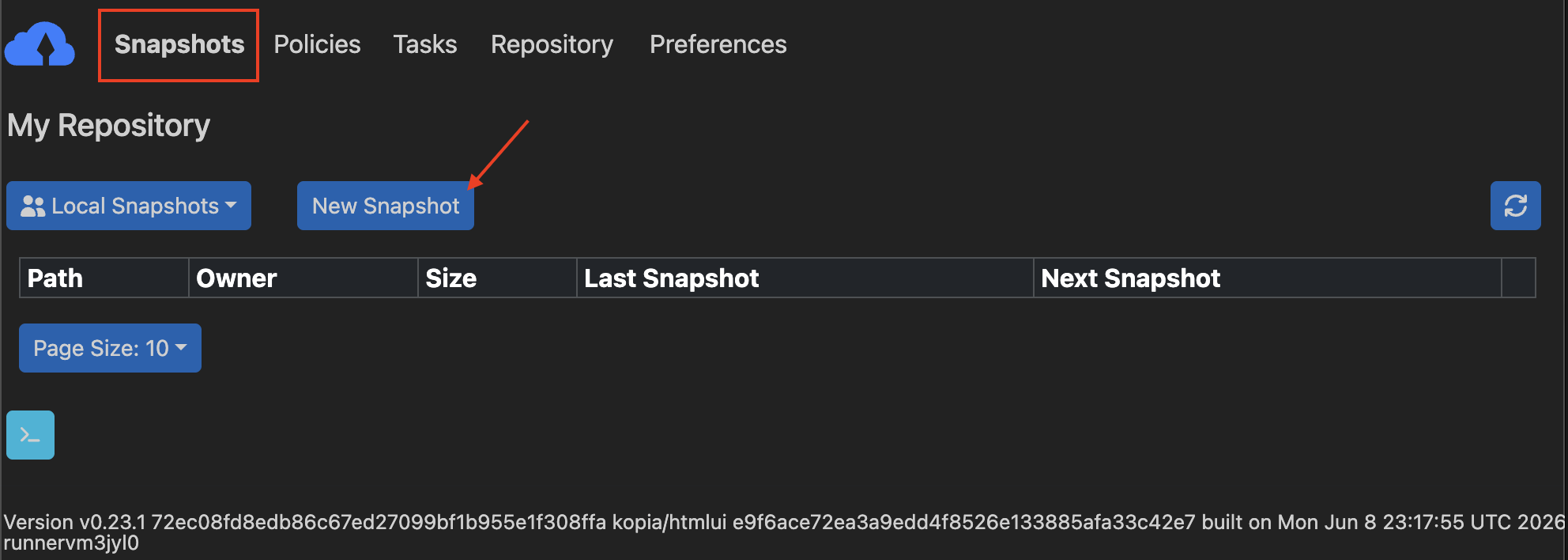
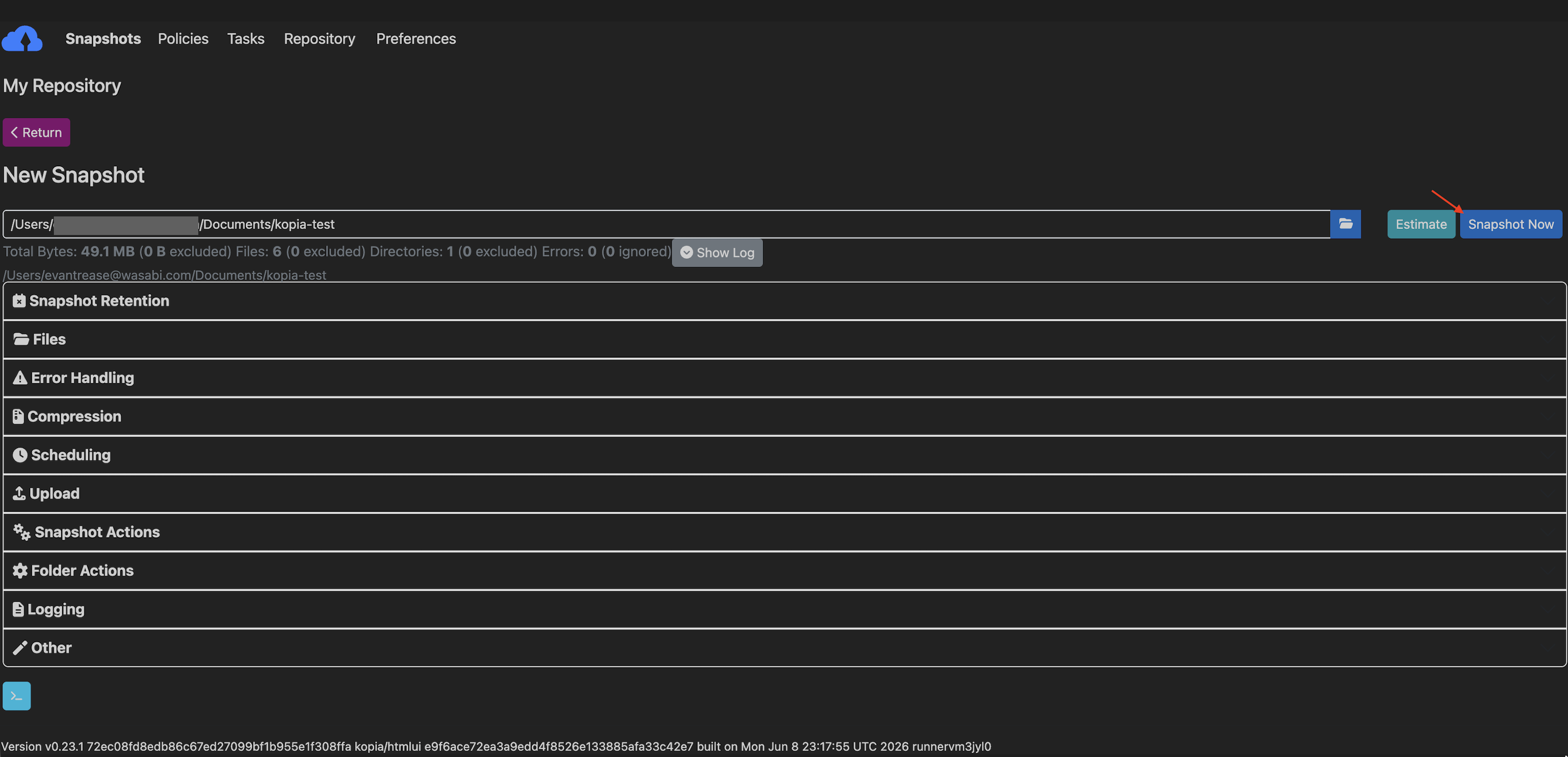
On the Snapshots tab, click New Snapshot.
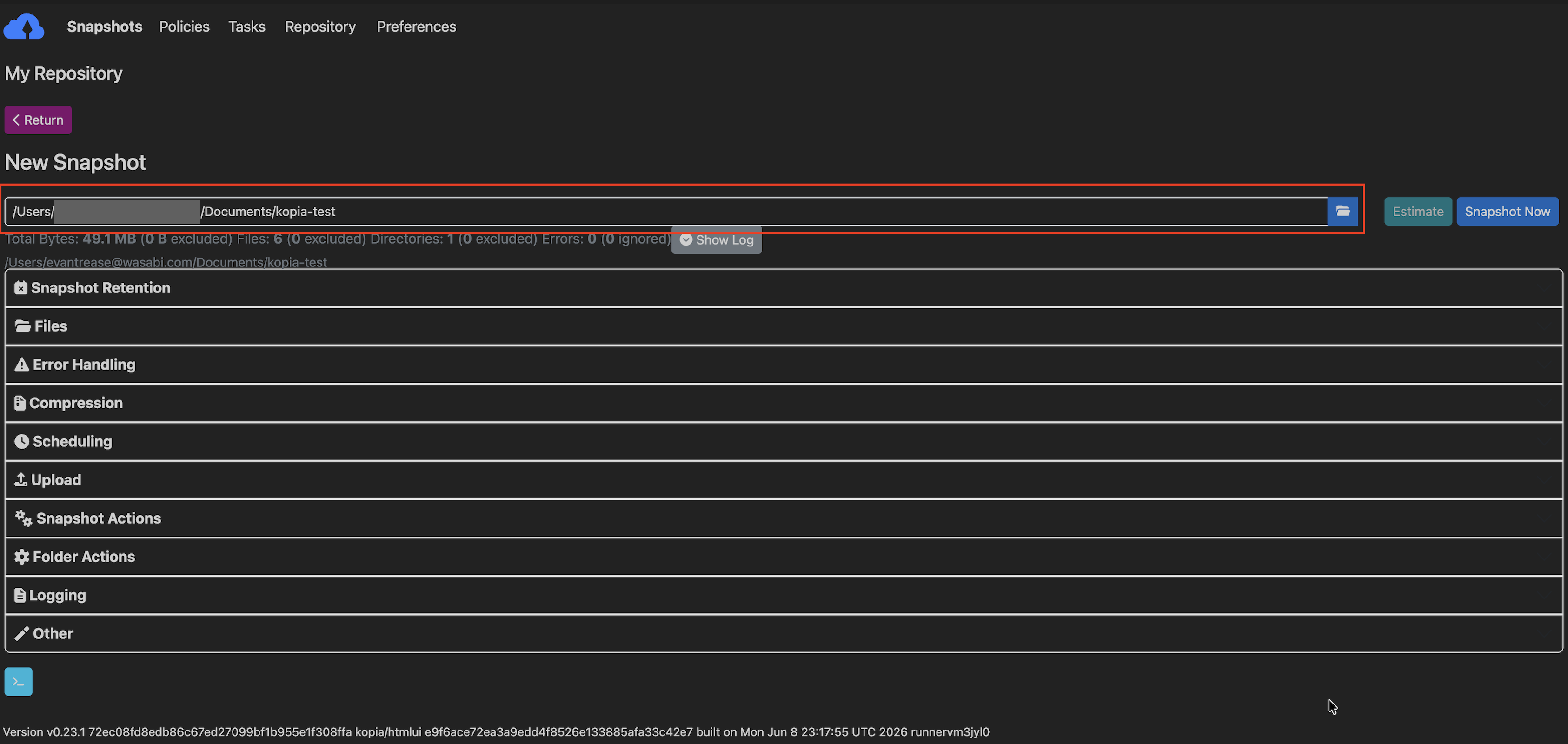
You have the option to either input your Snapshot Directory Path or use the explorer to locate the Directory.
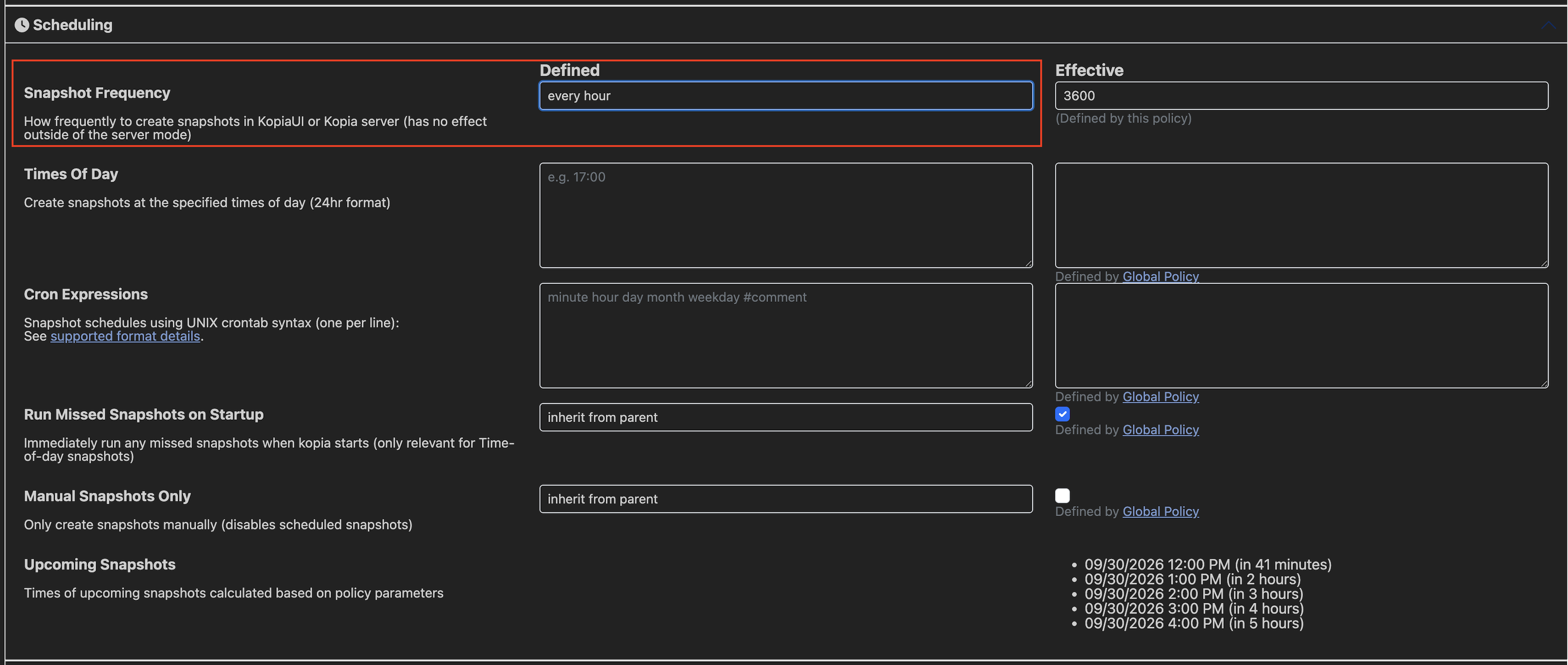
Optionally, configure a schedule to regularly back up the data in your chosen Snapshot Directory Path.
To start the backup, click Snapshot Now.
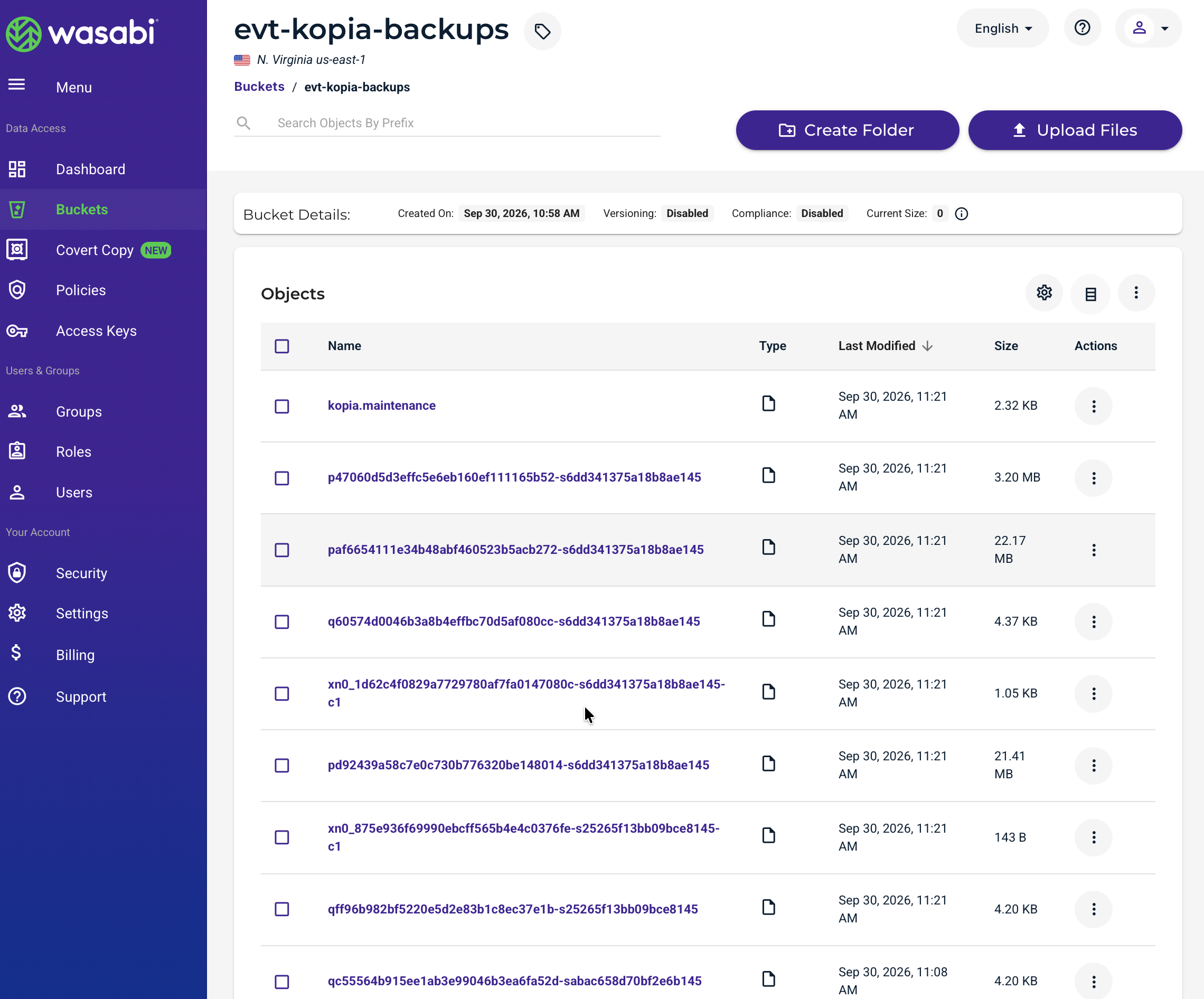
Your backups are stored in a compressed and encrypted format in the Wasabi bucket.
Restoring Data From Wasabi With Kopia
The data restoration process is handled by your specific backup software application. As there are many, potential variables that will affect your unique environment, Wasabi strongly recommends that you seek the guidance of your backup software's technical support team in the event that you encounter difficulty or have application-specific inquiries.
Launch the Kopia application.
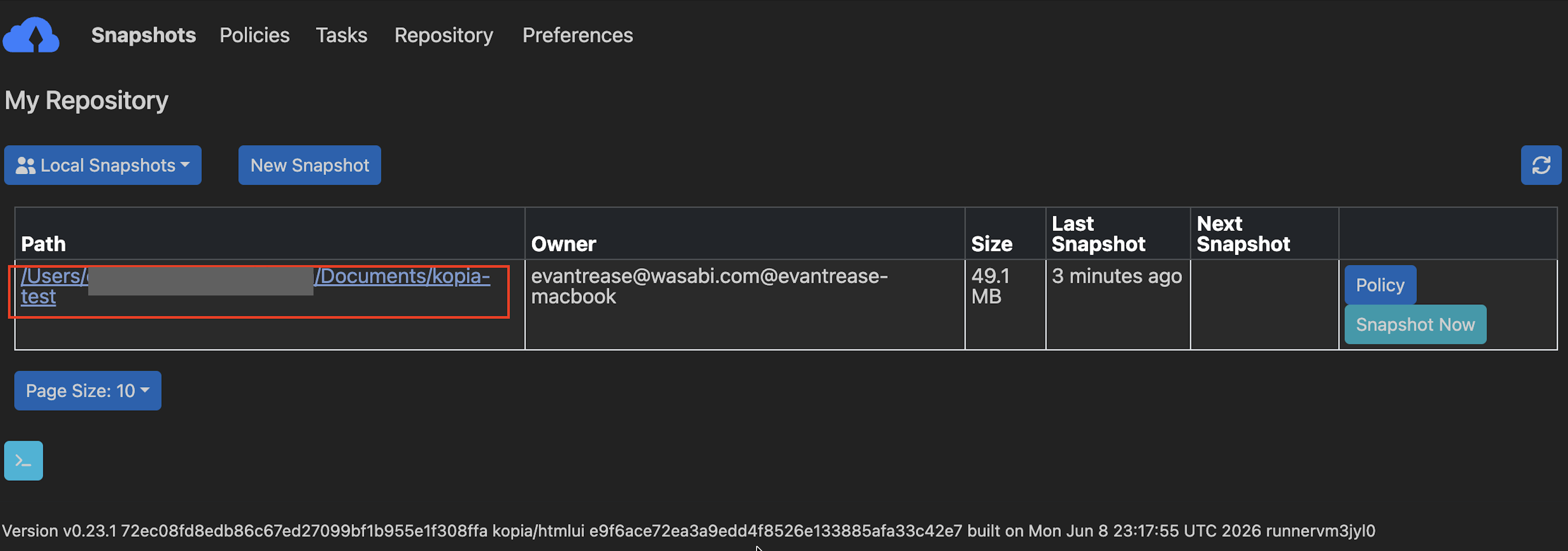
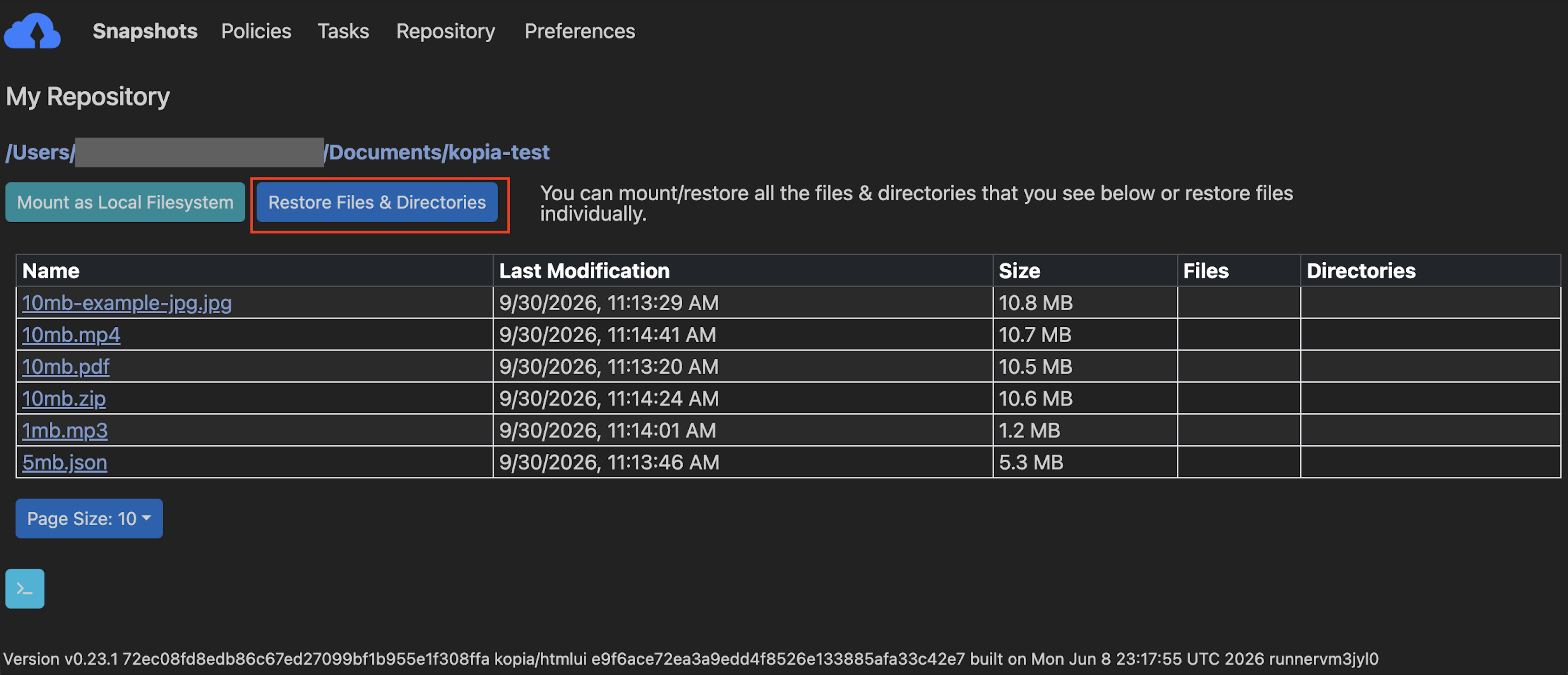
On the Snapshots tab, click the Snapshot Directory Path.
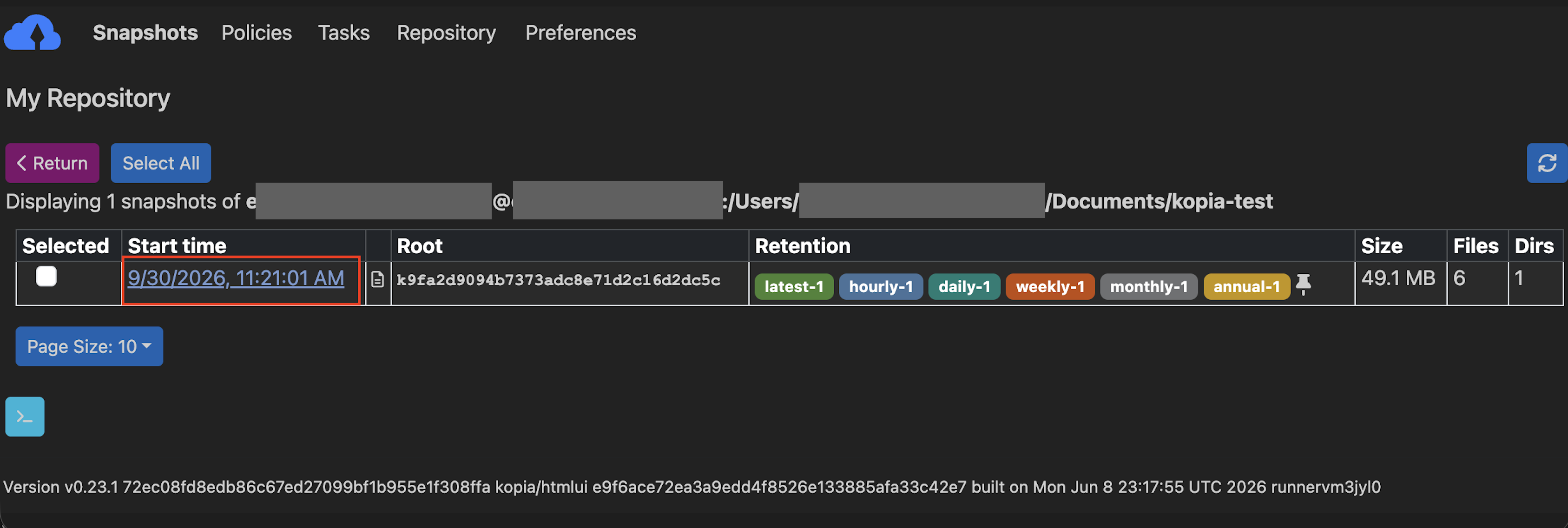
Click the Start time of your restore point.
To restore a single file, select the name of the file.
Optionally, to restore multiple files, click Restore Files & Directories.
Input the Directory Path in which to restore.
Select optional features.
Click Begin Restore.
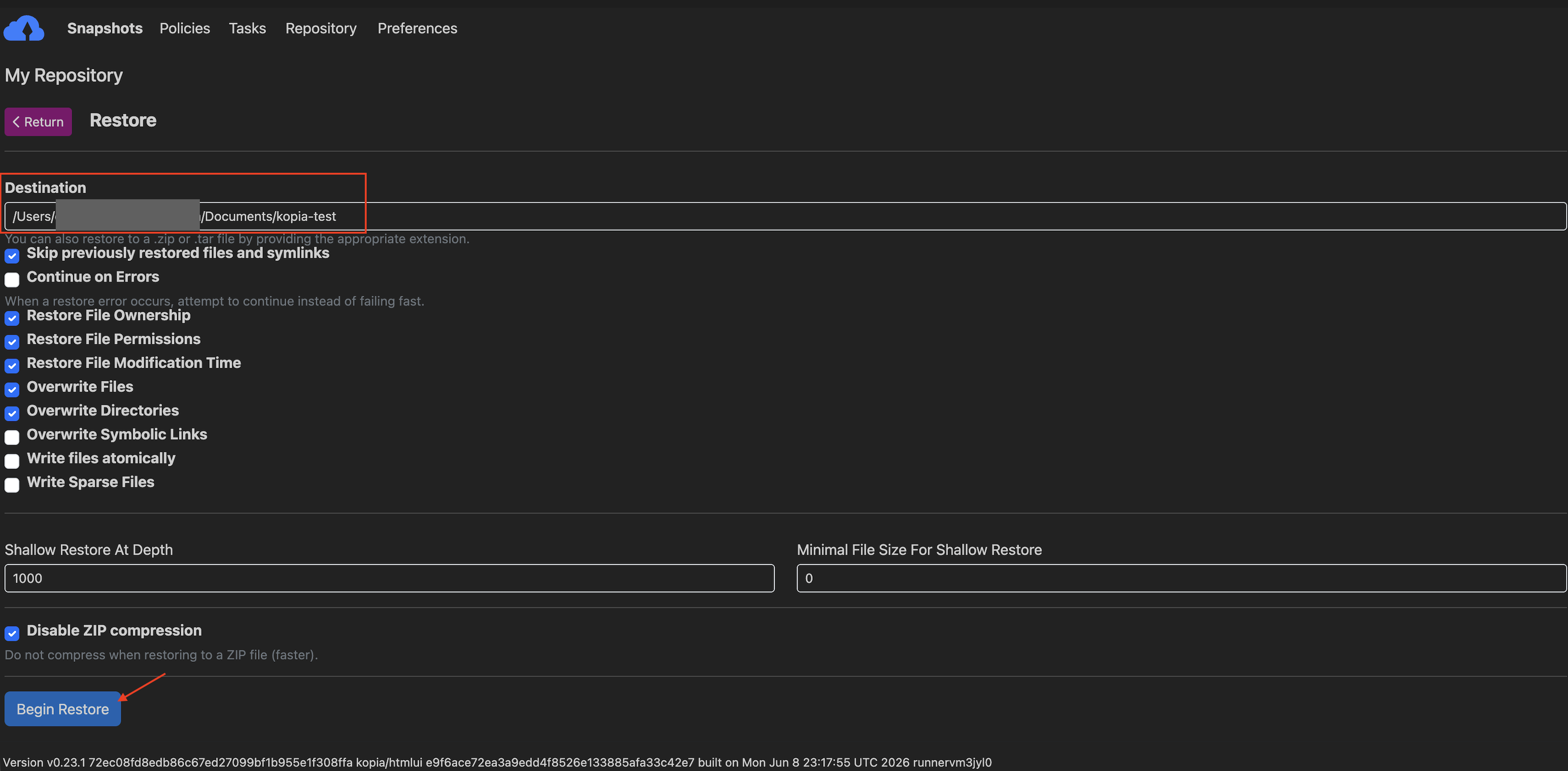
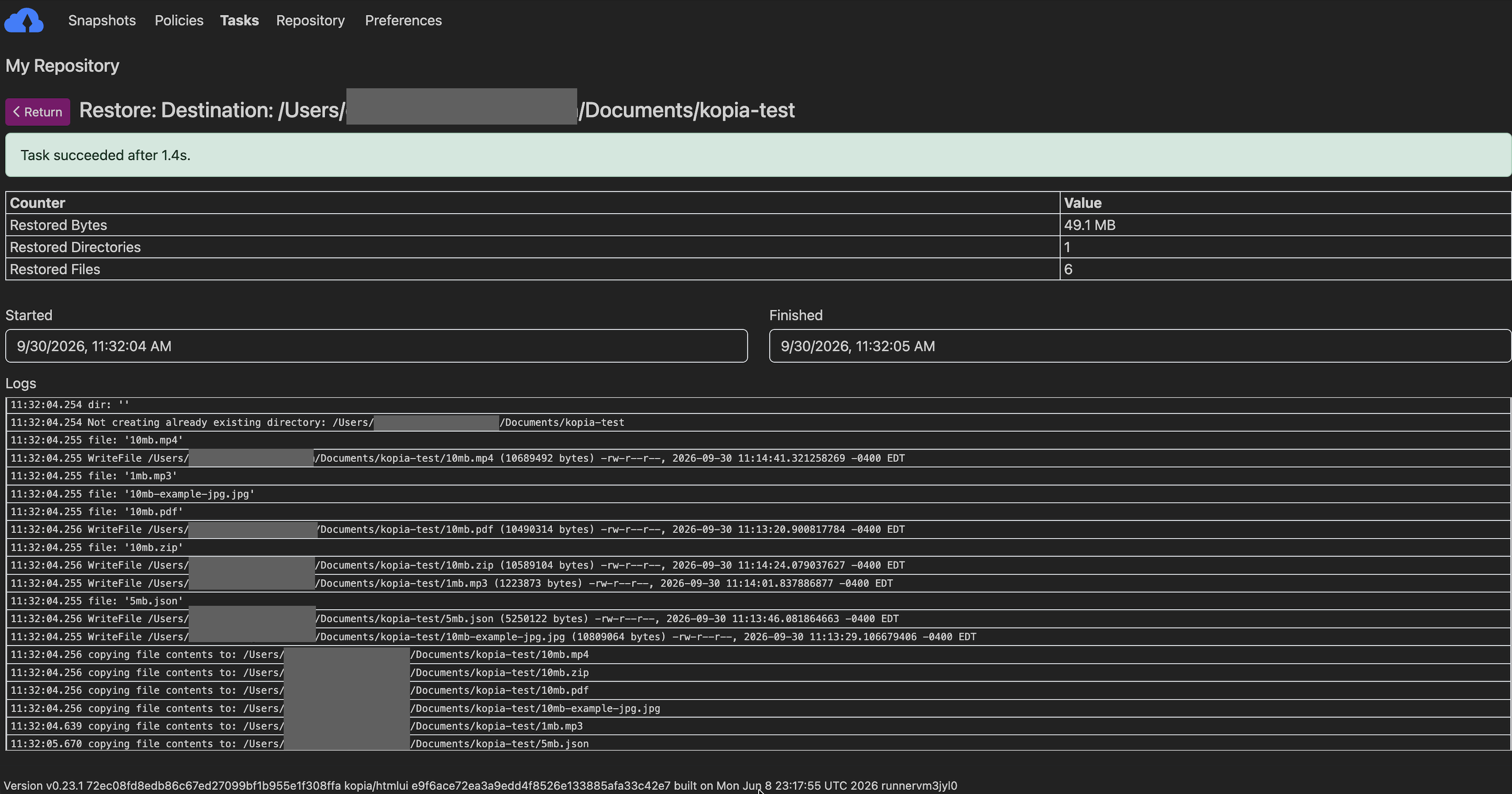
Kopia will begin the restore process and report Task succeeded when it has completed.