Purchasing During Sign-Up

Prev Next

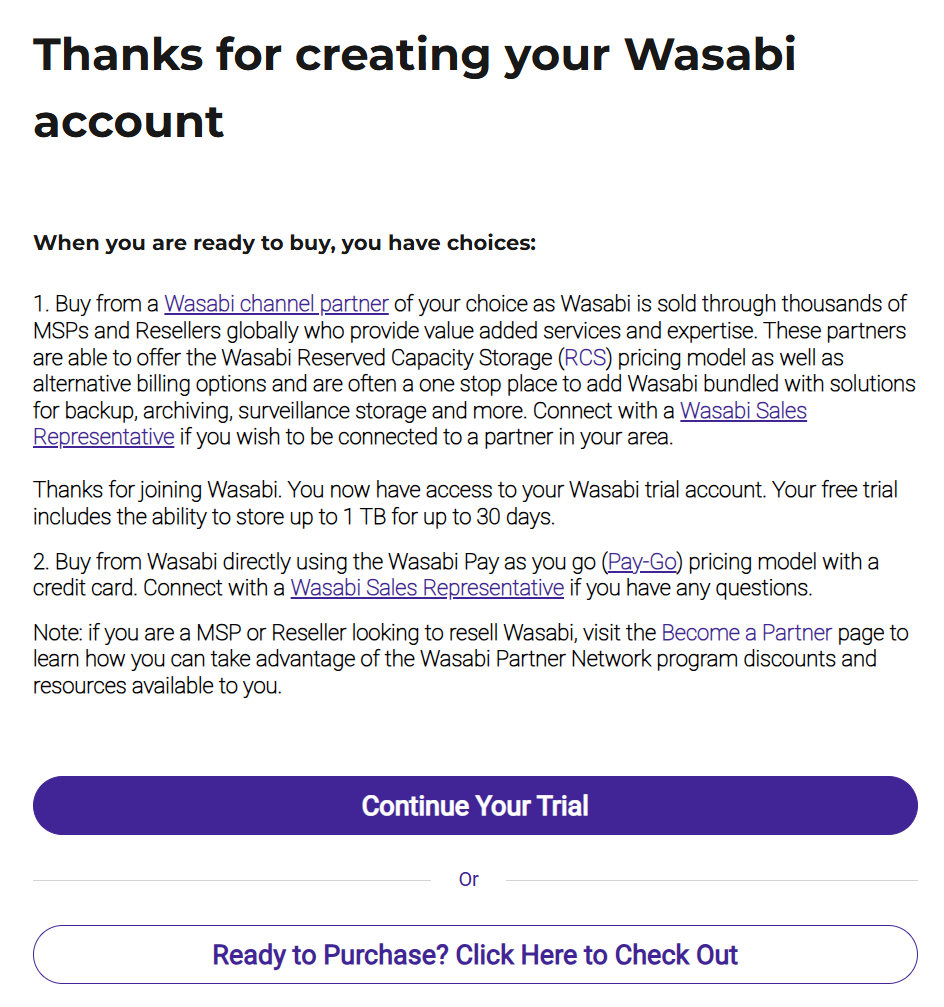
After you sign up for a trial, a message thanks you for creating your Wasabi account and explains your purchasing choices when you are ready to buy.

  • Click Continue Your Trial and then Sign In.

  • Click Ready to Purchase? Click Here to Check Out if you are ready to buy. This enables you to purchase during sign-up (as described in this article) and set up billing details before you sign in. (Note that you can purchase Wasabi at any time later, as described in Upgrading to a Paid Plan.)

To purchase Wasabi during sign-up:

  1. After you click Ready to Purchase? Click Here to Check Out, the Upgrade to a Paid Account screen is displayed:

  2. Enter your billing (credit or debit card) details. Note that all fields are required.

  3. Click Add Payment Method.

  4. A message for your consent to auto-renew is displayed. After reviewing the auto-renew information, click to check the consent box.

  5. Click Upgrade.

  6. A message thanking you for upgrading is displayed. Review this message and click Acknowledge.

  7. The Tax Registration screen is displayed if you are registering from any country other than the United States or Japan. Select the appropriate option and click Save.

    If you indicate that you are registered for VAT.CST or other indirect tax, enter the Country of Registration and Tax Registration Number. For example:

    Click Save.

  8. The Tax Exemption screen is displayed if you are registering from the United States or Canada. Select the appropriate option and click Save.

    If you indicate that your organization is tax exempt, upload your exemption certificate file:

    Click Save.

  9. You can add premium support. Click your option.

The Billing portal is displayed, where you can review your billing information. For example:

To go to the main Wasabi Management Console, click Back to Console in the upper left of this screen.