QNAP Hybrid Backup Sync 3 (HBS 3) has been validated for use with Wasabi. For information on how HBS 3 works with Wasabi, refer to QNAP.
HBS 3 runs on various QNAP NAS platforms, including the QNAP AI NAS.
Follow the steps below to configure Wasabi as a backup destination and restore data from Wasabi.
The data restoration process is handled by your specific backup software application. As many variables can affect your unique environment, Wasabi strongly recommends that you seek guidance from your backup software’s technical support team if you encounter difficulties or have application-specific inquiries.
Requirements
Active Wasabi Hot Cloud Storage account (see Create a Wasabi Account).
Wasabi bucket. (Wasabi recommends that you enable Object Lock on your bucket so your data is immutable.) For more information, review Working With Buckets and Objects. This guide covers how to create the bucket directly in HBS 3.
Access Key and Secret Key. For more information, review Creating a User Account and Access Key.
QNAP NAS with HBS 3 Hybrid Backup Sync installed and licensed. (This solution was tested with HBS 3 version 26.3.0.226 and QuTScloud version c5.2.4.3041.)
Access to the Wasabi Console.
Configuring a Wasabi Storage Space
Before creating a backup job, connect your Wasabi account to HBS 3 by adding it as a Storage Space. A Storage Space stores your Wasabi credentials and can be reused across multiple backup jobs.
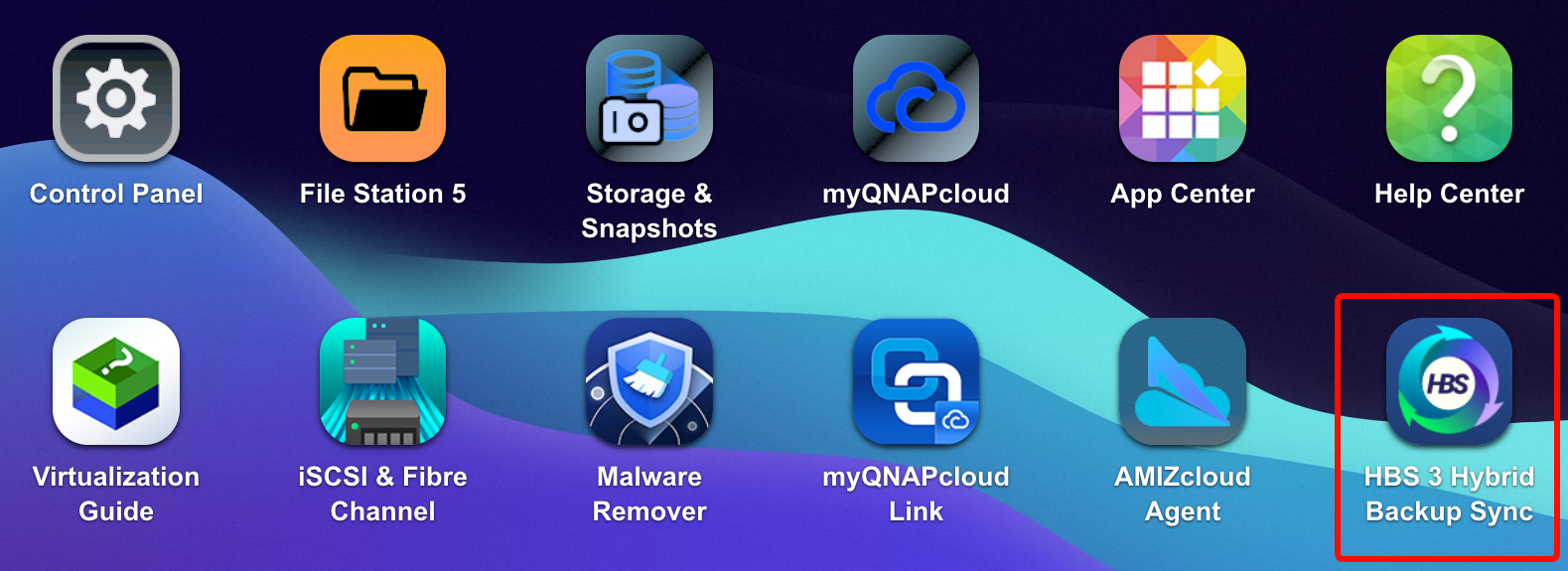
Open HBS 3 Hybrid Backup Sync from the QNAP NAS console.
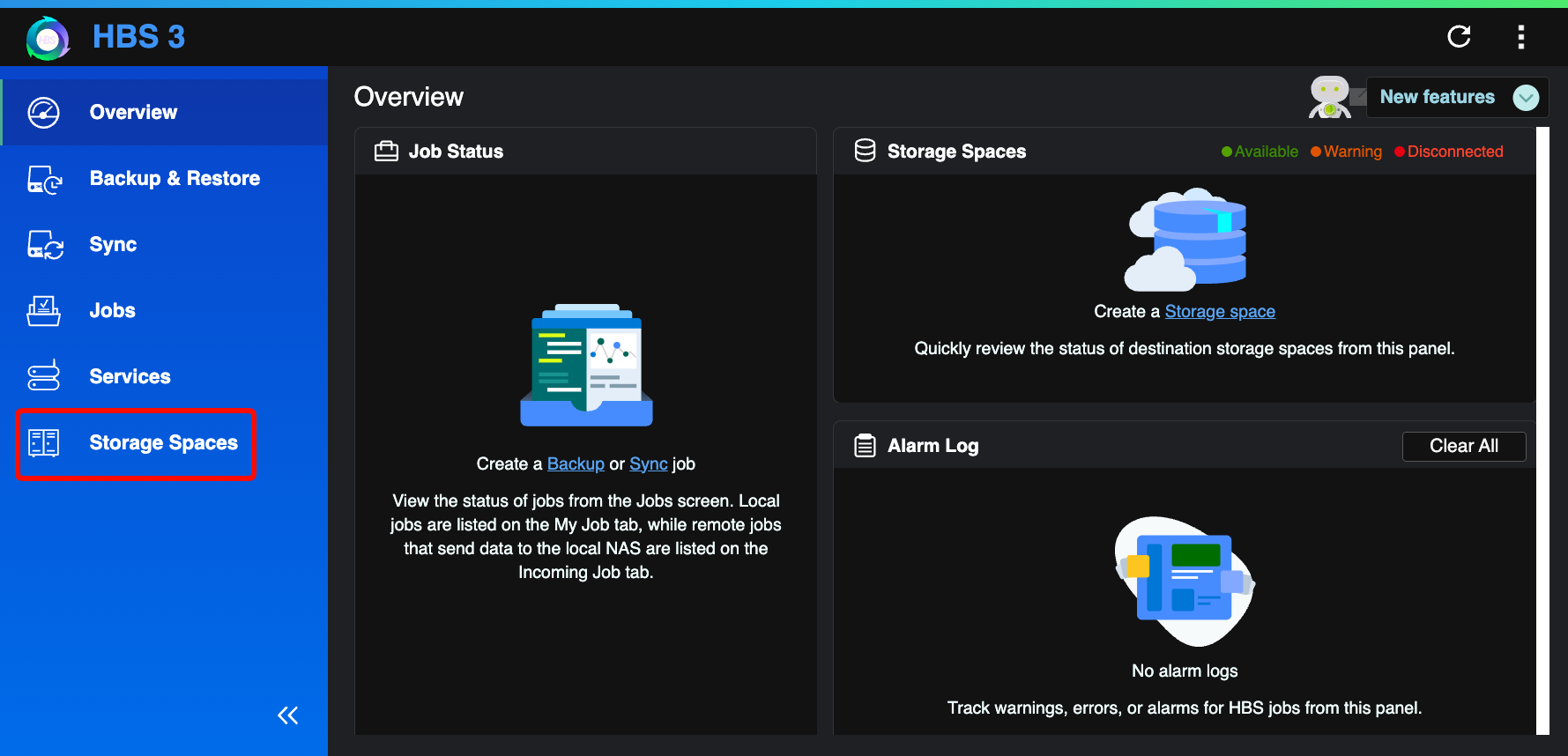
Click Storage Spaces.
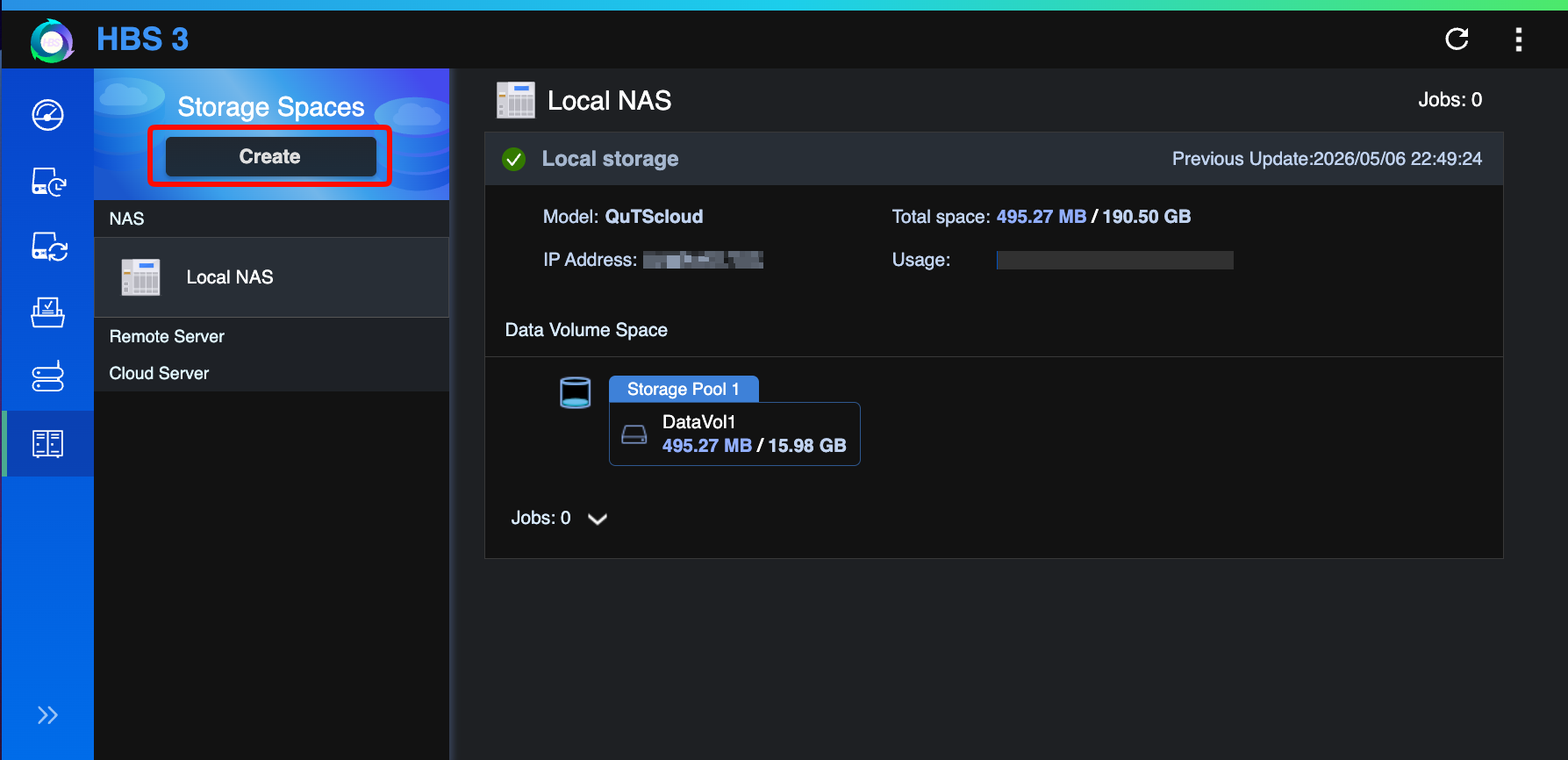
Click Create.
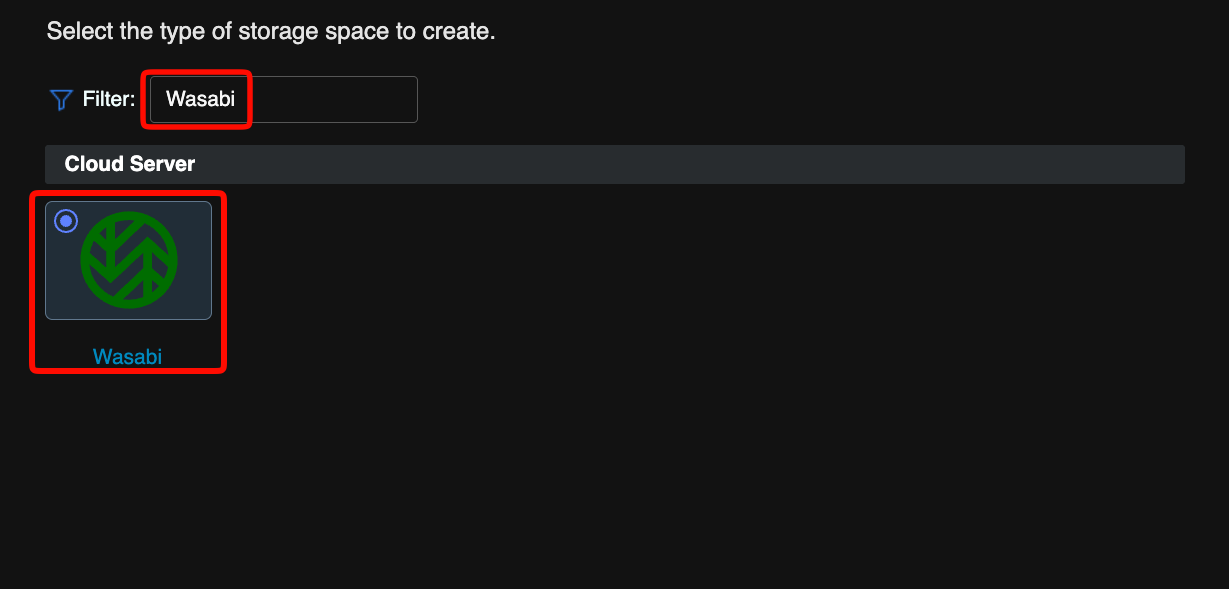
In the Filter field, enter Wasabi.
Select the Wasabi tile.
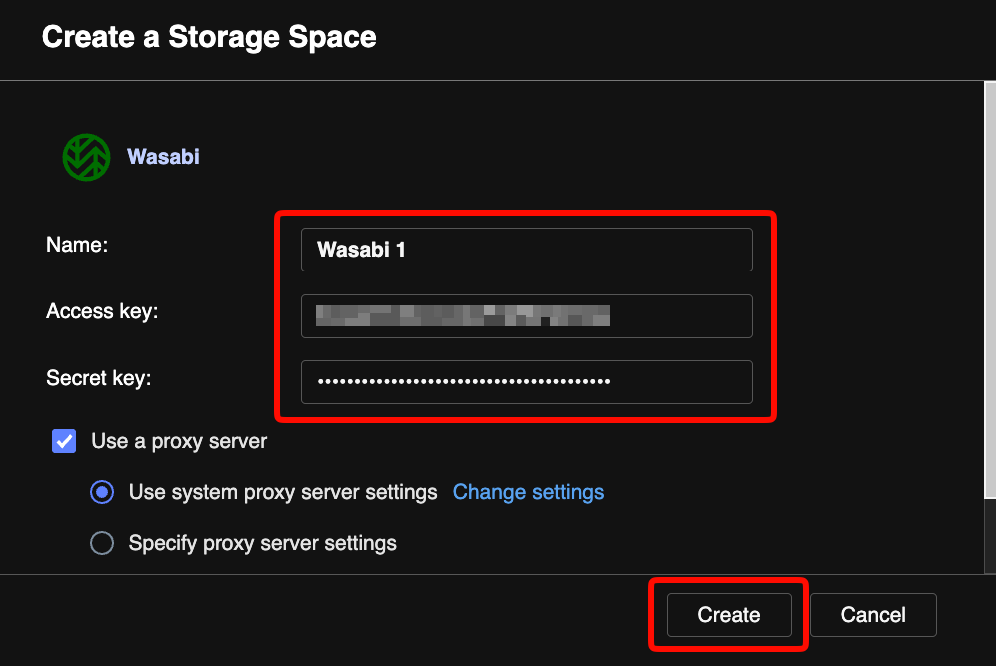
In the Create a Storage Space dialog, enter the following information. Click Create.
Name—A friendly name for this storage space (for example, Wasabi 1).
Access key—Your Wasabi Access Key.
Secret key—Your Wasabi Secret Key.
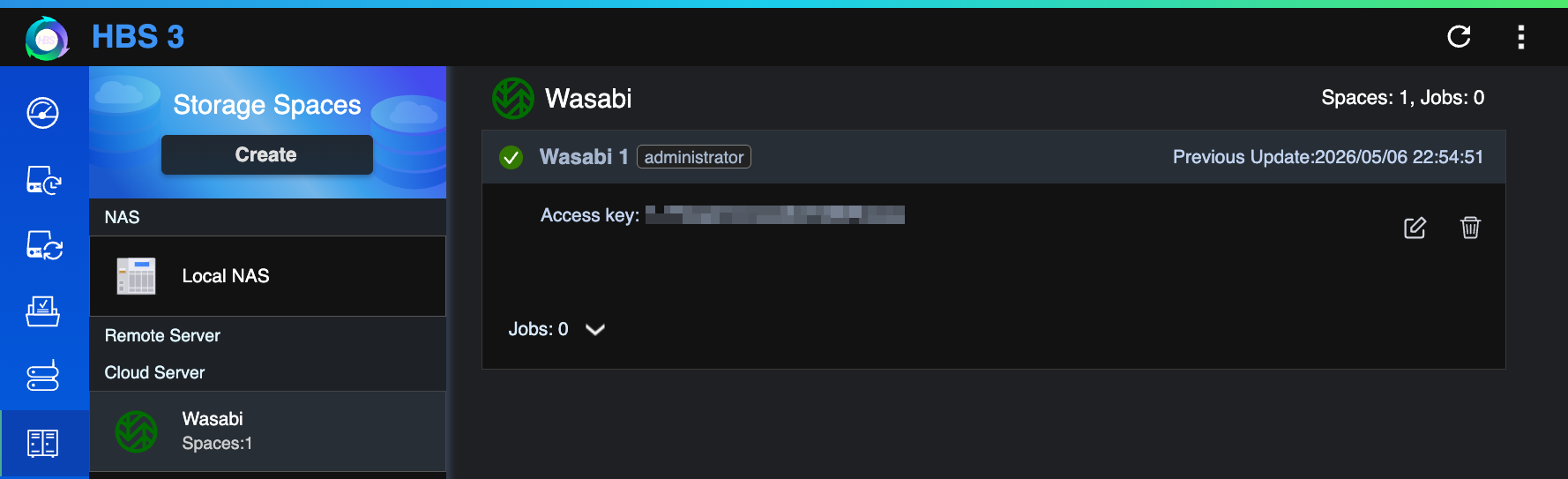
The new storage space appears in the Storage Spaces list with a green checkmark, confirming a successful connection to Wasabi.
Backing Up to Wasabi
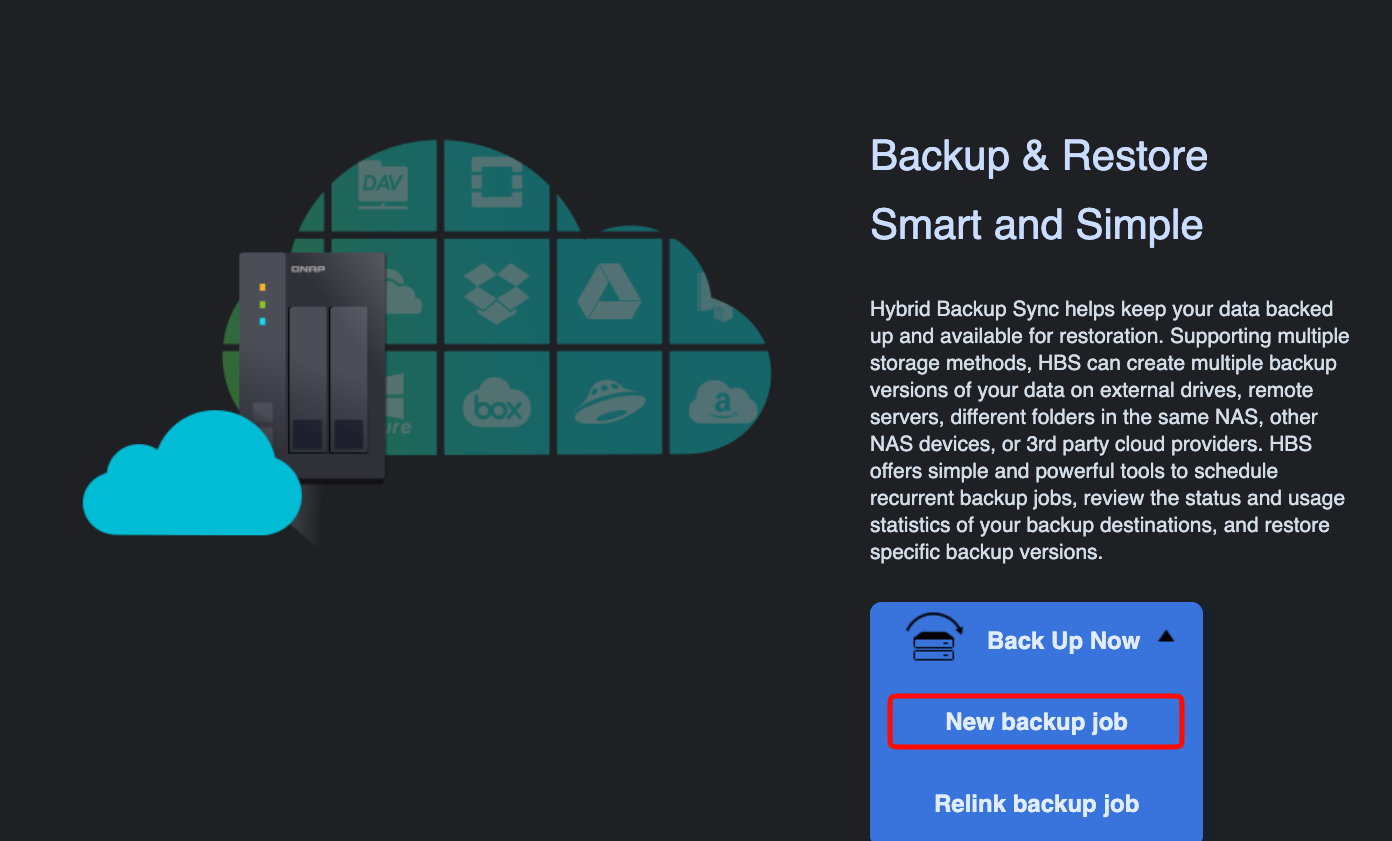
Click Backup & Restore.
Click Back Up Now drop-down arrow.
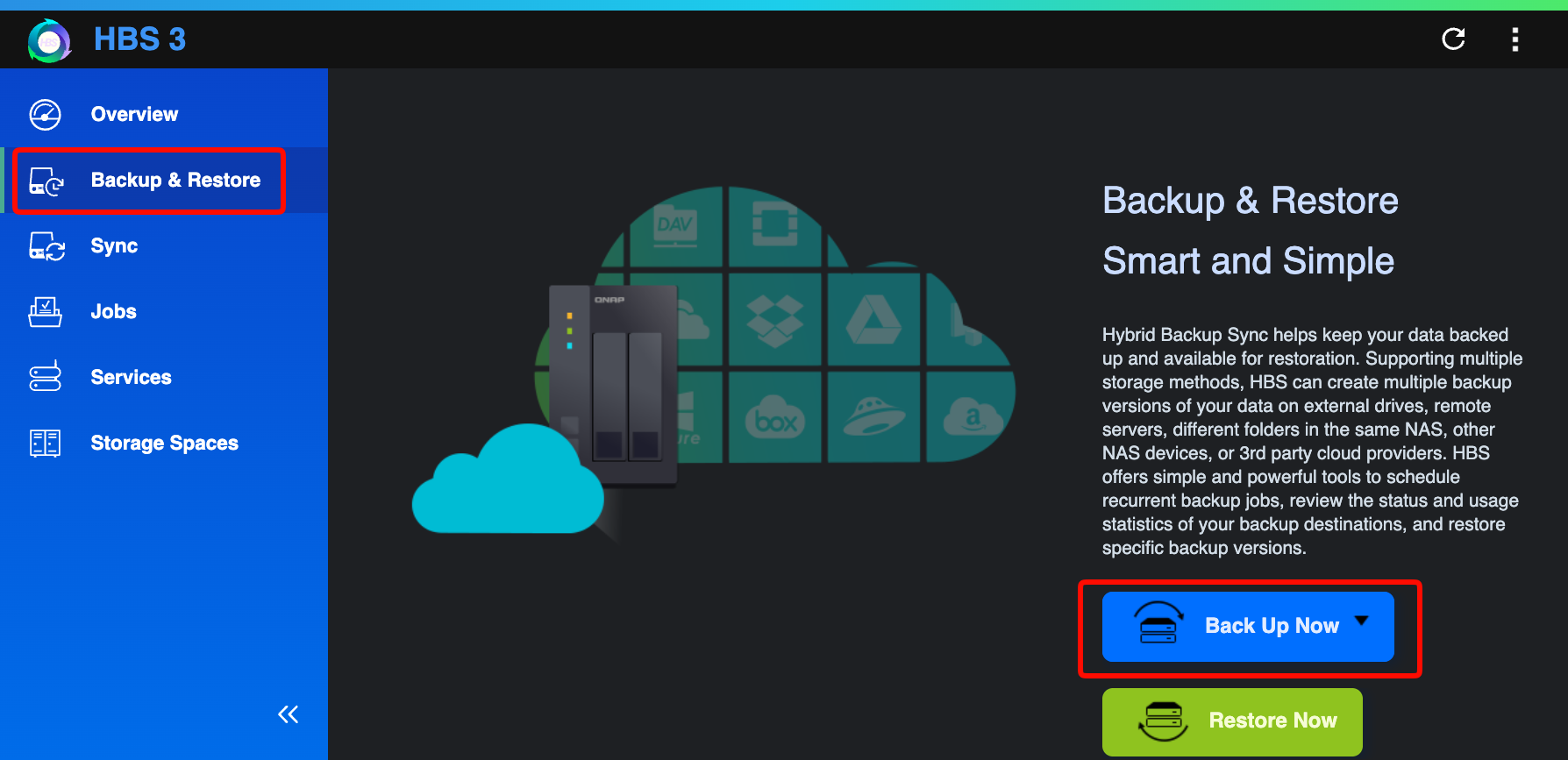
Select New backup job.
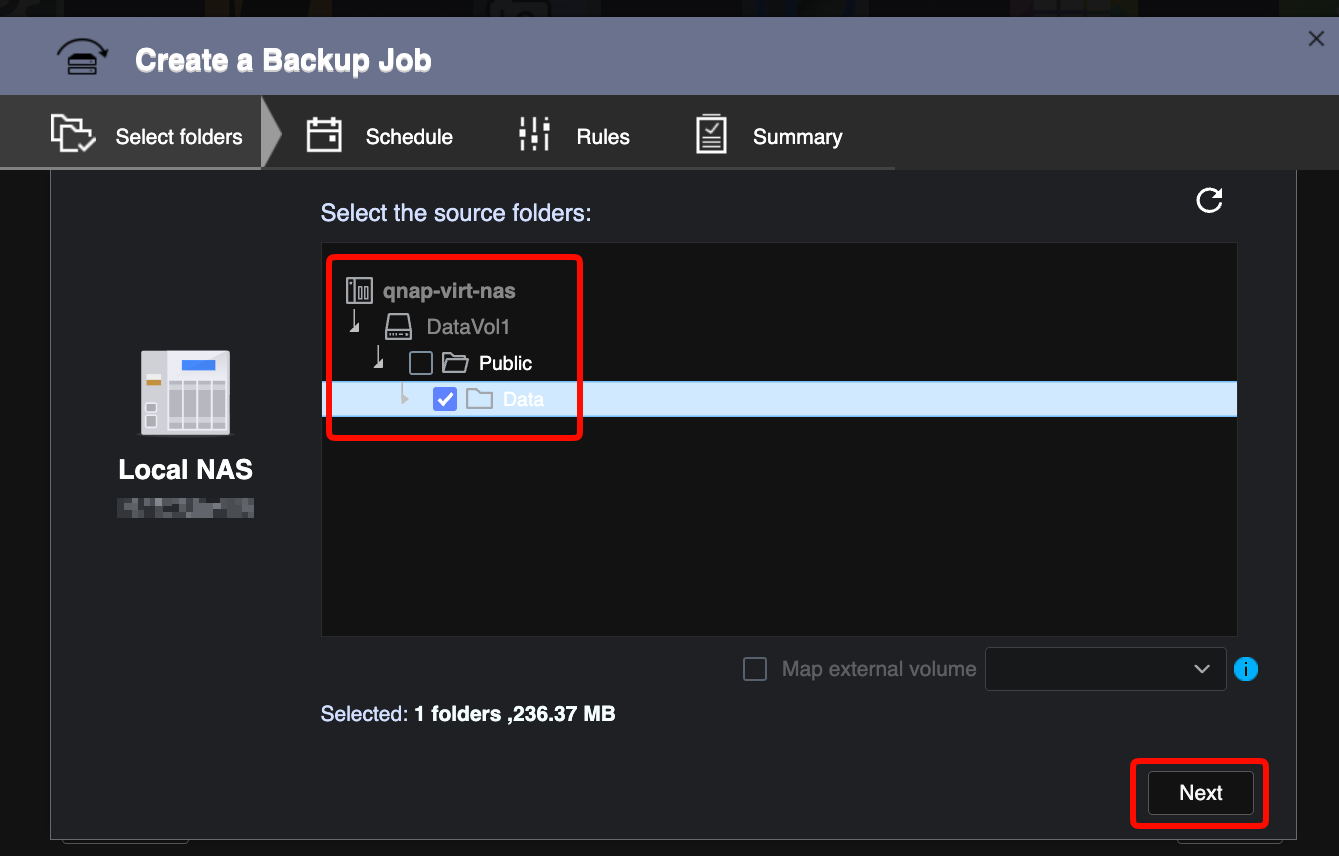
In the Create a Backup Job wizard, under Select the source folders, expand your NAS in the folder tree and check the folders you want to back up. Click Next.
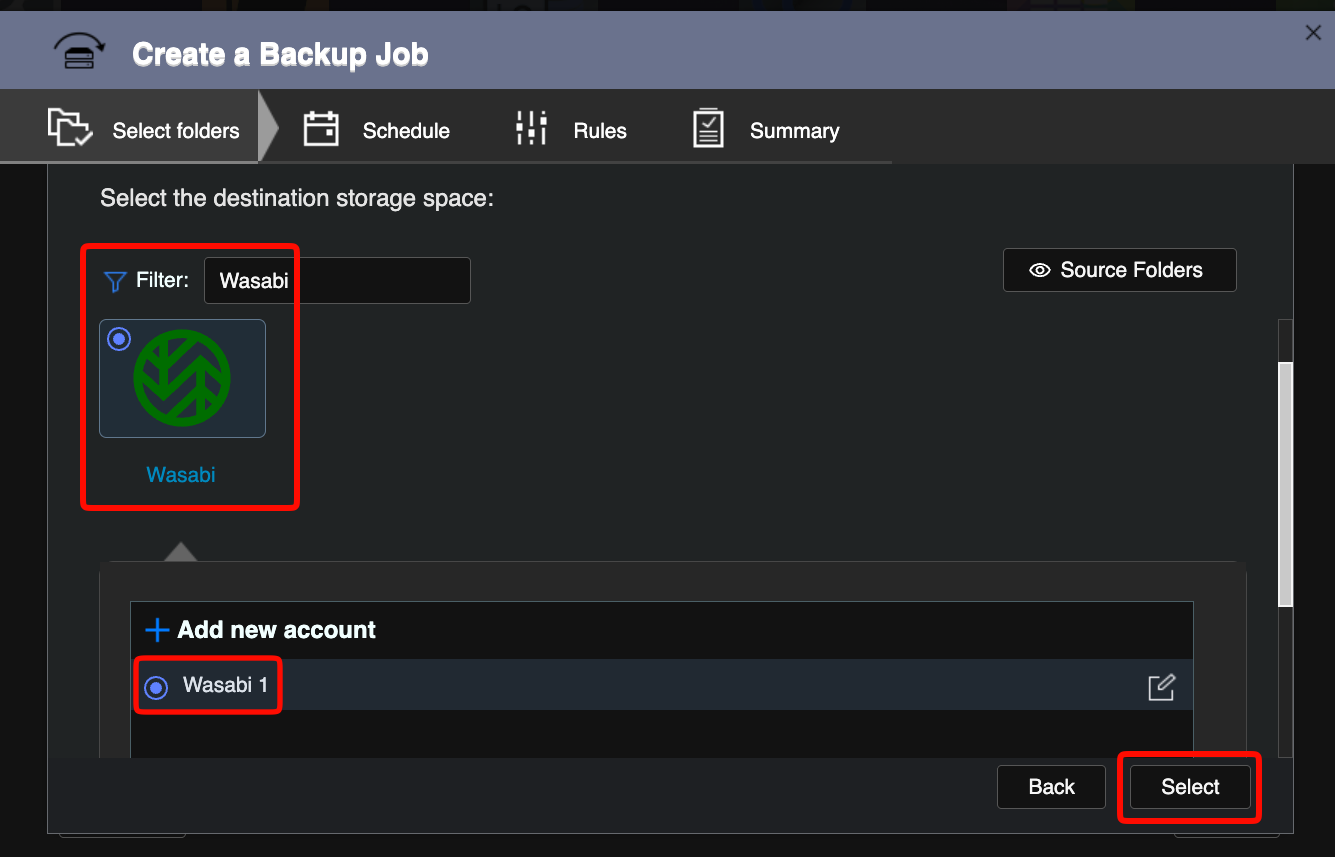
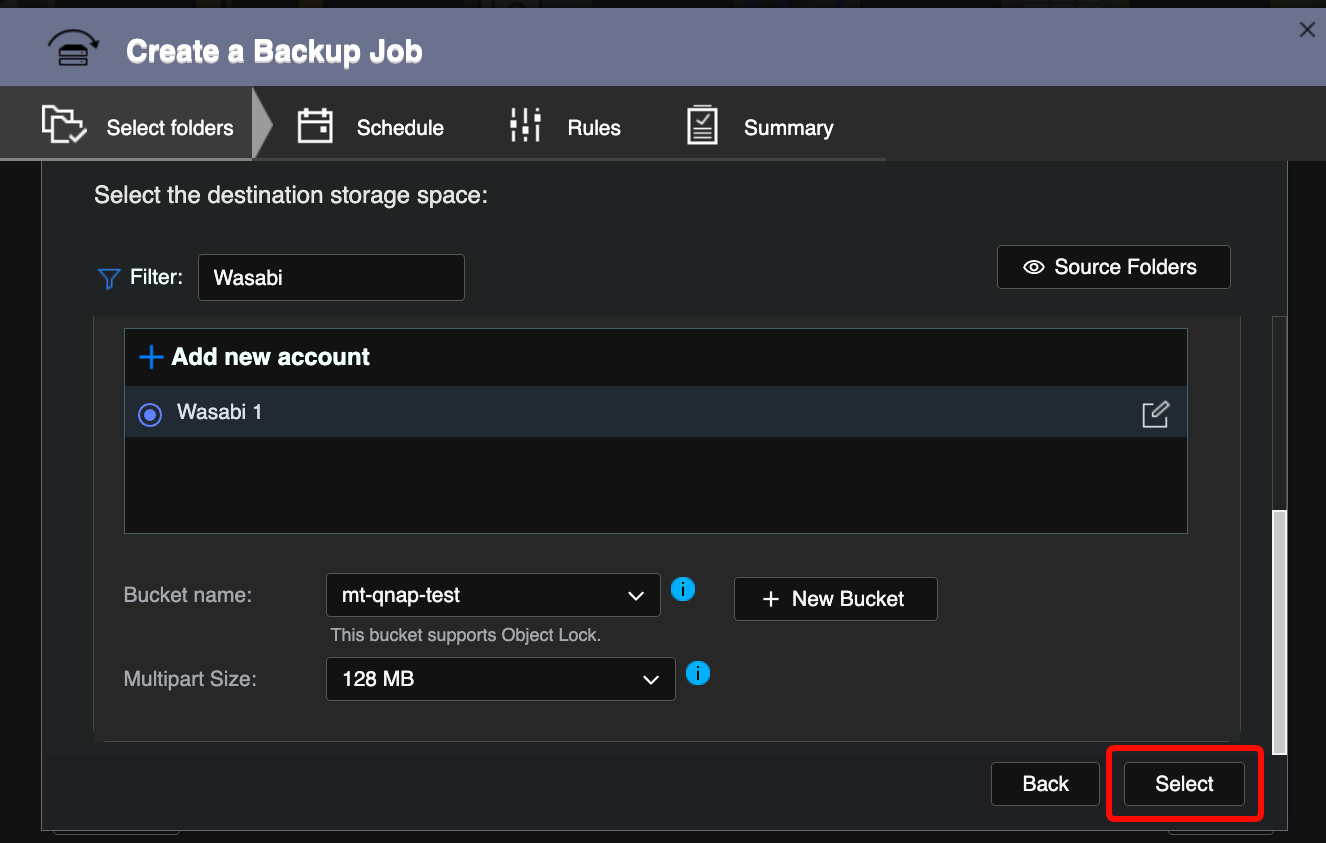
Enter Wasabi in the Filter field. Select the Wasabi tile. Select your Wasabi storage space from the list. Click Select.
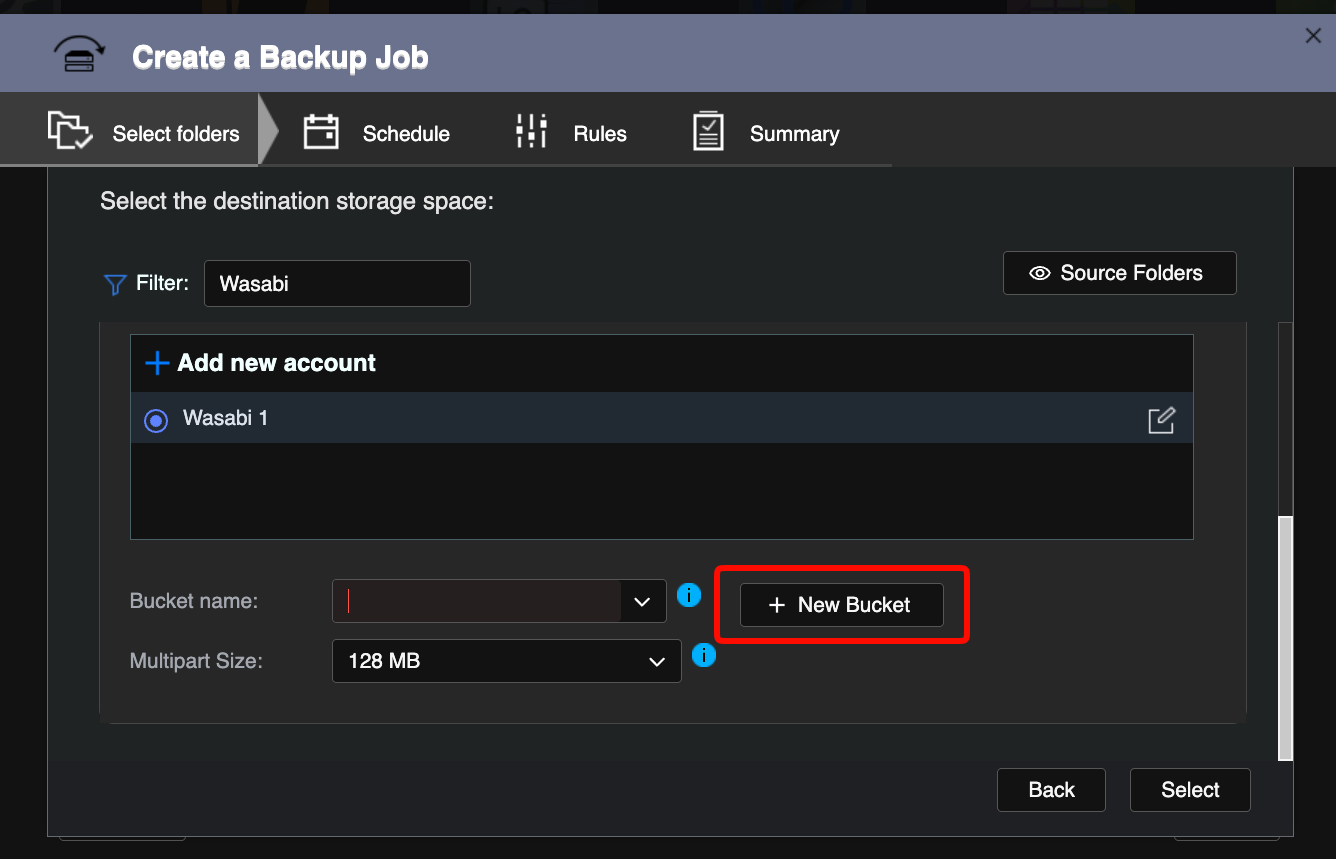
Click + New Bucket to create a new Wasabi bucket.
In the Create a New Bucket dialog, enter a Bucket name.
Select the Region name.
Check Enable Object Lock (highly recommended to help prevent accidental or malicious data deletion).
Click Create.
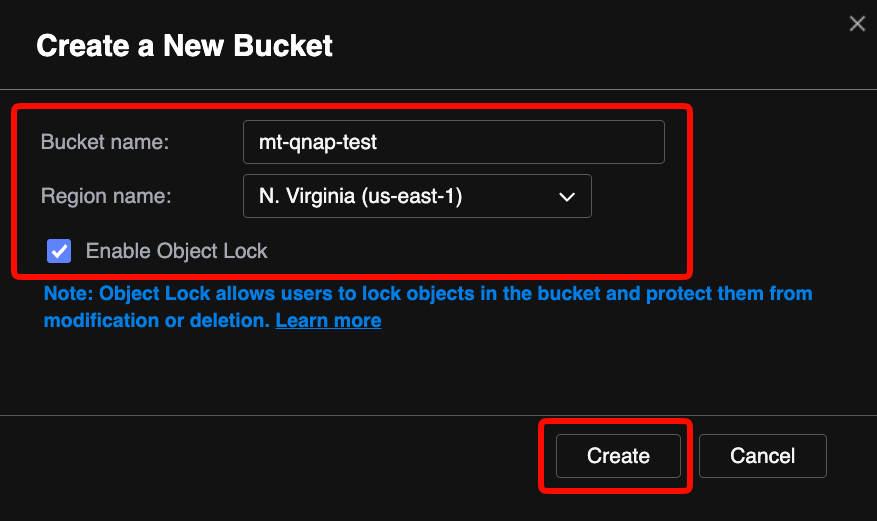
This configuration example uses Wasabi’s us-east-1 storage region. Use the region where the bucket is located or where you want it created. For a list of regions, see Available Storage Regions.
The new bucket is selected automatically. The following message appears below the bucket name. This bucket supports Object Lock.
Click Select.
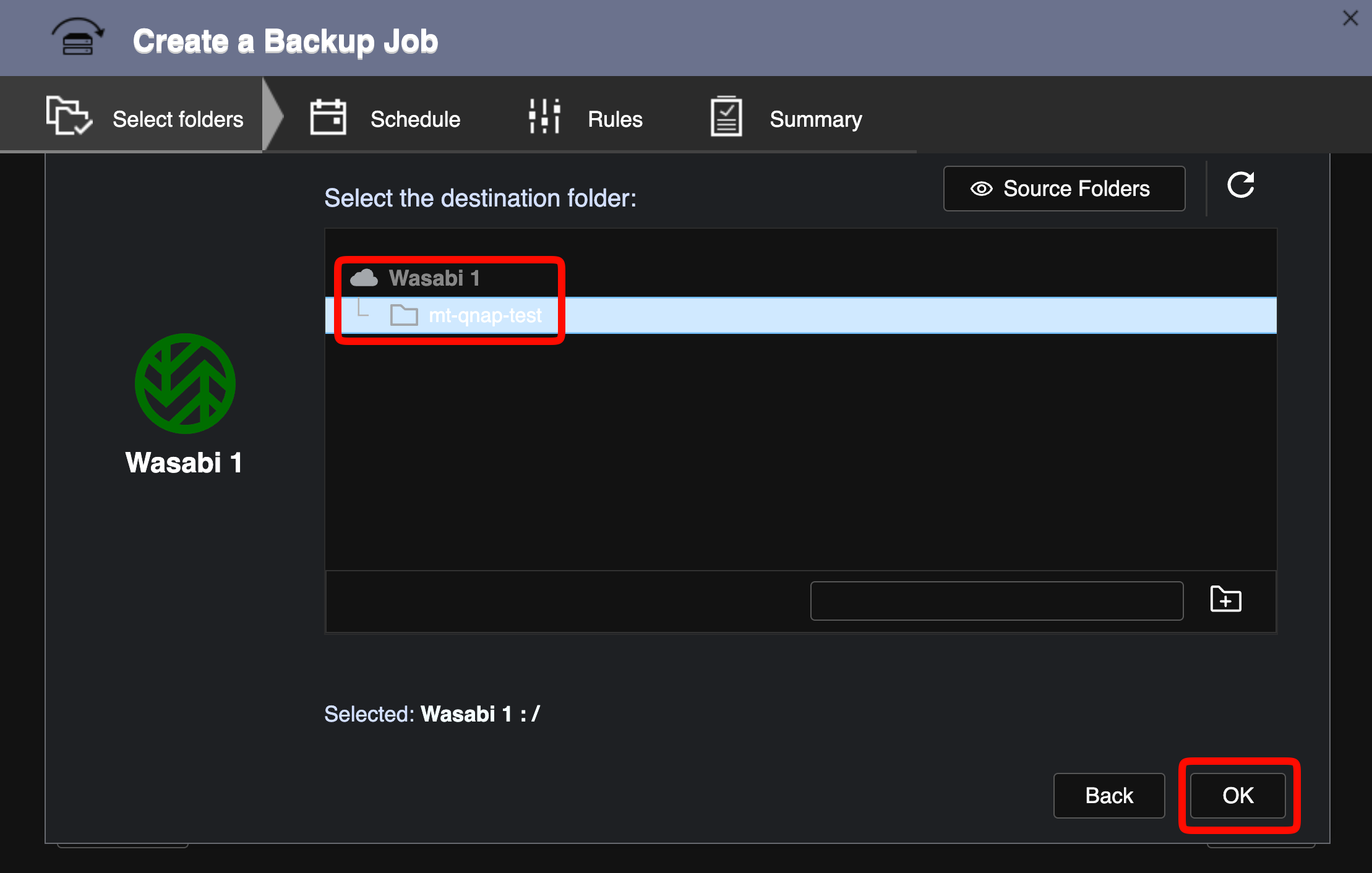
Under Select the destination folder, select the bucket (or a subfolder within it) as the destination. Click OK.
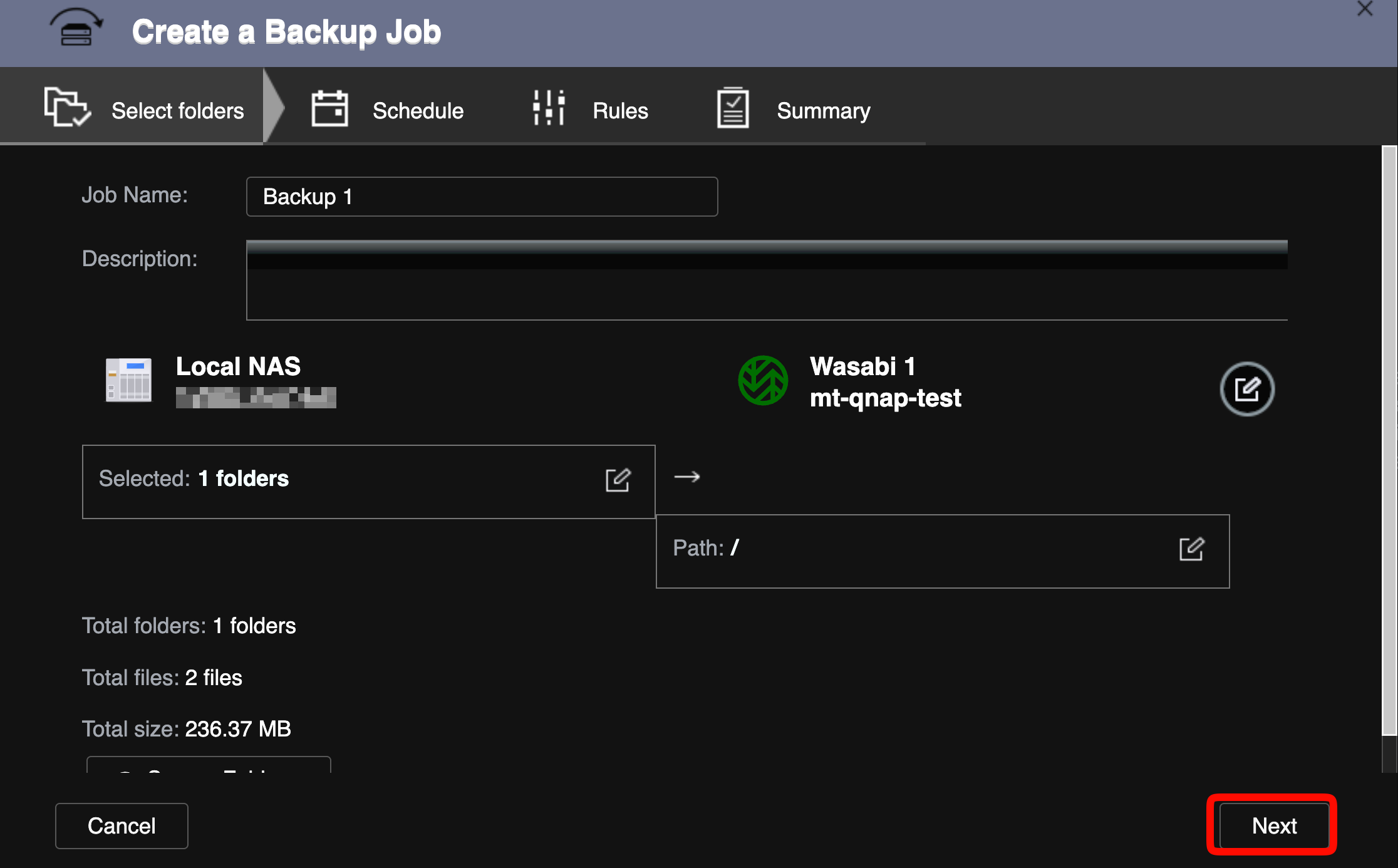
Review the job name and source/destination summary. Click Next.
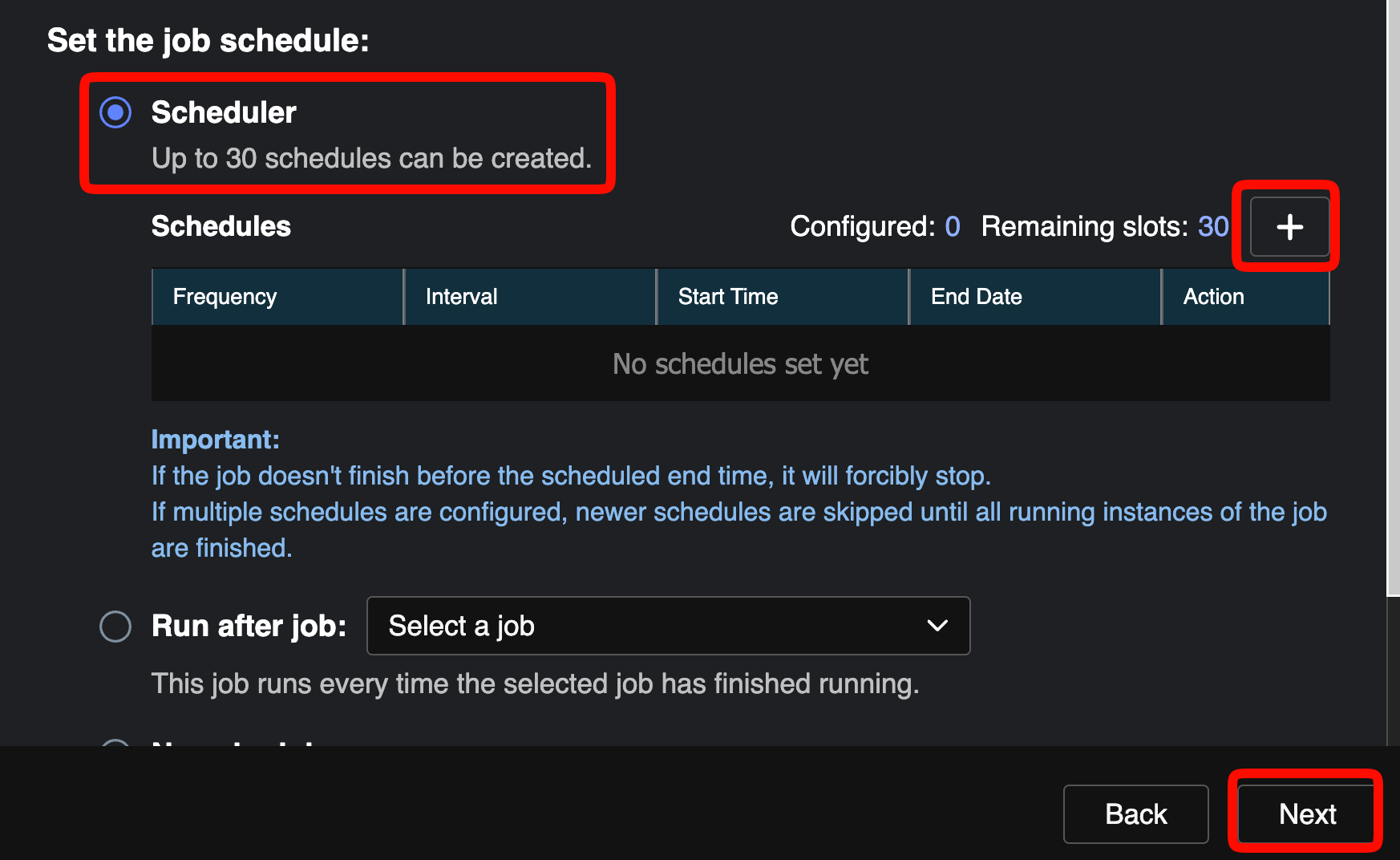
Select Scheduler.
Click + to add a schedule.
Click Next.
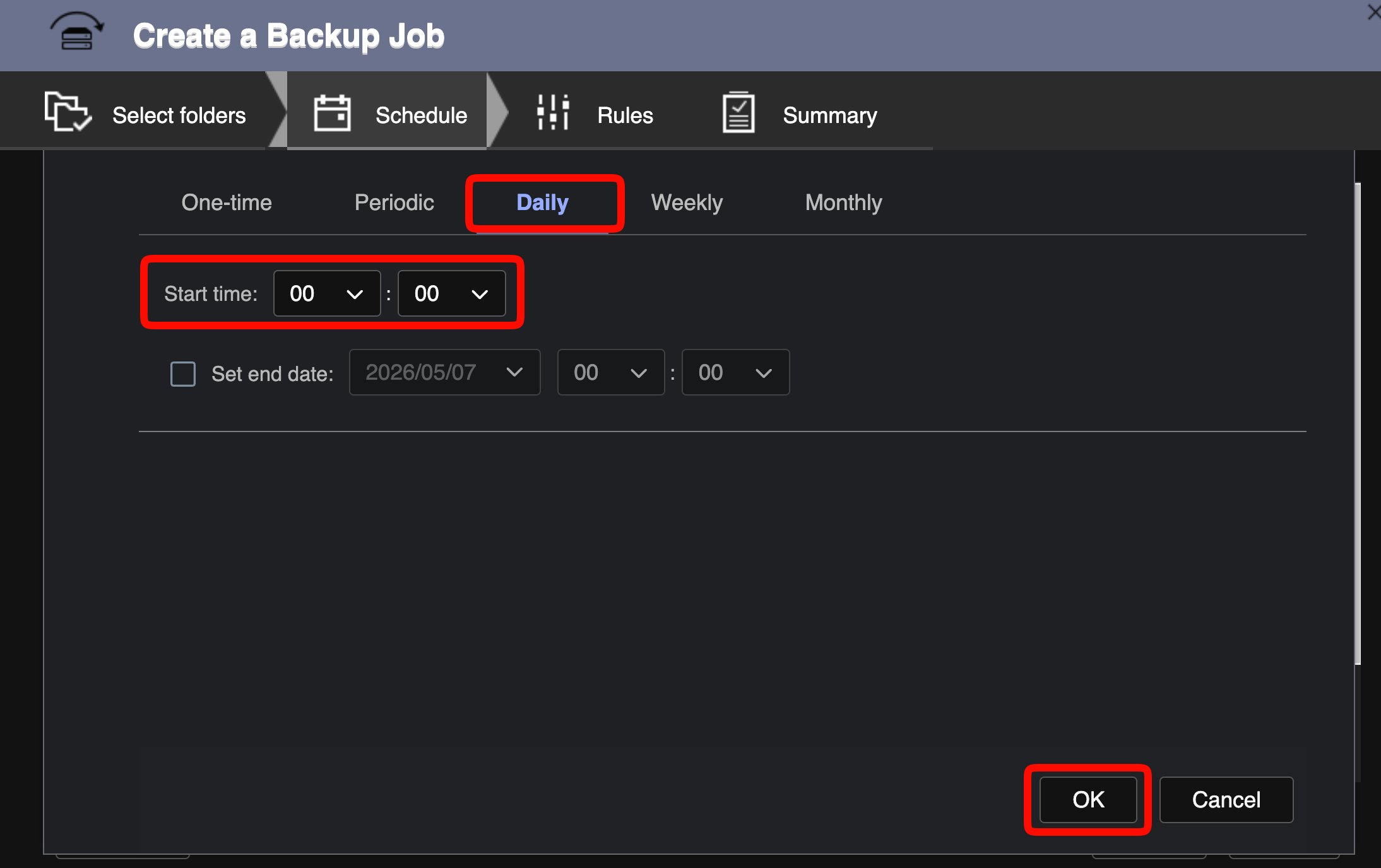
Select the appropriate backup frequency, and set the preferred Start time. Click OK. (In our example, we selected Daily at midnight (00:00).)
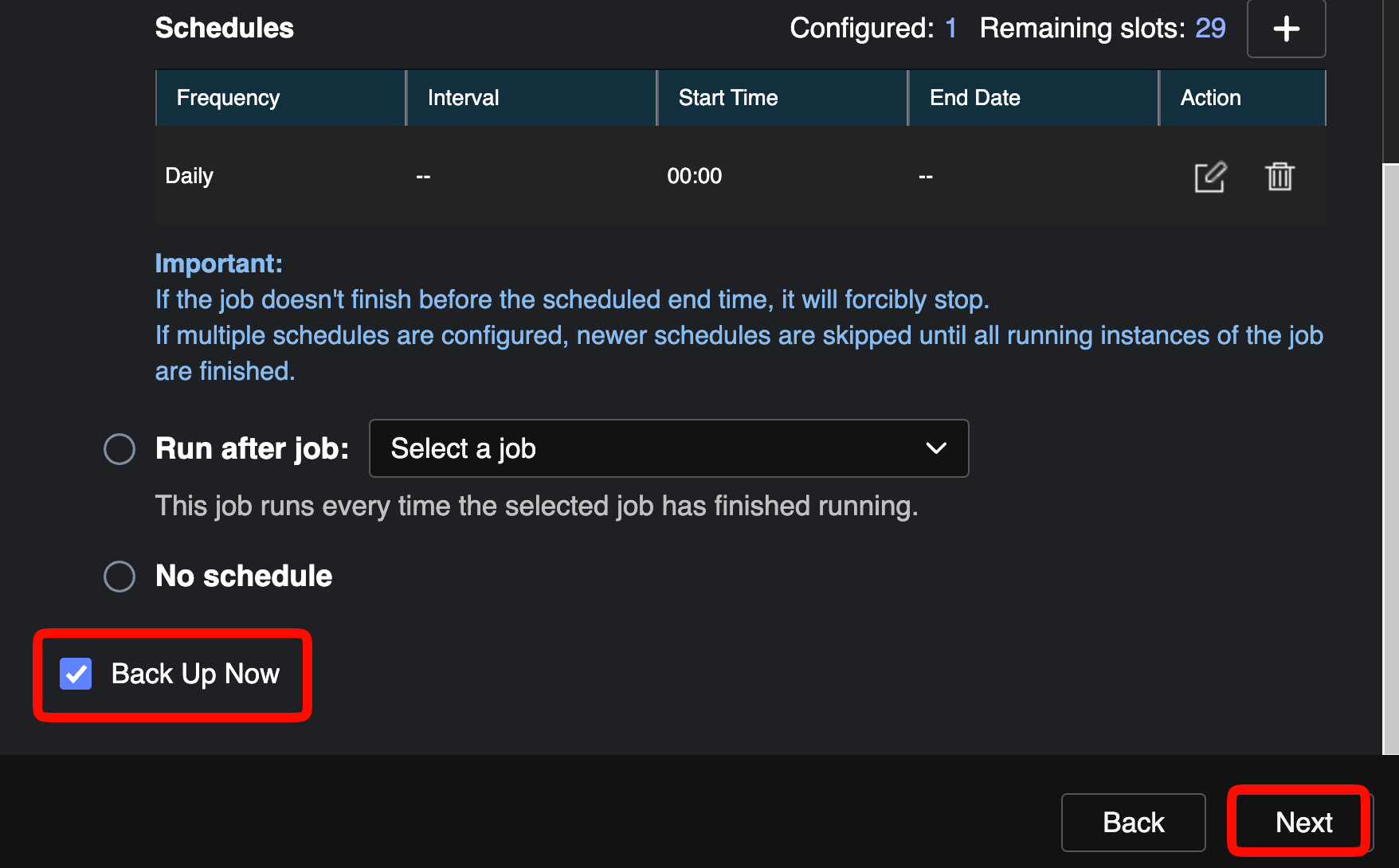
The configured schedule appears in the Schedules list. Check Back Up Now to run the first backup immediately when the job is created.
Click Next.
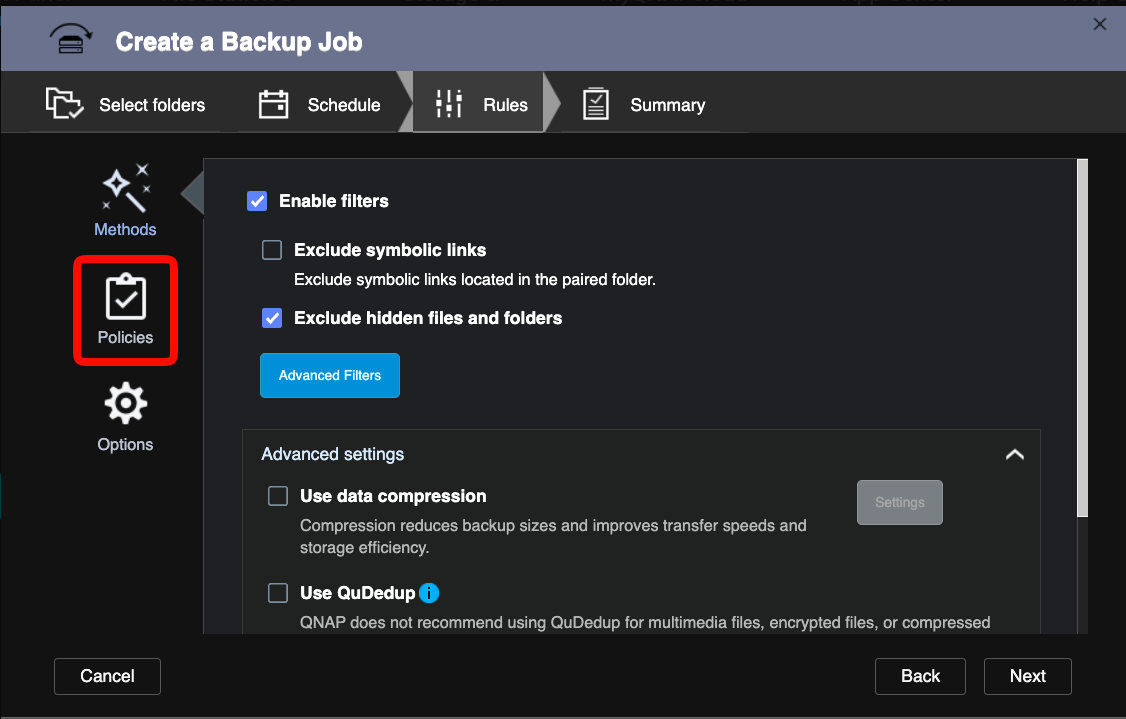
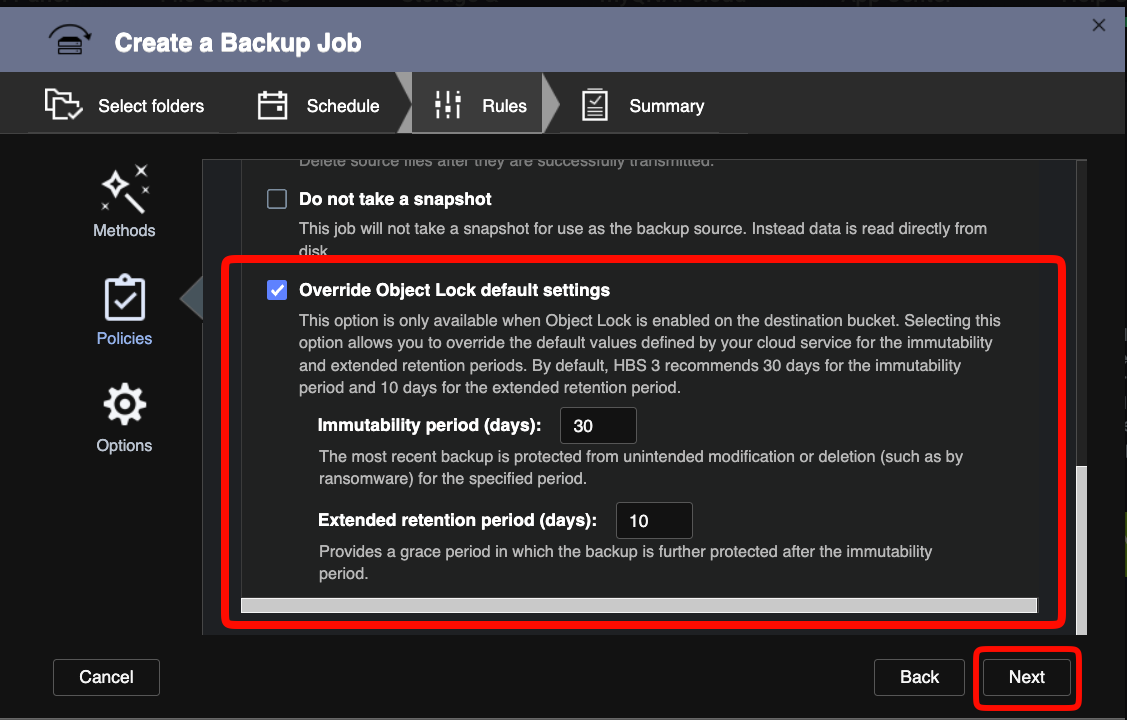
On the Rules tab, review the filter and advanced settings. Click Policies.
Select the checkbox to Override Object Lock default settings (if using Object Lock). Adjust the settings to match your requirements.
Click Next.
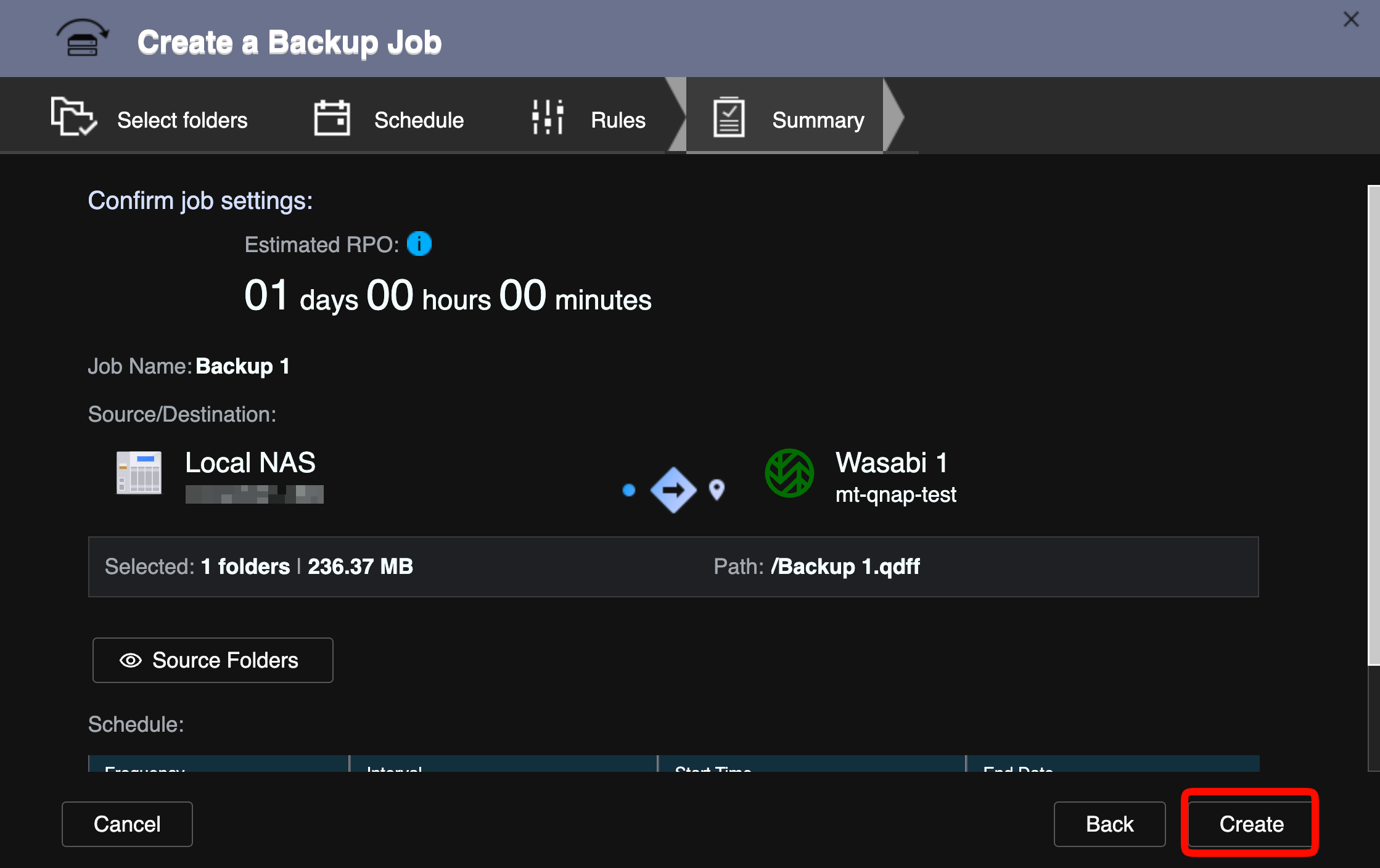
Select the Summary tab and confirm all job settings.
Click Create.
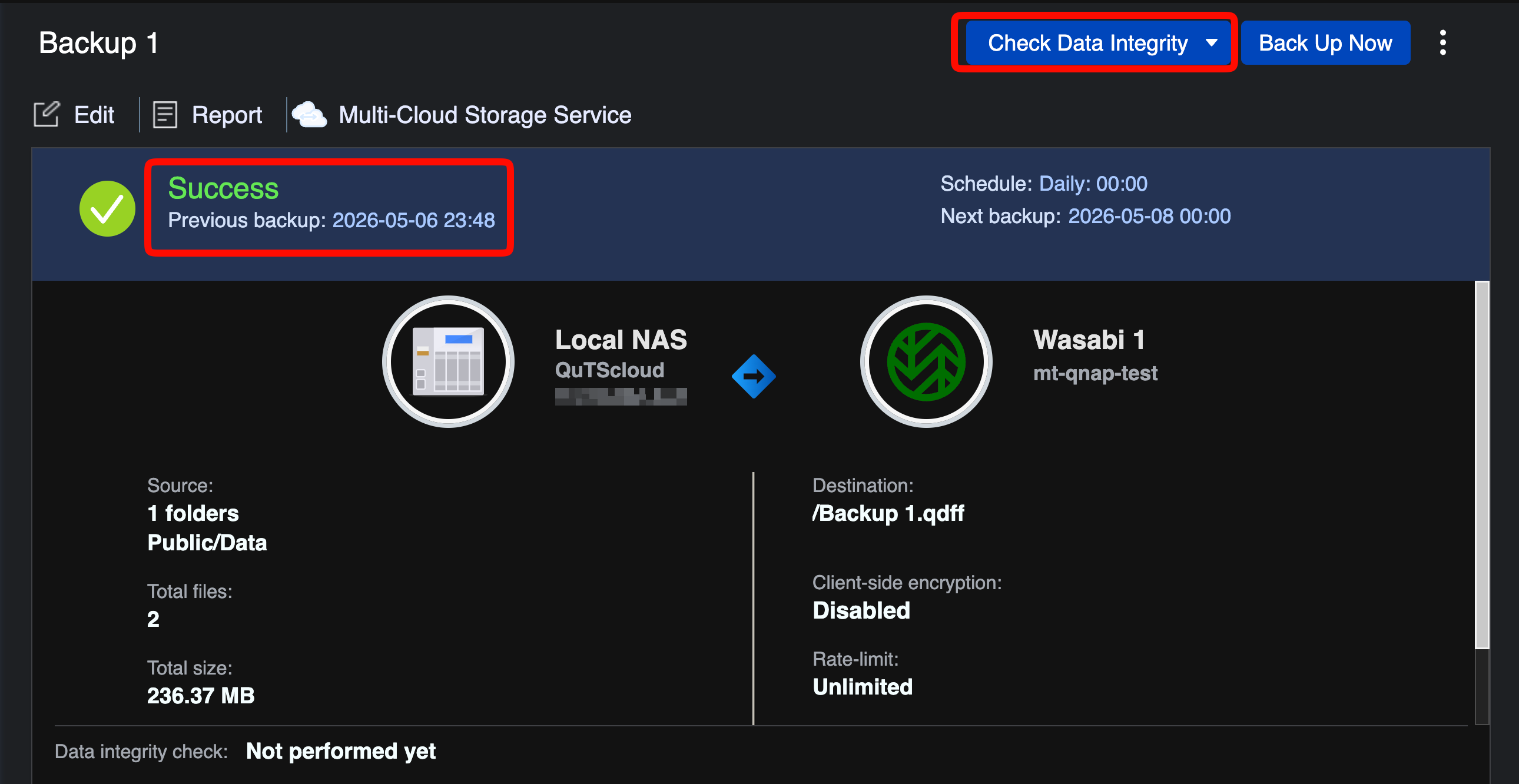
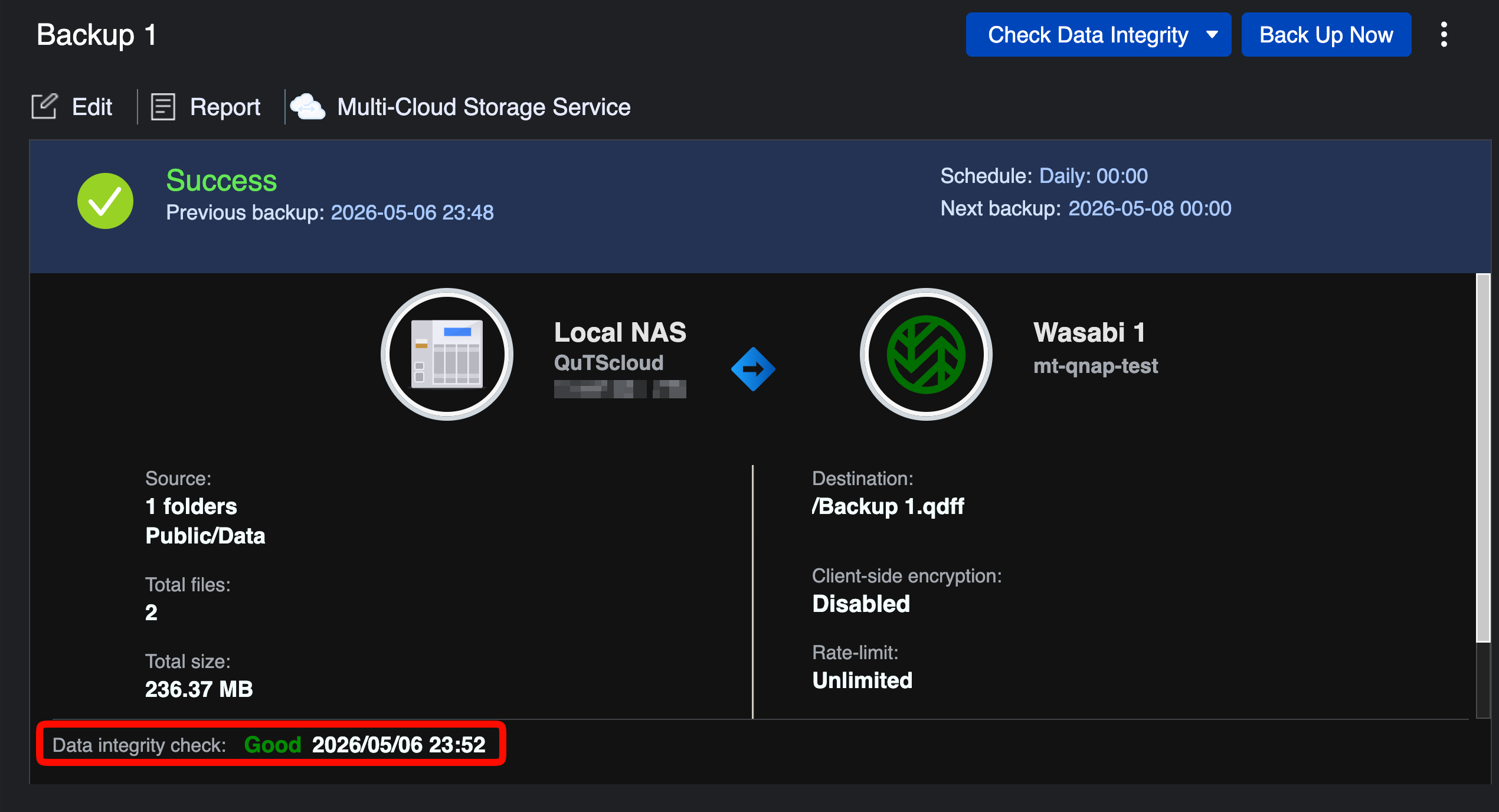
The backup job runs immediately. When complete, the job status shows Success, along with the backup date and time and the next scheduled run.
Click Check Data Integrity.
Select Quick Check.
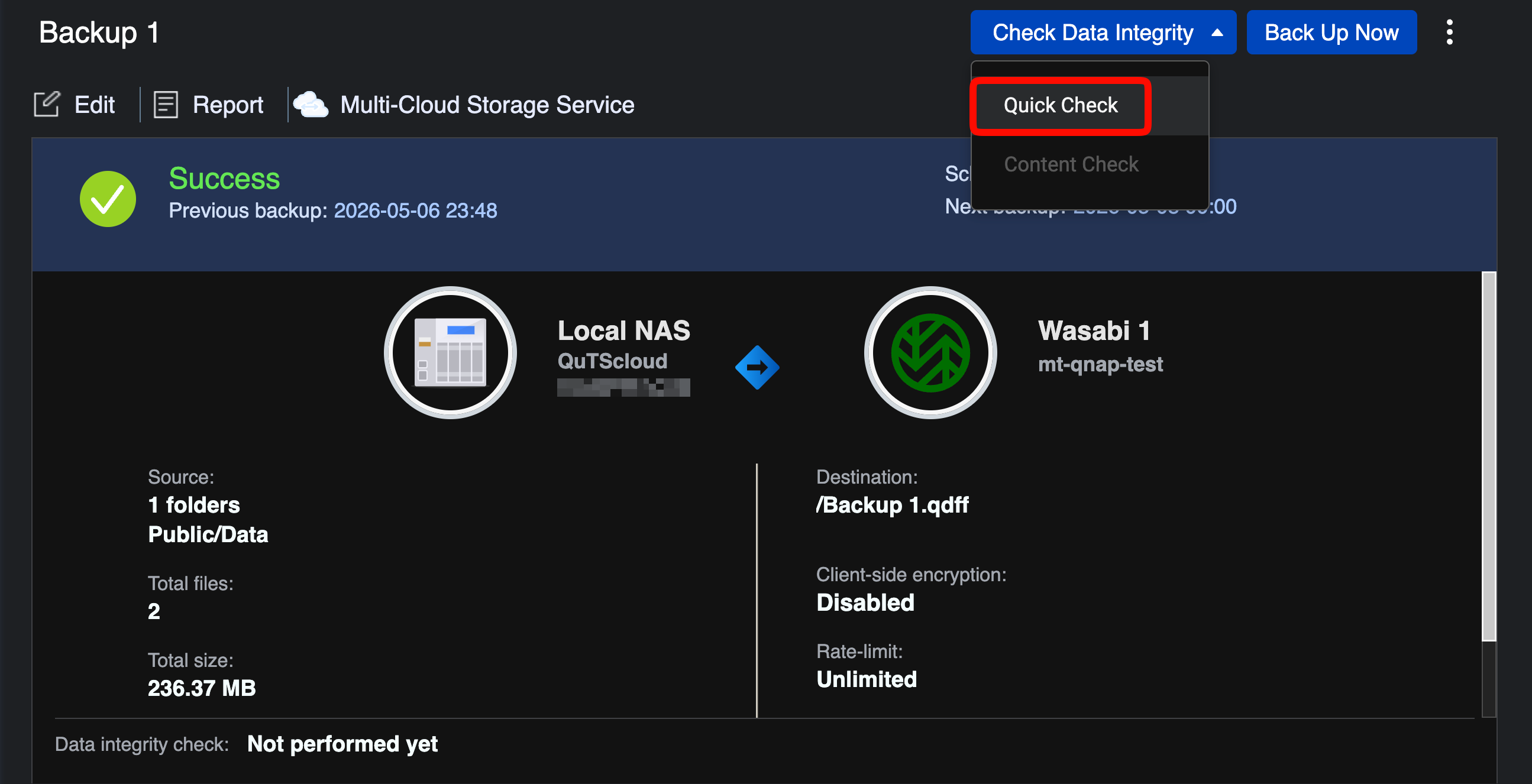
28. HBS 3 will verify the backup files in Wasabi and report the result.
Configuring a Lifecycle Policy When Using Object Lock
This section is only required if you have enabled Object Lock (immutability) on your bucket. Lifecycle Policies are used to delete non-current versions of objects and delete-markers in your bucket, not to delete current versions of data.
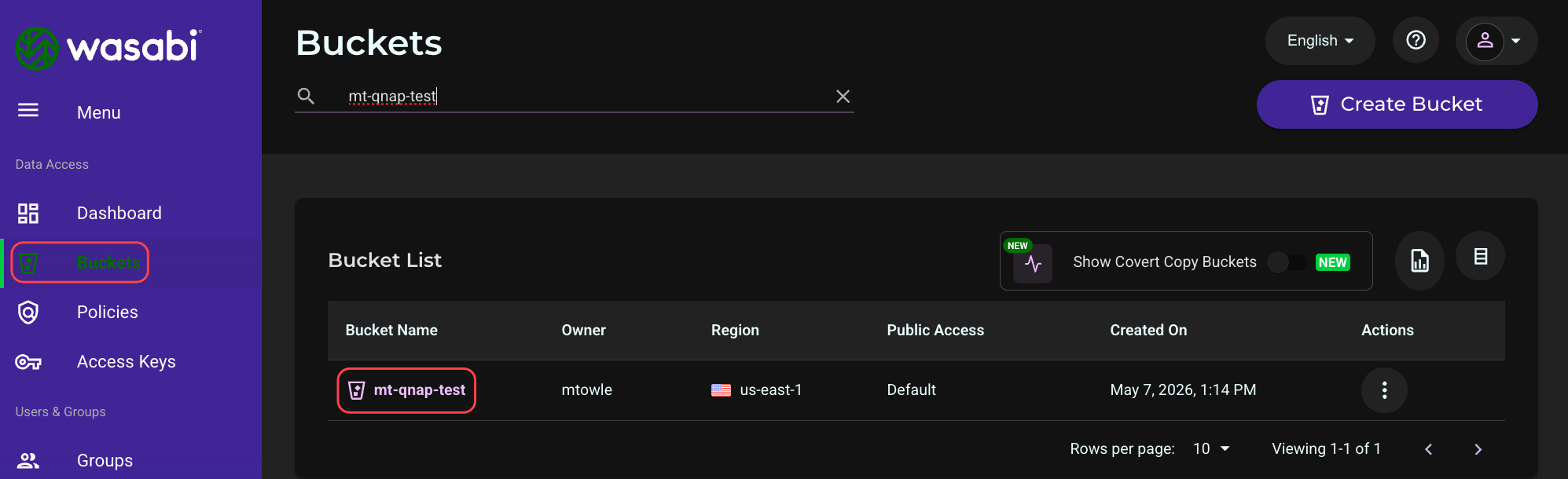
Log in to the Wasabi Console.
Click Buckets.
Select the name of your bucket.
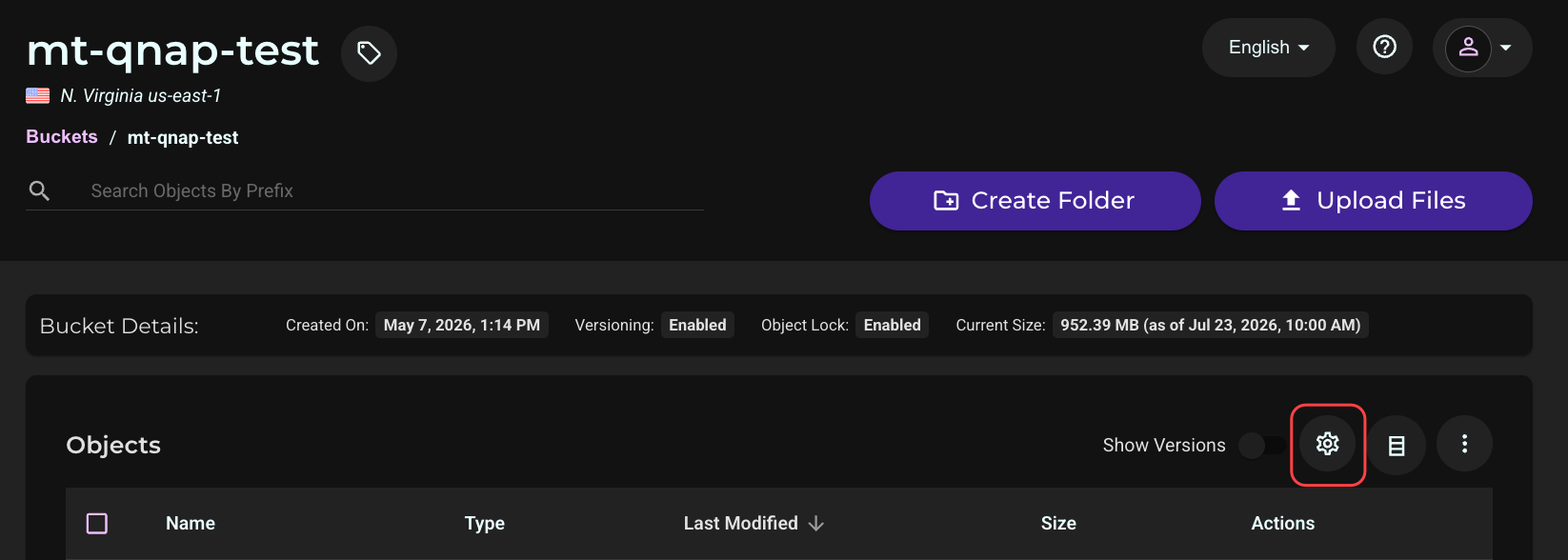
Click Settings (gear icon).
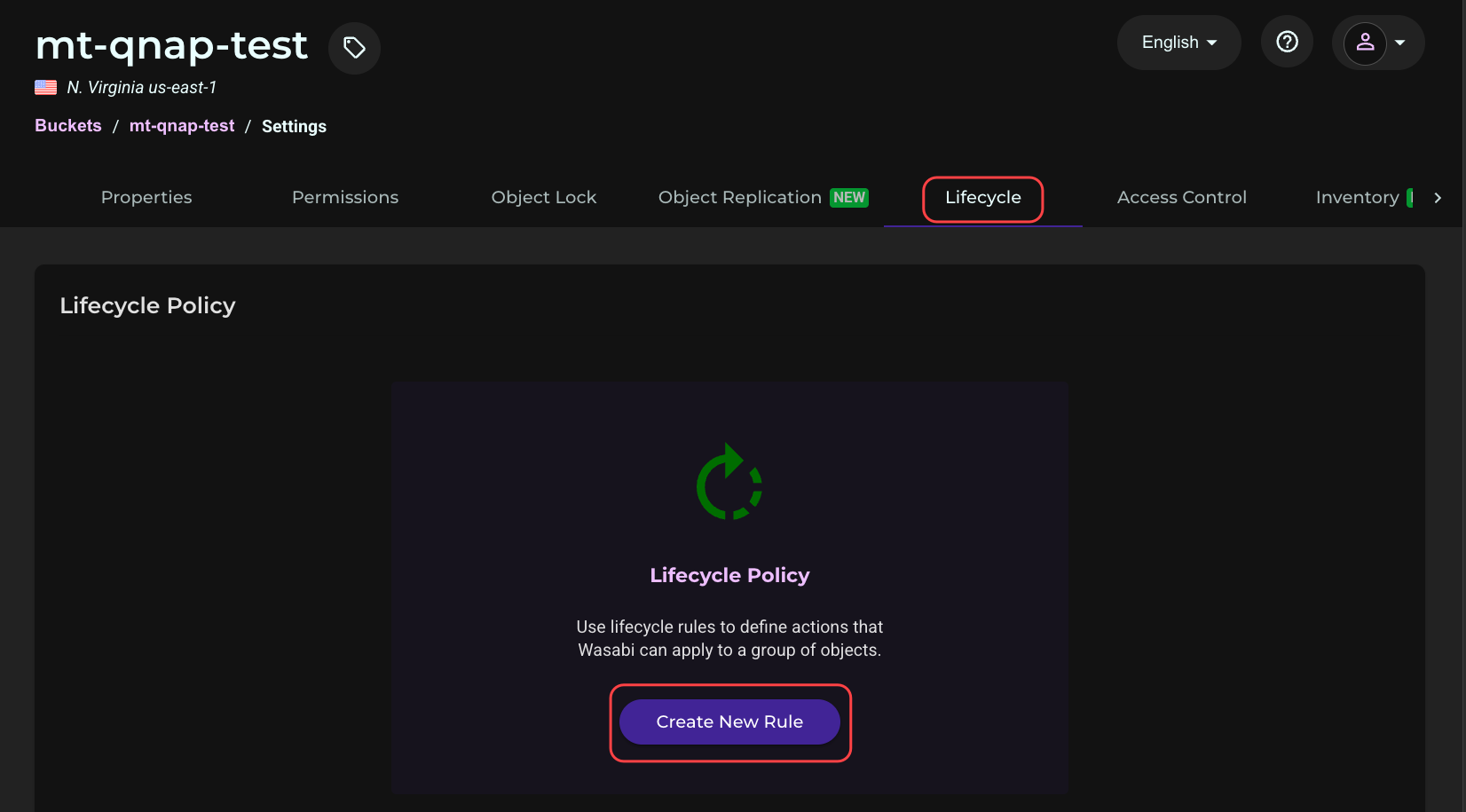
Navigate to the Lifecycle tab and click Create New Rule.
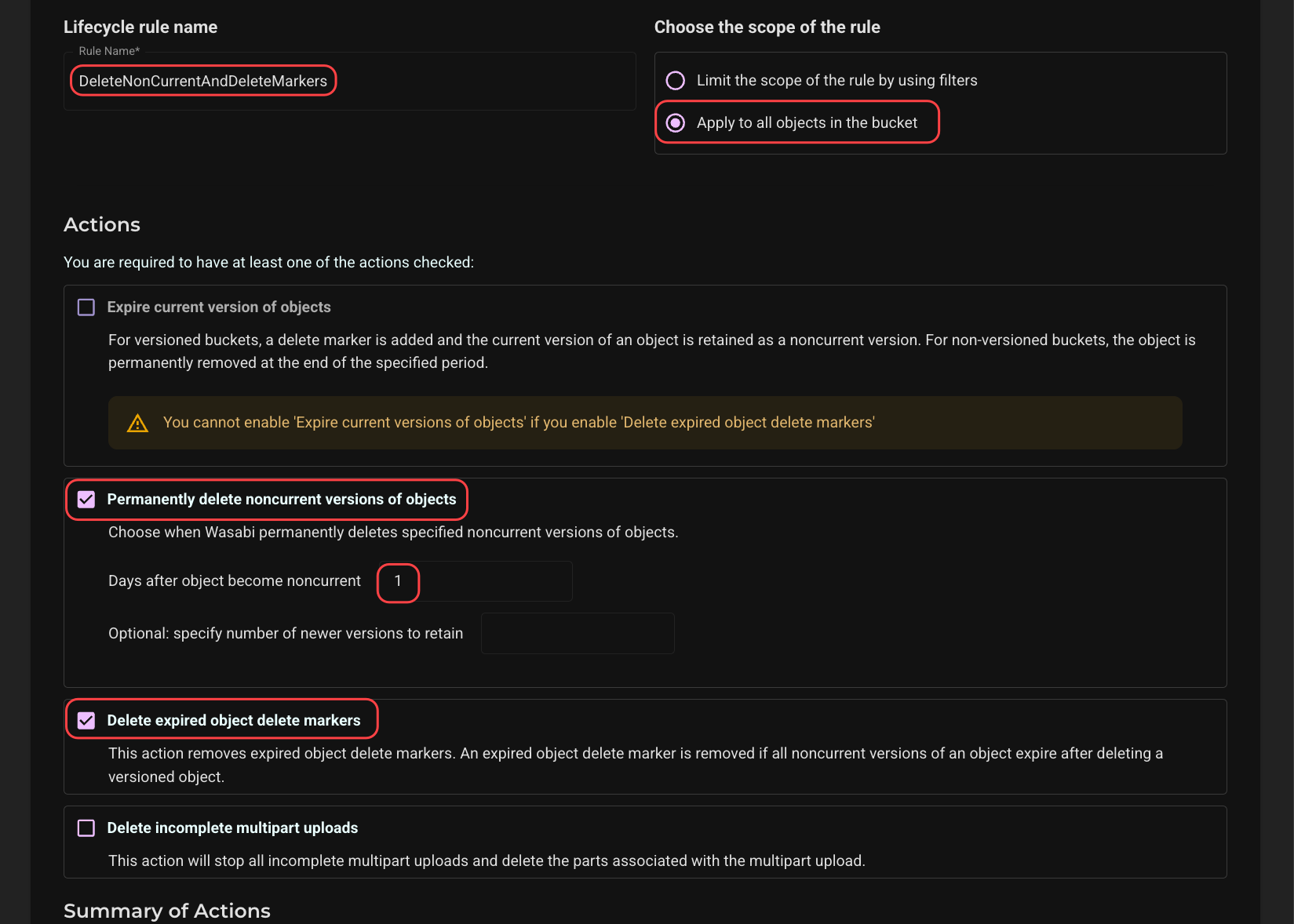
Give the rule a name and configure the policy as shown in the screenshot below. Set the Days after object becomes non-current to 1. Scroll down.
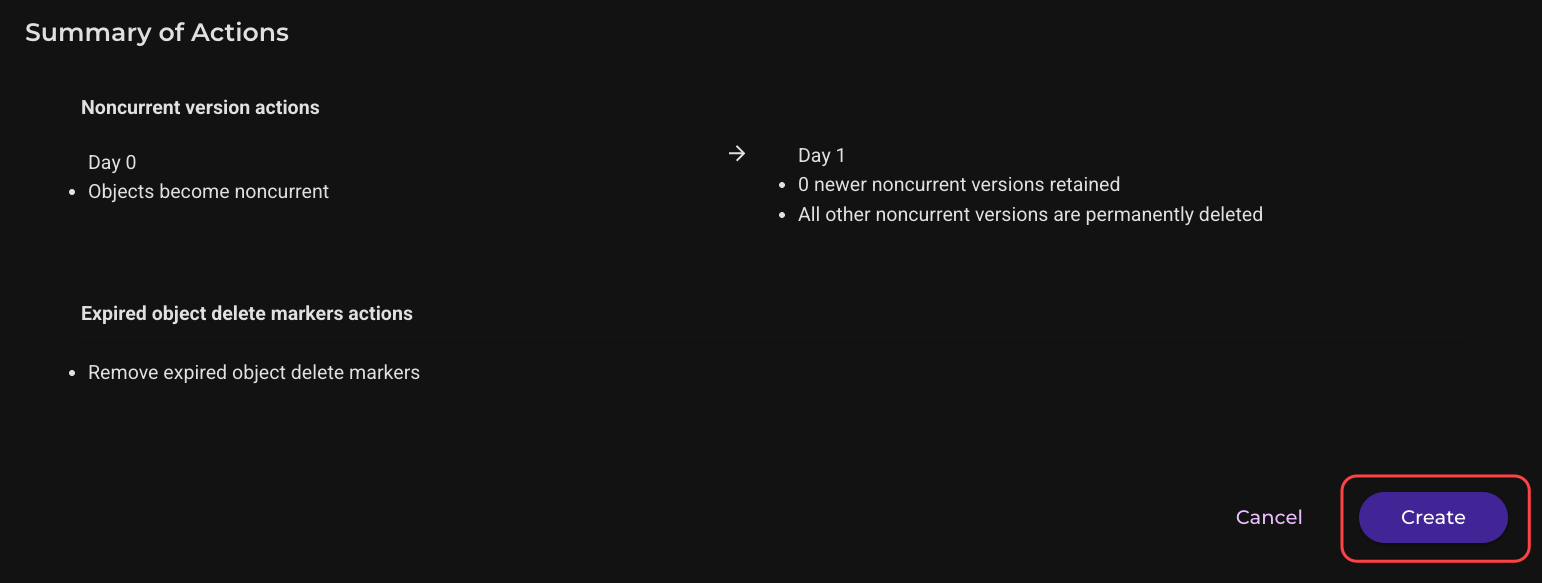
Click Create.
Restoring From Wasabi Backups
Follow the steps below if you need to restore data from a Wasabi backup.
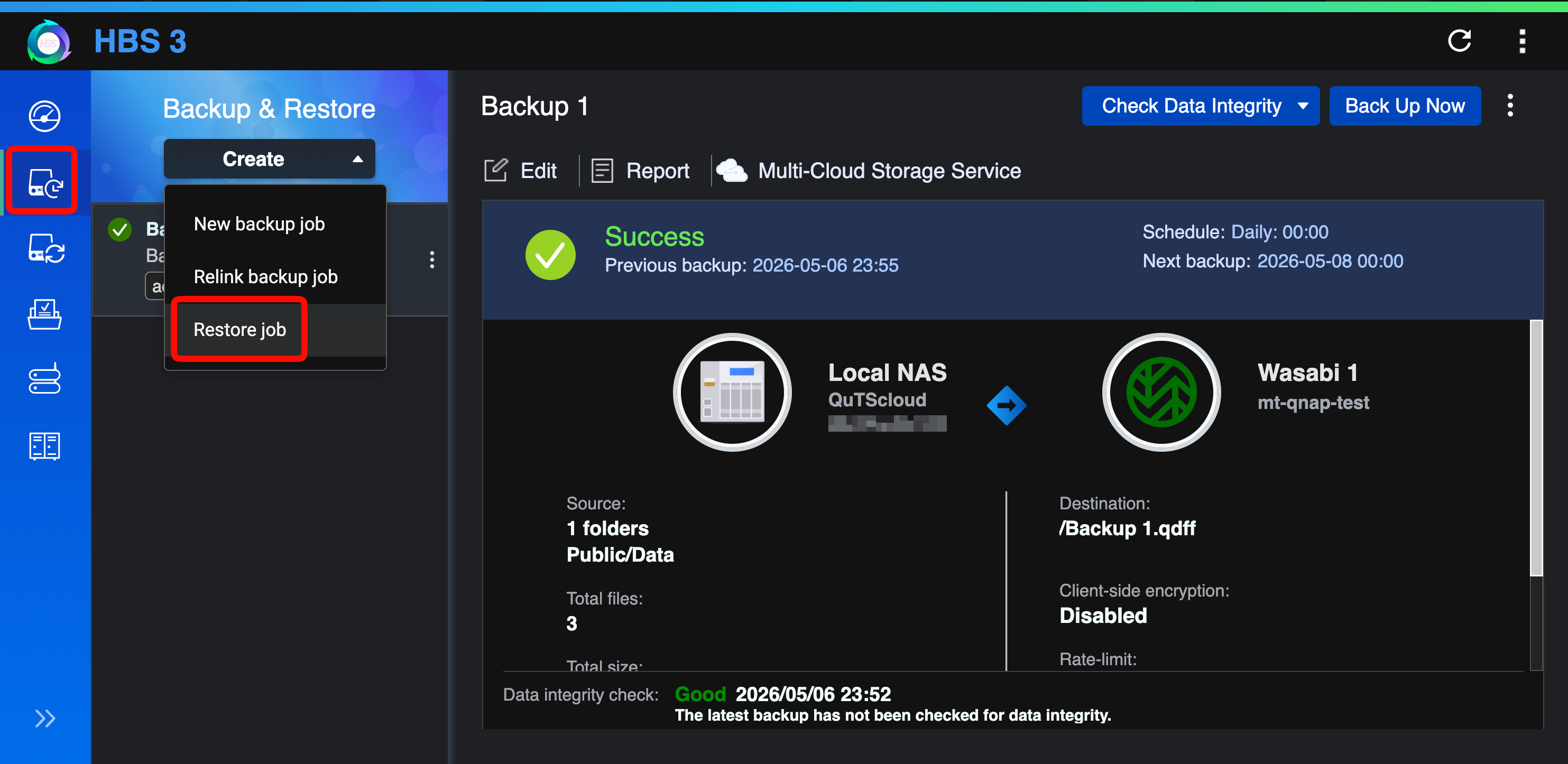
In HBS 3, click Backup & Restore.
Click the Create drop-down arrow.
Select the Restore job.
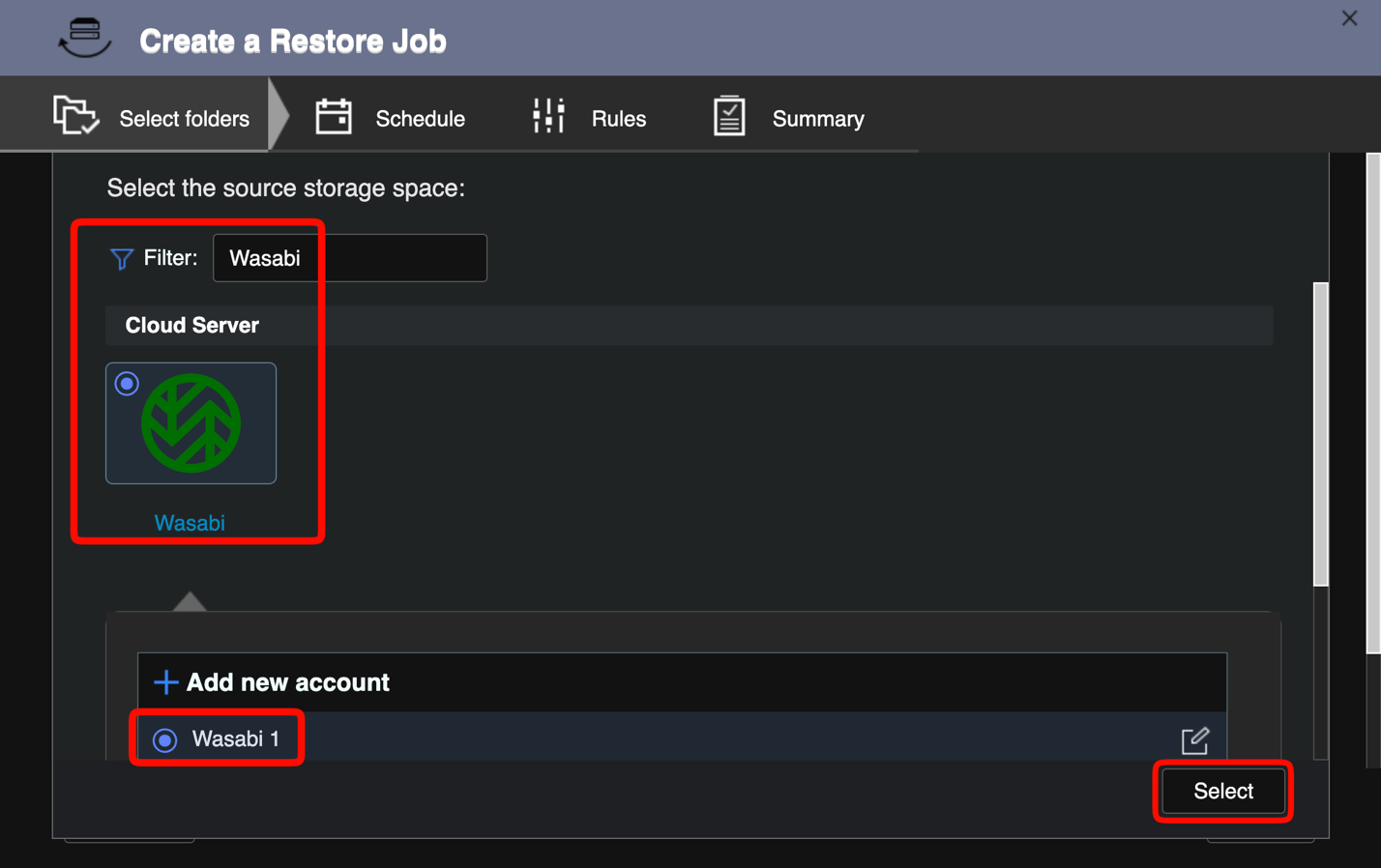
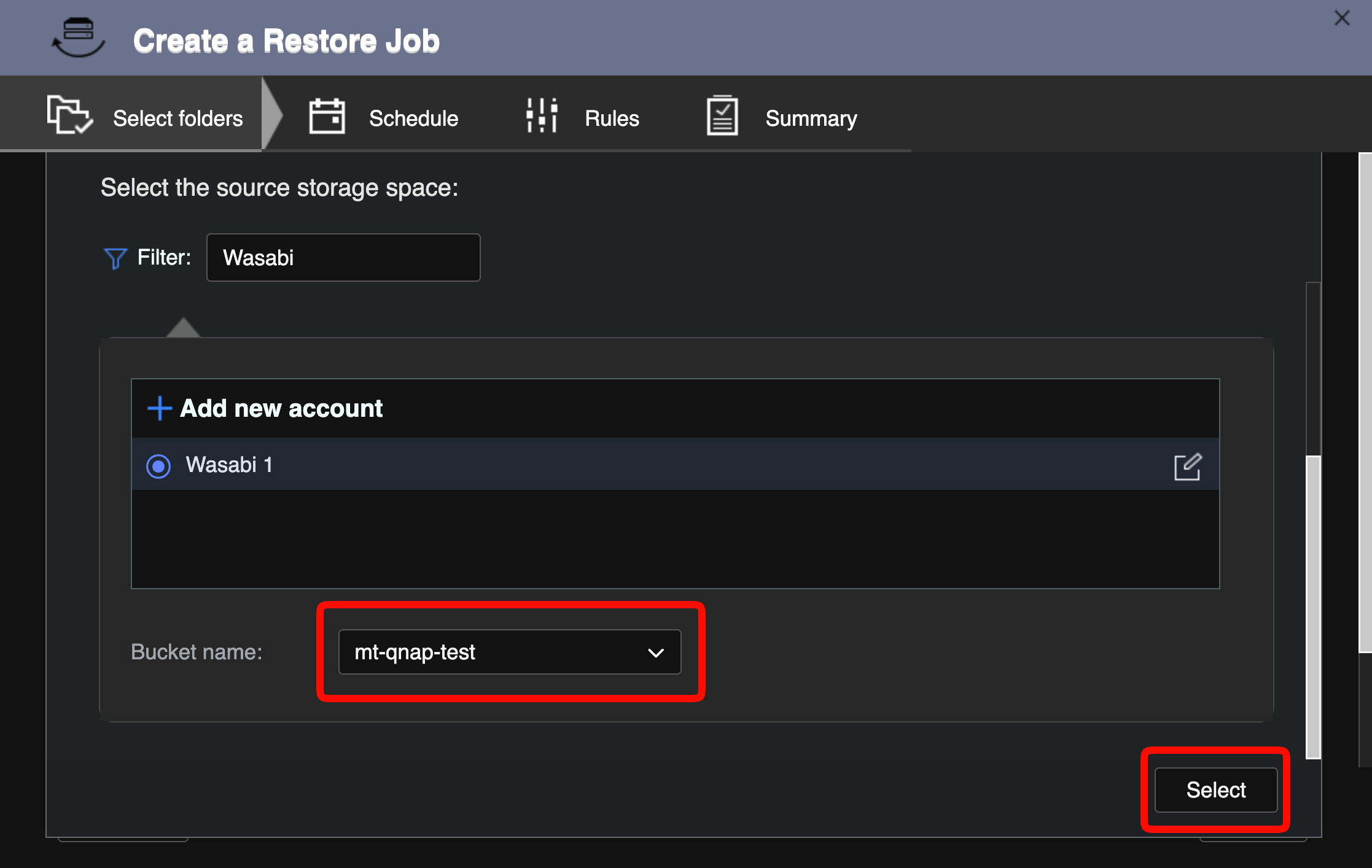
In the Create a Restore Job wizard, type Wasabi in the Filter field.
Select the Wasabi tile and select your Wasabi storage space.
Click Select.
Select your backup bucket from the Bucket name drop-down.
Click Select.
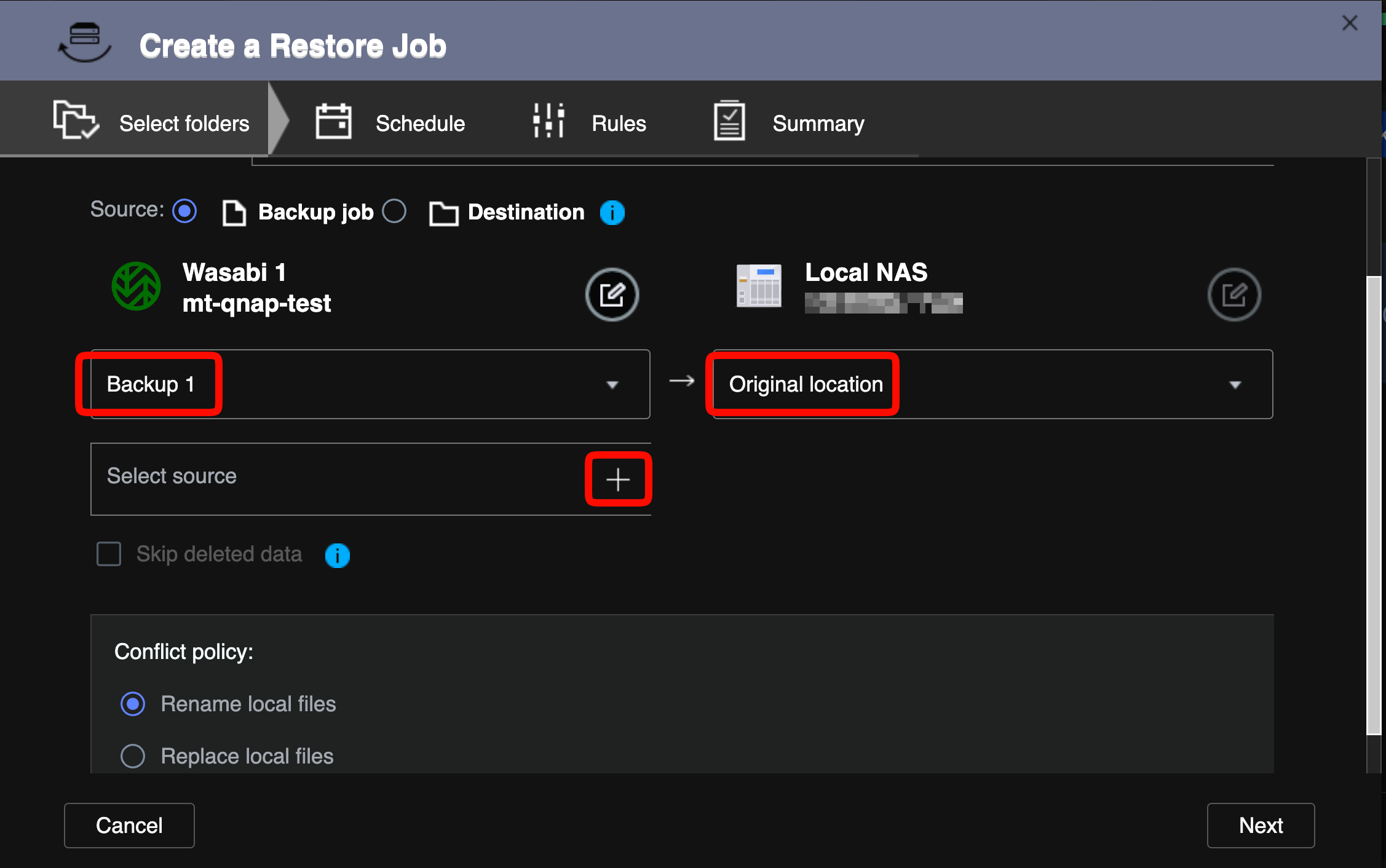
Select the backup job from the source drop-down and set the destination to Original location (or choose an alternative).
Click + next to Select source to choose the backup version and folders to restore.
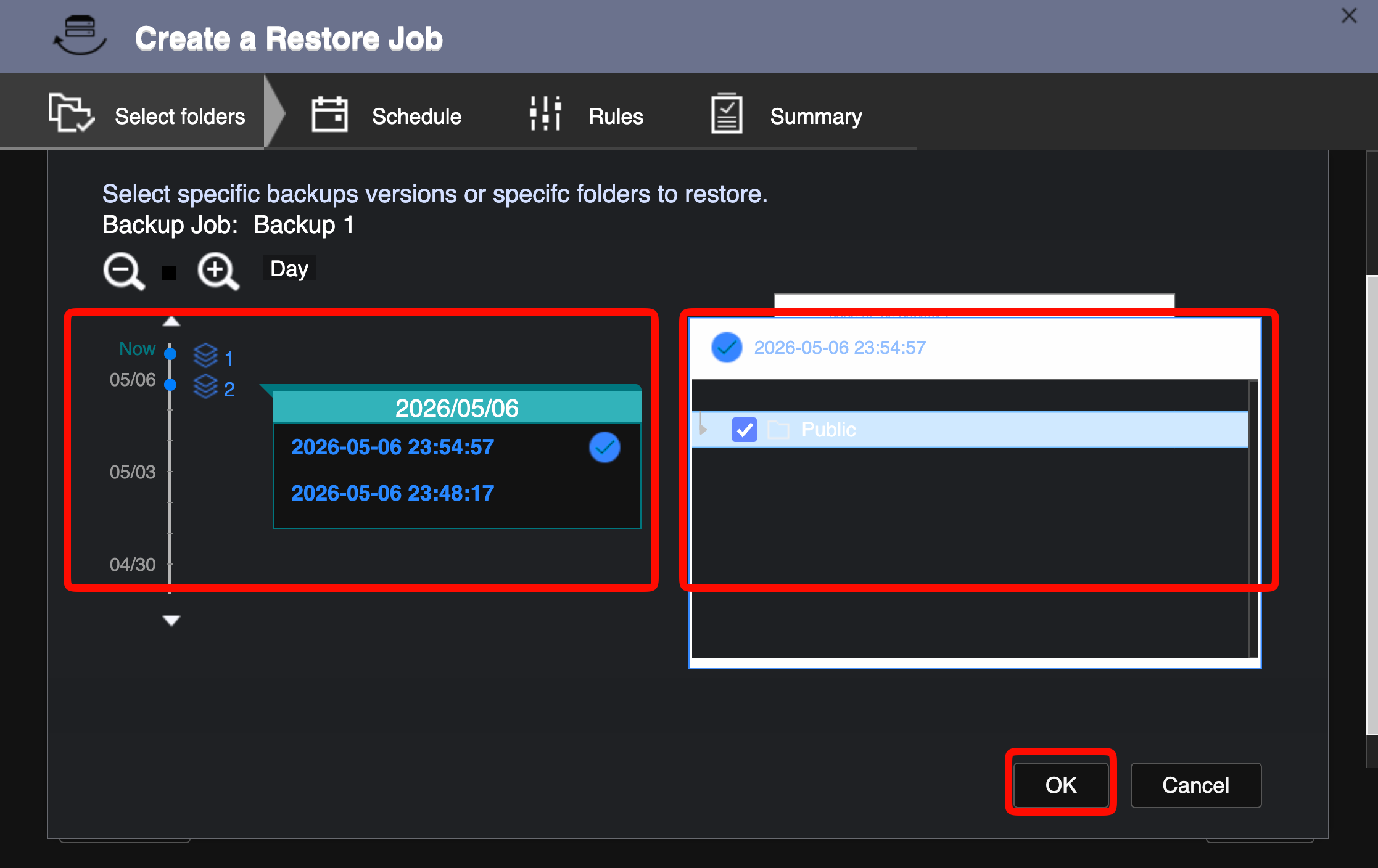
A timeline shows all available backup versions. Select the version you want to restore. Check the folders or files to restore.
Click OK.
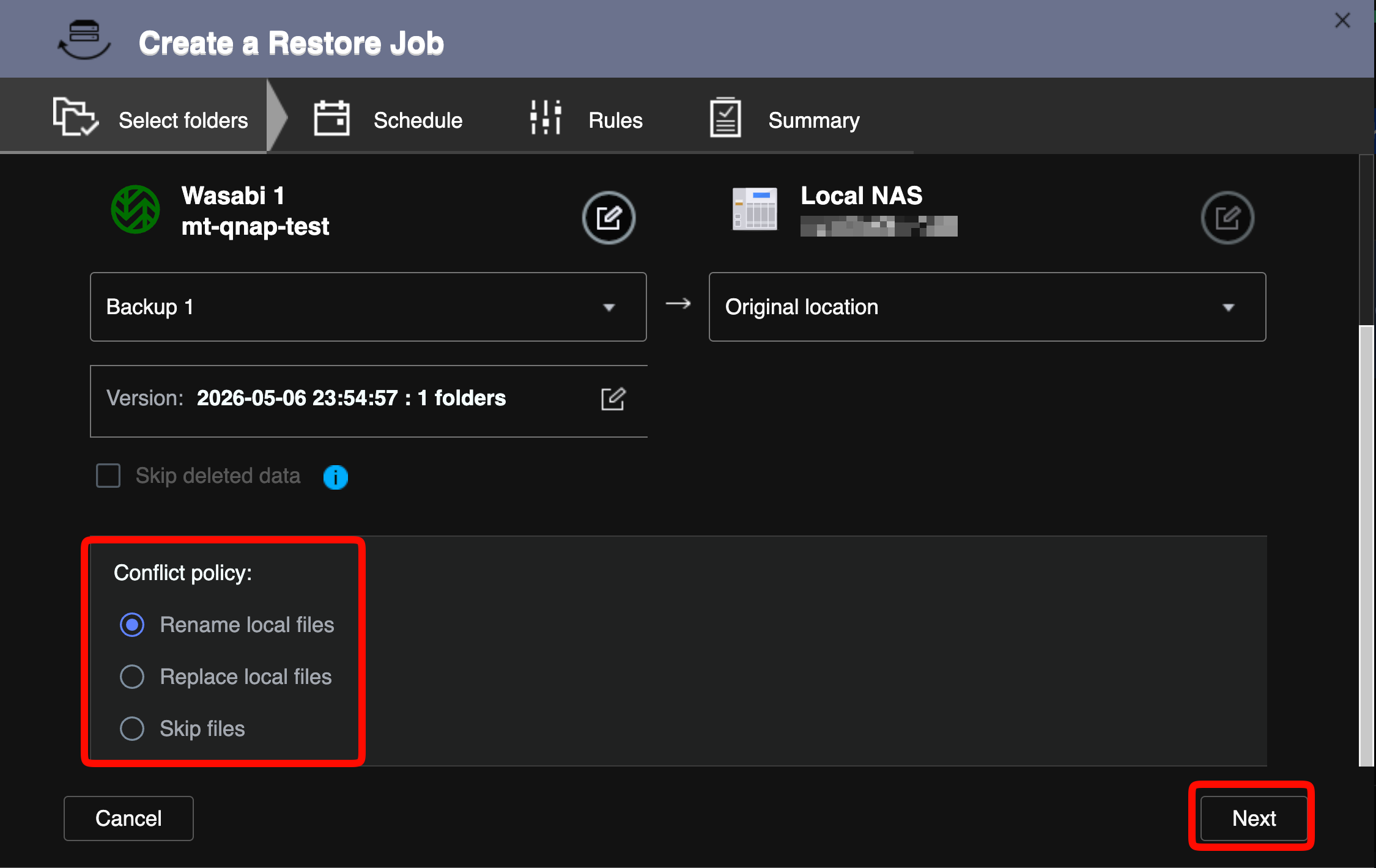
Review the Conflict policy. Click Next.
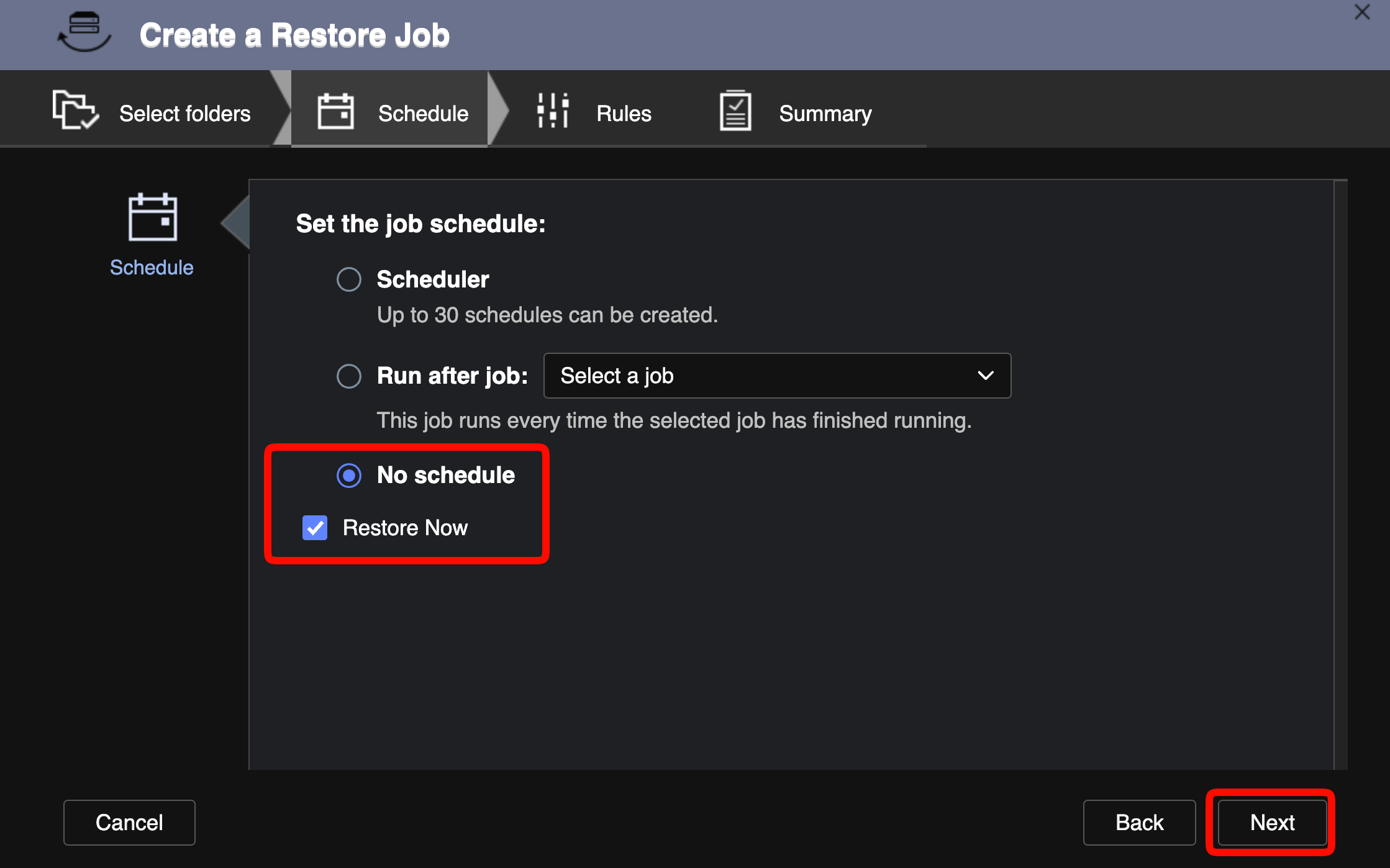
Select the Schedule tab.
Select No schedule.
Click the Restore Now checkbox to begin the restore.
Click Next.
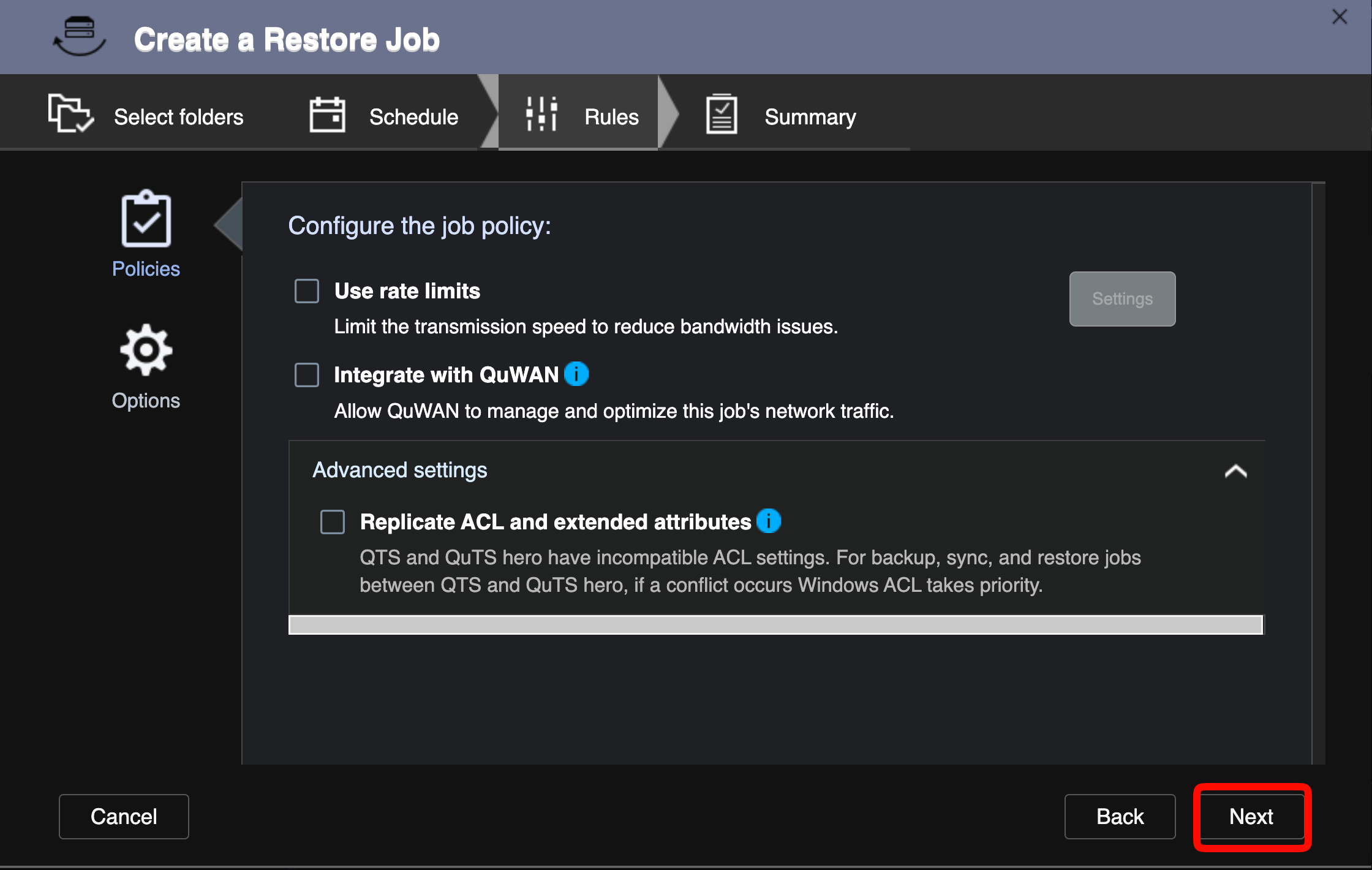
On the Rules tab, review policy settings. Click Next.
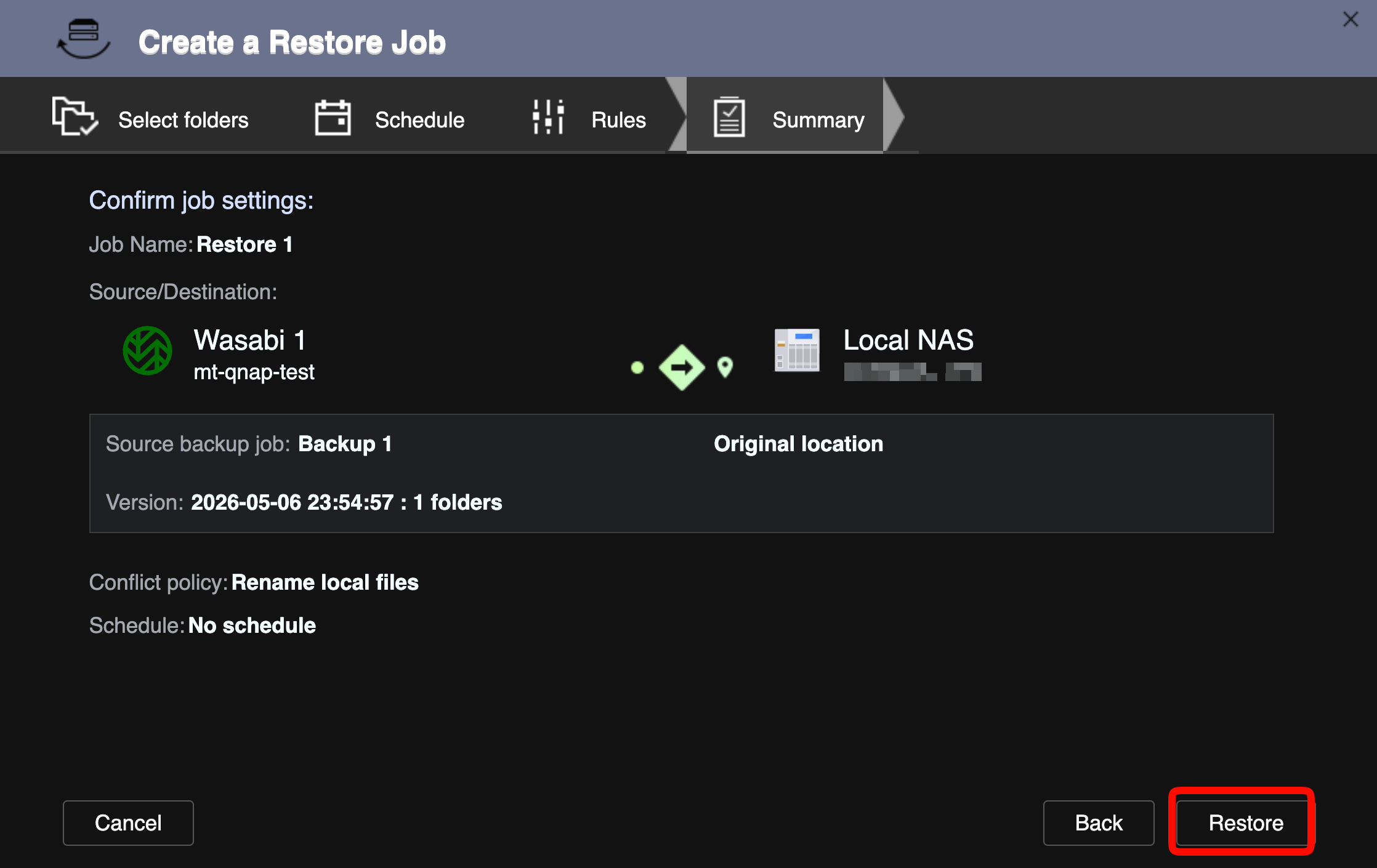
Select the Summary tab and confirm all restore job settings.
Click Restore.
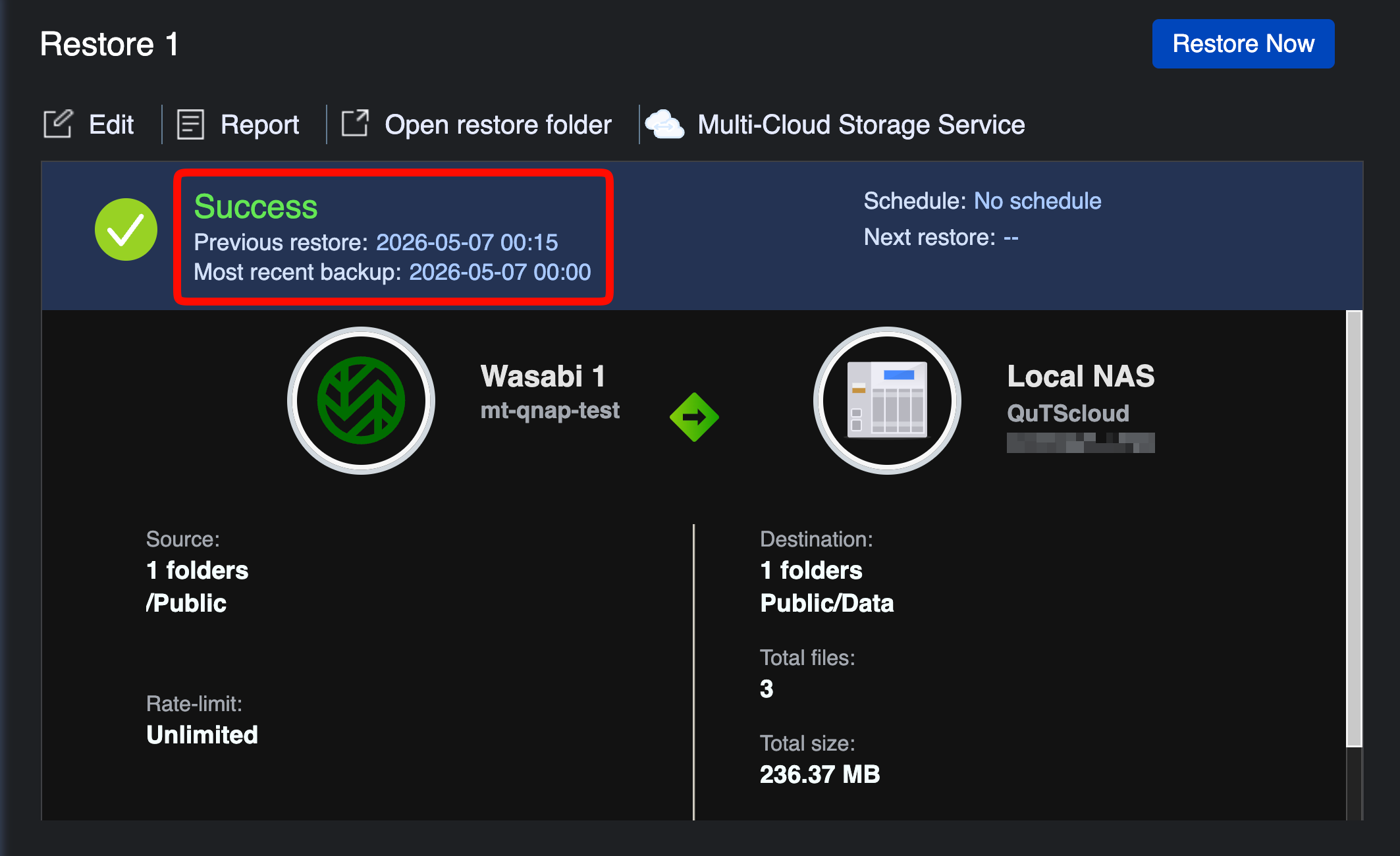
The restore job will run. When complete, the status shows Success.