Upon your initial login to the WACM portal with the Control Account Admin role, you are presented with the following Control Account dashboard, with its components explained in detail.
To jump right in and get started performing some basic tasks, follow these links:
Control Accounts Dashboard
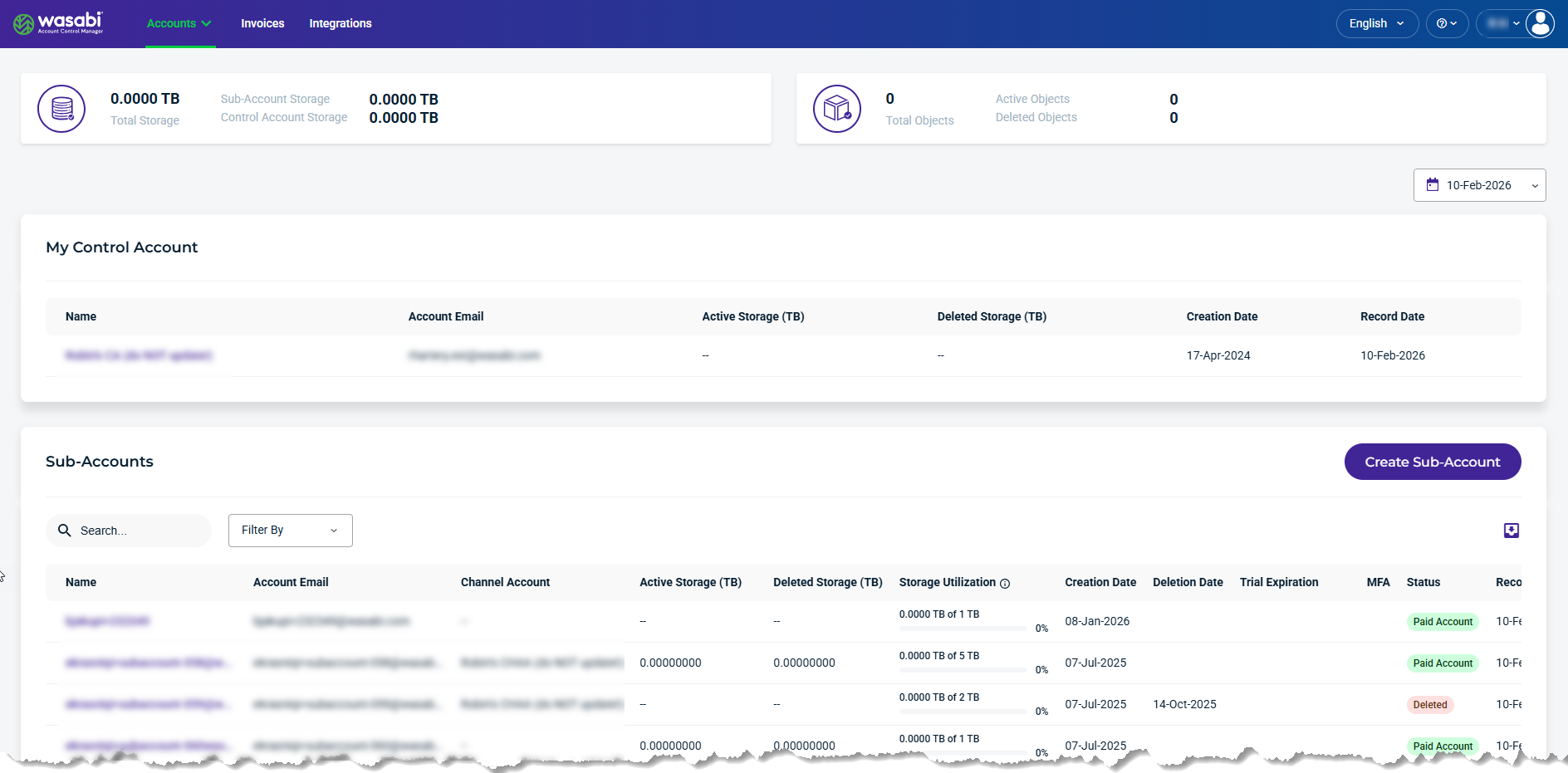
The Control Accounts dashboard includes a top navigation bar with tabs, an aggregate view of utilization statistics, and widgets for WACM components.
The Sub-Accounts view is displayed by default. You can switch to the Channel Accounts view from the Accounts tab drop-down menu.
Navigation Menu
The WACM navigation menu at the top of the dashboard displays those features available for your specific account type and role.

Account Feature Tabs—The primary interface, positioned horizontally at the top of the dashboard, provides tabs to access customer accounts, billing activity, and third-party system connections. Role-based access control may limit visibility of certain tabs. The active tab is visually highlighted.
My Profile—Your Account Profile, located to the right of the navigation bar, provides access to your account profiles for managing your accounts and includes a Log Out link.
Data Card
The upper section of the dashboard displays a Control Account data card providing an aggregated view of utilization statistics for your entire WACM account.

Total Storage—Total storage sub-accounts and control accounts.
Total Objects—Total active and deleted objects.
My Control Account
The My Control Account section shows the Wasabi storage account associated with the Wasabi subscription. The Control Account is a storage account that can contain data buckets and store data.
Any Standalone Account converted to a Control Account will retain any buckets and data it had before the conversion. The Control Account will inherit those buckets and data and place them at the Control Account level.

For access to on usage data and buckets, click the link in the Name field.
Details and Metrics
The My Control Account section provides the following details and metrics for the Control Account:
Name—The name of the Control Account.
Account Email—The contact email used for the Control Account.
Active Storage—The total amount of active storage in TB.
Deleted Storage—The total amount of deleted storage in TB.
Creation Date—The date the Control Account was created.
Record Date—The date the details and metrics were recorded.
Sub-Accounts View
The Sub-Accounts section lists all provisioned Sub-Accounts under the Control Account.
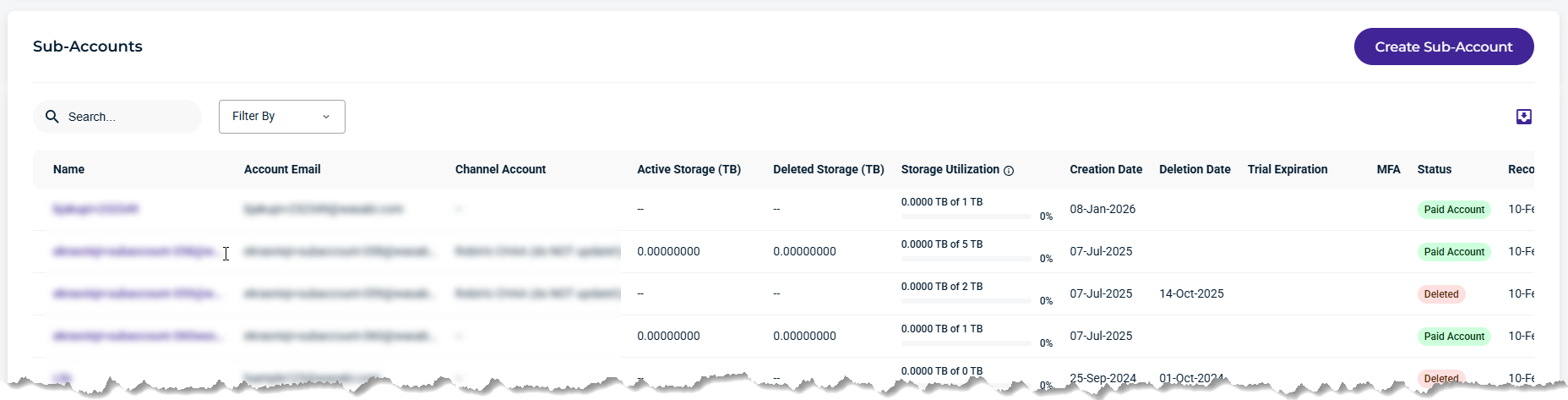
For information on Sub-Account management areas, including usage, buckets, accounts, and invoices, select a Sub-Account in the list.
Details and Metrics
The Sub-Accounts section provides the following details and metrics for each Sub-Account:
Name—The name of the sub-account. This is based on the name you assign when filling out the Create Sub-Account form.
Account Email—The contact mail used for the sub-account.
Channel Account—The channel account the sub-account is under.
Active Storage—The total amount of active storage in TB.
Deleted Storage—The total amount of deleted storage in TB.
Storage Utilization—The percentage of storage used, based on the configured purchased storage value. (Sub-Account Active + Deleted Storage) / Purchased Storage.
Creation Date—The date the sub-account was created.
Deletion Date—The date the sub-account was deleted.
Trial Expiration—The date the trial account will expire.
MFA (multi-factor authentication)—Active or inactive for the user.
Status—Indicates the channel account status as Deleted, Denied, On Trial, Paid Account, Password Pending, or Suspended. If the account is On Trial, you will see a colored countdown. If the account is paid, this column entry will be green. If the account is deleted, this column entry will be pink.
Record Date—The date the details and metrics were recorded.
Filter and Export Options
Search field— Allows you to enter a text string to search the list for both the Name and Account Email.
Filter By field—Results are filtered based on the state of a sub-accounts whether they belong to a Channel Account, and which Channel Account. You can also include or exclude deleted Sub-Accounts from the search.
Export data—Filtered results can be exported as CSV, JSON, or Excel.
Data Cards
The upper section of the dashboard displays data cards providing an aggregated view of utilization statistics.
Control Account Data Card
The Control Account data card provides a quick overview of an account's key values for the selected date.

Total Storage—Total storage sub-accounts and control accounts.
Total Objects—Total active and deleted objects.
Control Account Data Card for RCS
The Control Account data card provides details for Reserved Capacity Storage (RCS).
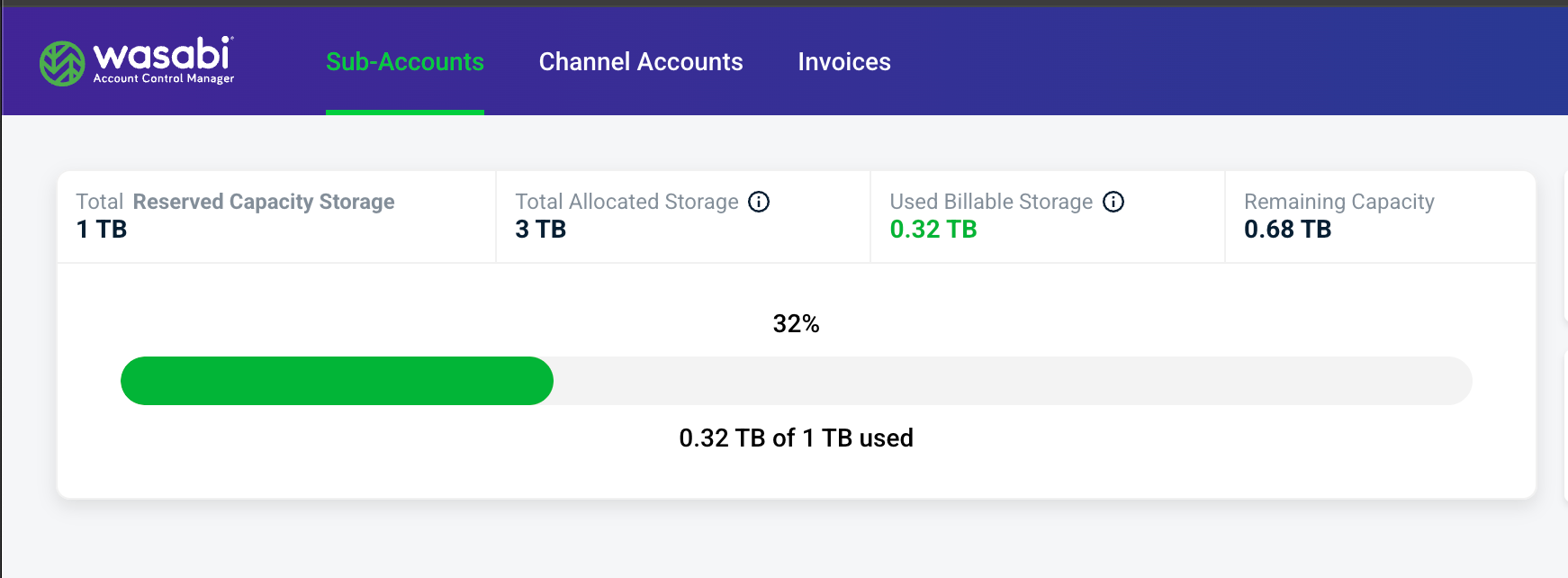
Total Reserved Capacity Storage—Total amount of RCS storage in TB that the account purchased.
Total Allocated Storage—Total amount in TB that the control account has provisioned to its direct channel and sub-accounts in the form of quotas. This number does not include quotas for sub-accounts under Channel Accounts.
Used Billable Storage—Total billable storage consumed by all sub-accounts, including sub-accounts belonging to channel accounts.
Remaining Capacity: Reserved Capacity Storage—Billable storage used across all accounts.