Bucket details are provided to show the bucket creation date, compliance status, and current size (calculated daily):
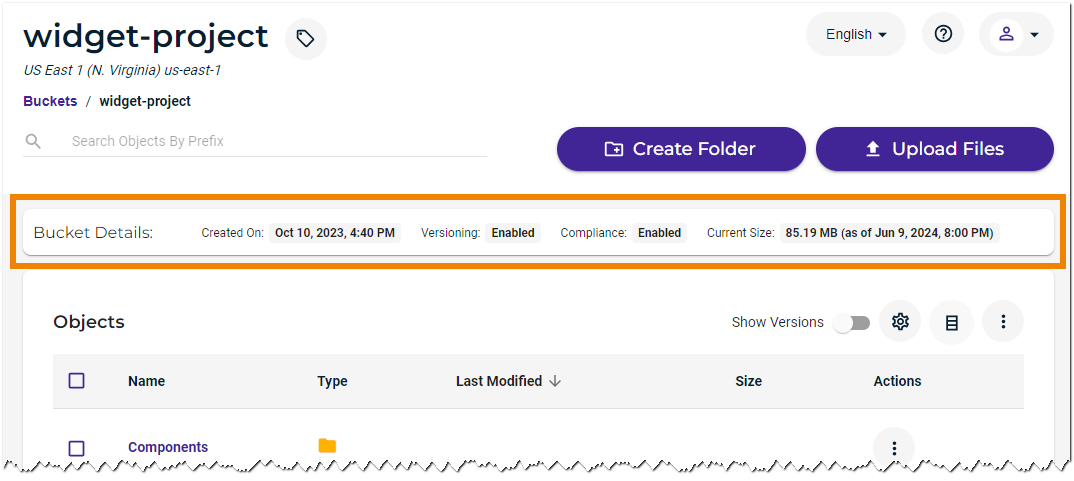
Using the Settings and Bucket Size option, described below, you can more closely review the bucket size with additional statistics. The size is captured daily, so check the timestamp to determine when the calculation was made. You can download the daily statistics in a CSV file (also described below) to show the size over time.
To see the most current size, you must use a separate S3 application or command line to show the size of your bucket:
Reviewing the Bucket Size
On the Buckets list, click
 for the desired bucket.
Click Settings.
On the Properties panel, open the Bucket Size drop-down.
Review the bucket size.

Optionally, you can click Download Billing Data to download the bucket billing statistics as a CSV file.
For a newly created bucket, this information is available for download only after at least one billing cycle.
Reviewing Downloaded Billing Data
When you click Download Billing Data, a CSV file is created for the bucket.
The CSV file shows daily usage (in 24-hour periods).
For new buckets, it may take up to 24 hours before the first CSV file is available.
Deleted storage values appear in the CSV file but are not reflected in the Console display of the bucket size.
Billing data saved to a CSV file includes:
Bucket—The bucket name.
Region—Region in which the bucket is located.
BucketNum—System-wide internal bucket number.
StartTime—Start of the measurement period (in UTC time).
EndTime—End of the measurement period (in UTC time).
NumBillableActiveStorageObjects—Number of objects in the bucket that are considered to be active storage.
NumBillableDeletedStorageObjects—Number of objects in the bucket that are considered to be deleted storage (storage that has not yet met the 90-day minimum storage period).
RawActiveStorageBytes—Total number of storage bytes of the objects.
BillableActiveStorageBytes—Total number of storage bytes and associated metadata consumed by all active storage objects in the bucket. Because this includes metadata, this number is generally higher than the bucket size (as displayed in Console, which shows only the raw file sizes).
BillableDeletedStorageBytes—Total number of storage bytes and associated metadata consumed by all deleted storage objects in the bucket.
NumAPICalls—Number of API calls against the bucket,
IngressBytes—Number of ingress (upload) bytes against the bucket.
EgressBytes—Number of egress (download) bytes against the bucket.
AWS CLI
Be sure the AWS CLI tool is installed for the system you use on a daily basis (see AWS CLI With Wasabi). Many helpful commands can be run here, and it is a good "check" to verify information. Numerous articles and examples of how to use these commands are available online.
$ aws s3 ls --summarize --human-readable --recursive s3://mikeo-test-overwrite1 --endpoint-url=https://s3.wasabisys.com

        2019-08-30 11:49:41 1.0 MiB SpeedTest_1MB.db
        2019-08-30 11:49:42 1.0 MiB SpeedTest_1MB1.db
        2019-08-30 11:49:43 1.0 MiB SpeedTest_1MB2.db
        Total Objects: 3
        Total Size: 3.0 MiB
If you have a large number of objects, you can also grep for the word "Total" and get the final answer:
$ aws s3 ls --summarize --human-readable --recursive s3://mikeo-test-overwrite1 --endpoint-url=https://s3.wasabisys.com | grep Total
        Total Objects: 3
        Total Size: 3.0 MiB
AWS CLI for Versioned Buckets
The aws cli ls commands do not include versioned objects. You will need to use a command such as aws s3api list-object-versions to see versioned objects and then calculate the total from the output. The following is one sample you can try. (Notice that you need to install the JQ JSON command line processor before you try this.)
aws s3api list-object-versions --endpoint-url=https://s3.us-west-1.wasabisys.com --bucket bucket-just-to-be-deleted-versioned --query 'Versions[*].Size' | jq add | numfmt --to=iec-i --suffix=BThe result would be similar to:
mikeo$ aws s3api list-object-versions --endpoint-url=https://s3.us-west-1.wasabisys.com --bucket bucket-just-to-be-deleted-versioned --query 'Versions[*].Size' | jq add | numfmt --to=iec-i --suffix=B
        21MiB
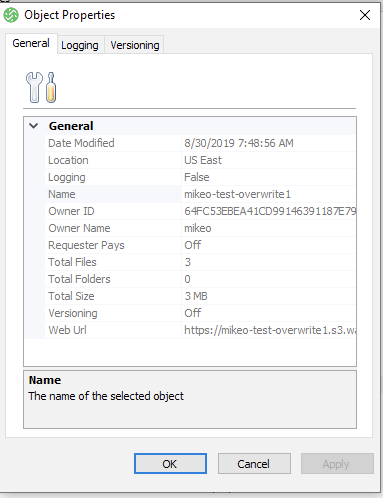
Wasabi Explorer
Within Wasabi Explorer:
Right-click the bucket you want to review.
Select Properties.
A pop-up will display information that includes the Total Size of the bucket. For example:
S3 Browser
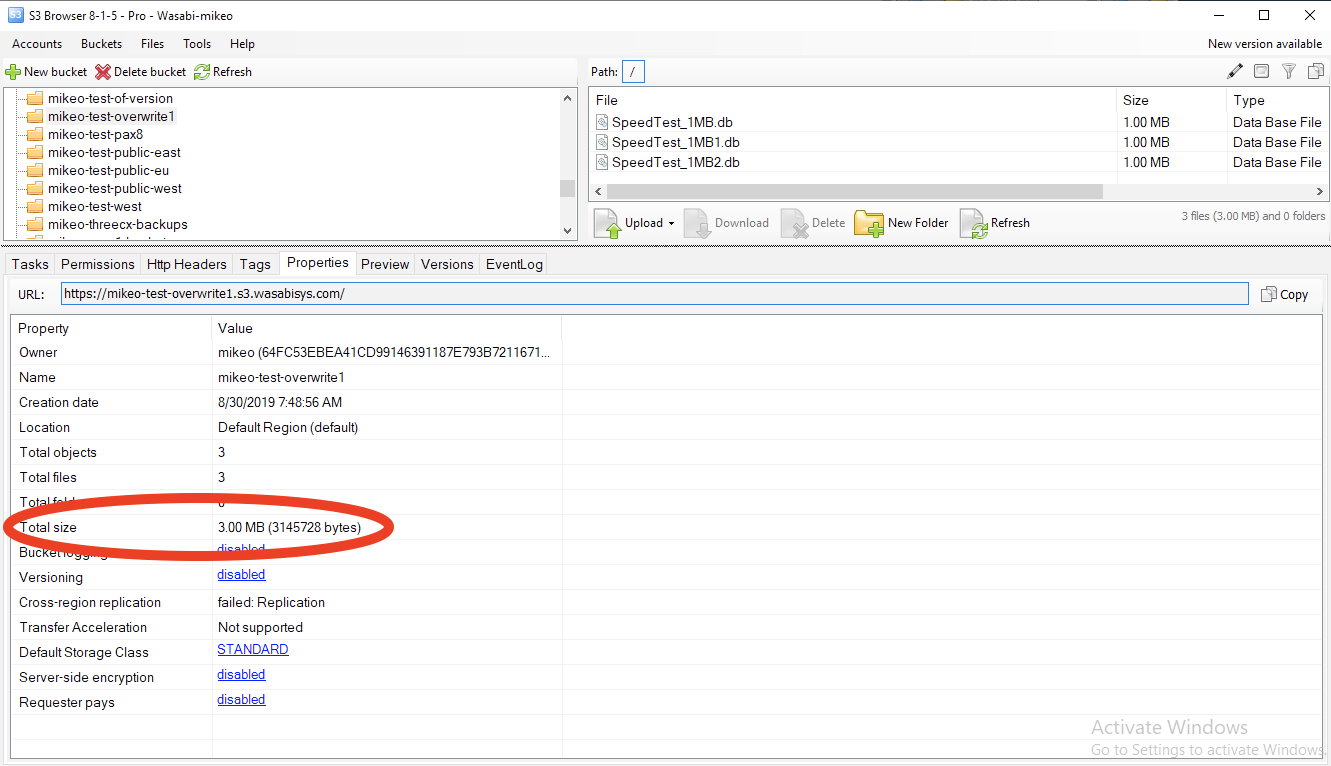
The S3 Browser has a tab below the bucket selection that calculates the size.
When reviewing size, note that, although there is no concept of a "folder" in S3 storage, each object can be marked with a prefix that can associate objects and make it appear to be separated into folders.