Objectives
1—Enable Custom Cloud Console.
2—Create a sub-account and add a member or onboard an existing sub-account.
3—Reset a Password.
4—Manage region availability.
With Custom Cloud Console (CCC), you can provide your users with a branded S3 console that features your own colors and logos. By default, the console is co-branded using the poweredbywasabi URL. You also have the option to set up a custom console domain, which will supersede the poweredbywasabi URL.
All Wasabi regions are enabled by default in CCC for your customers to access with the standard Wasabi URLs (for example, http://s3.us-east-1.wasabisys.com).
Enabling Custom Cloud Console
Sign in to the WACM Console (https://wacm.wasabisys.com) as Admin to enable and manage CCC.
Click My Profile. The Profile page is displayed by default.
Click the Features tab. The Custom Cloud Console feature tile is displayed.
Click Enable to open the CCC configuration page.
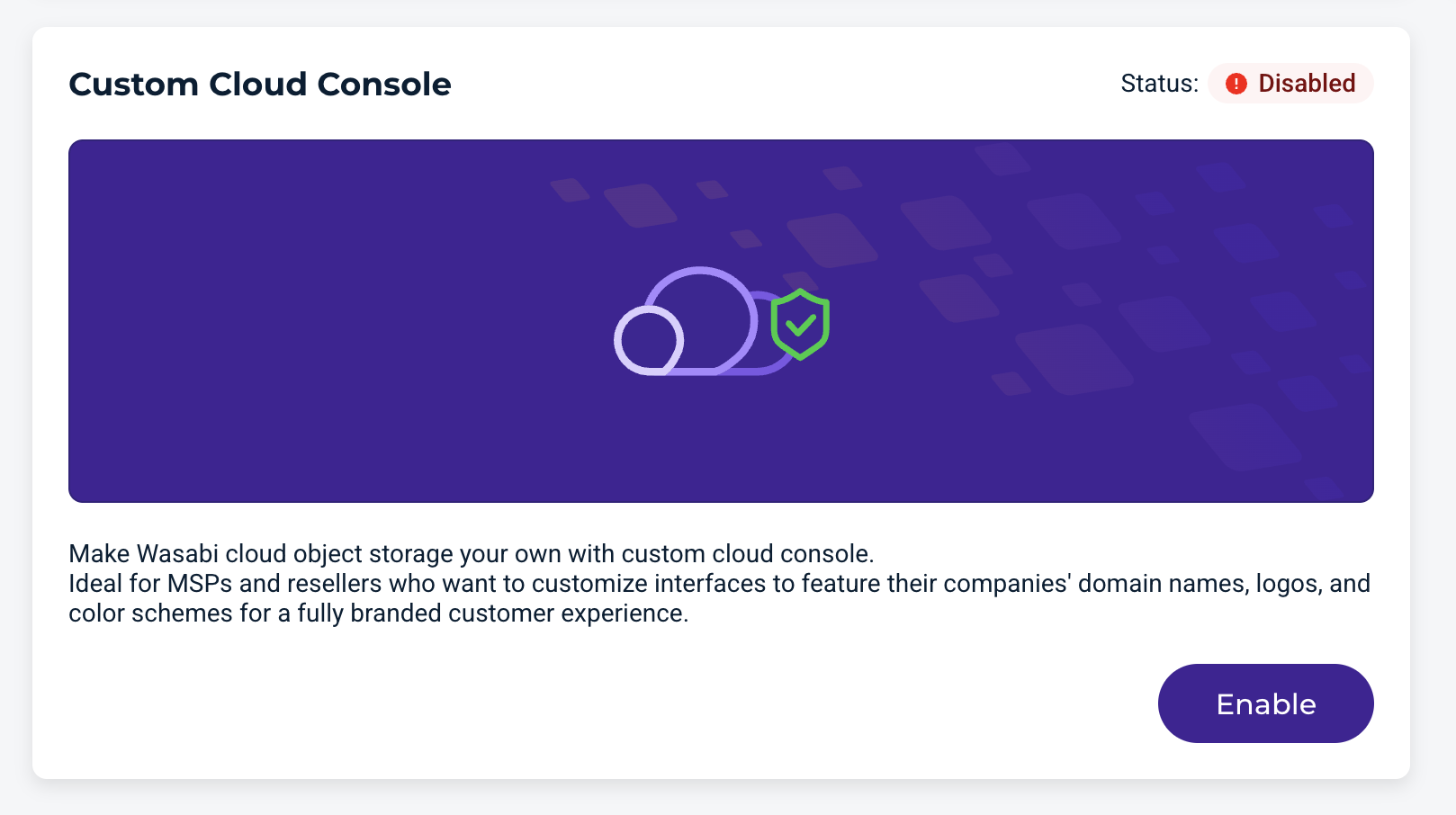
The CCC configuration page is displayed.
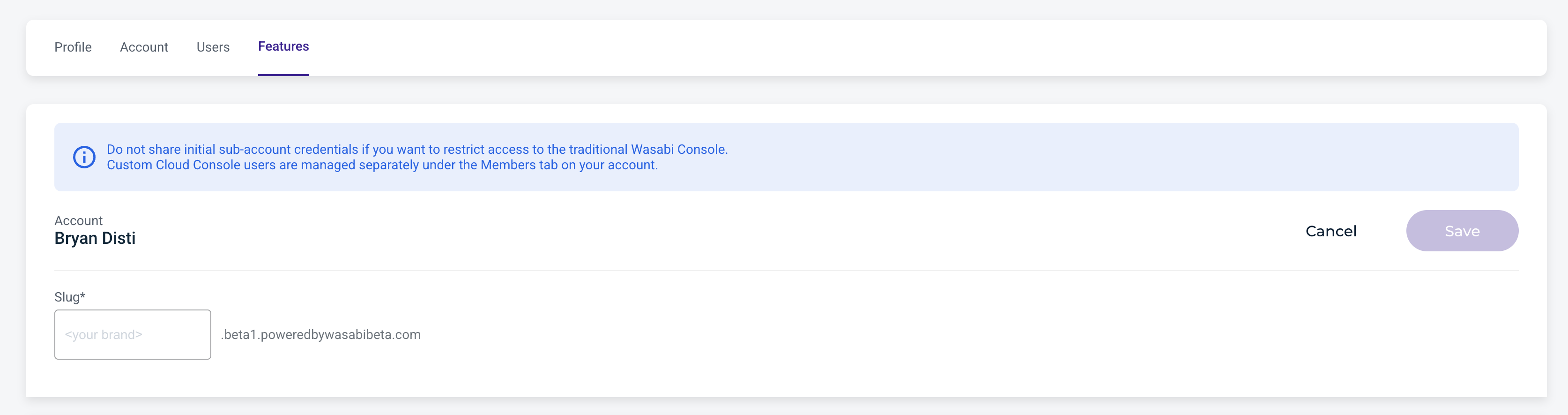
Enter the slug for your URL in the Account section, then click Save before continuing. Optionally, enter a custom domain and/or continue to the rest of the configuration. For more information, see Configuring the Custom Console Domain instructions below.
The "slug" used is the URL prefix and is typically the name of your company or service.
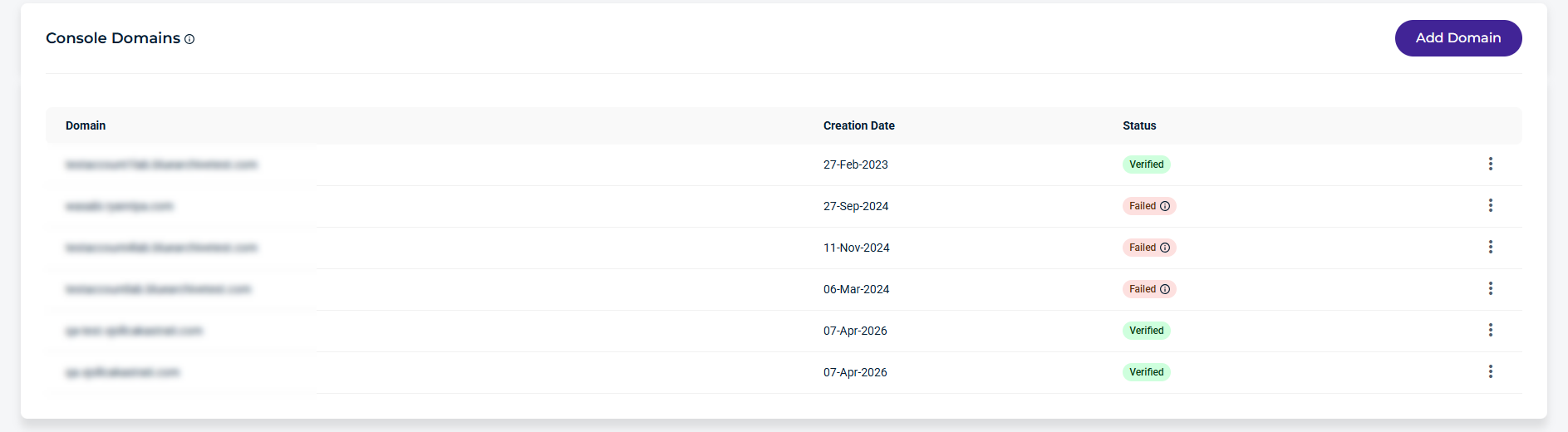
Optionally, click Add Domain to add a custom domain for your users to log in to your Custom Cloud Console or use the Wasabi domain poweredbywasabi.
You must complete your Custom Cloud Console setup before creating a Console Domain.
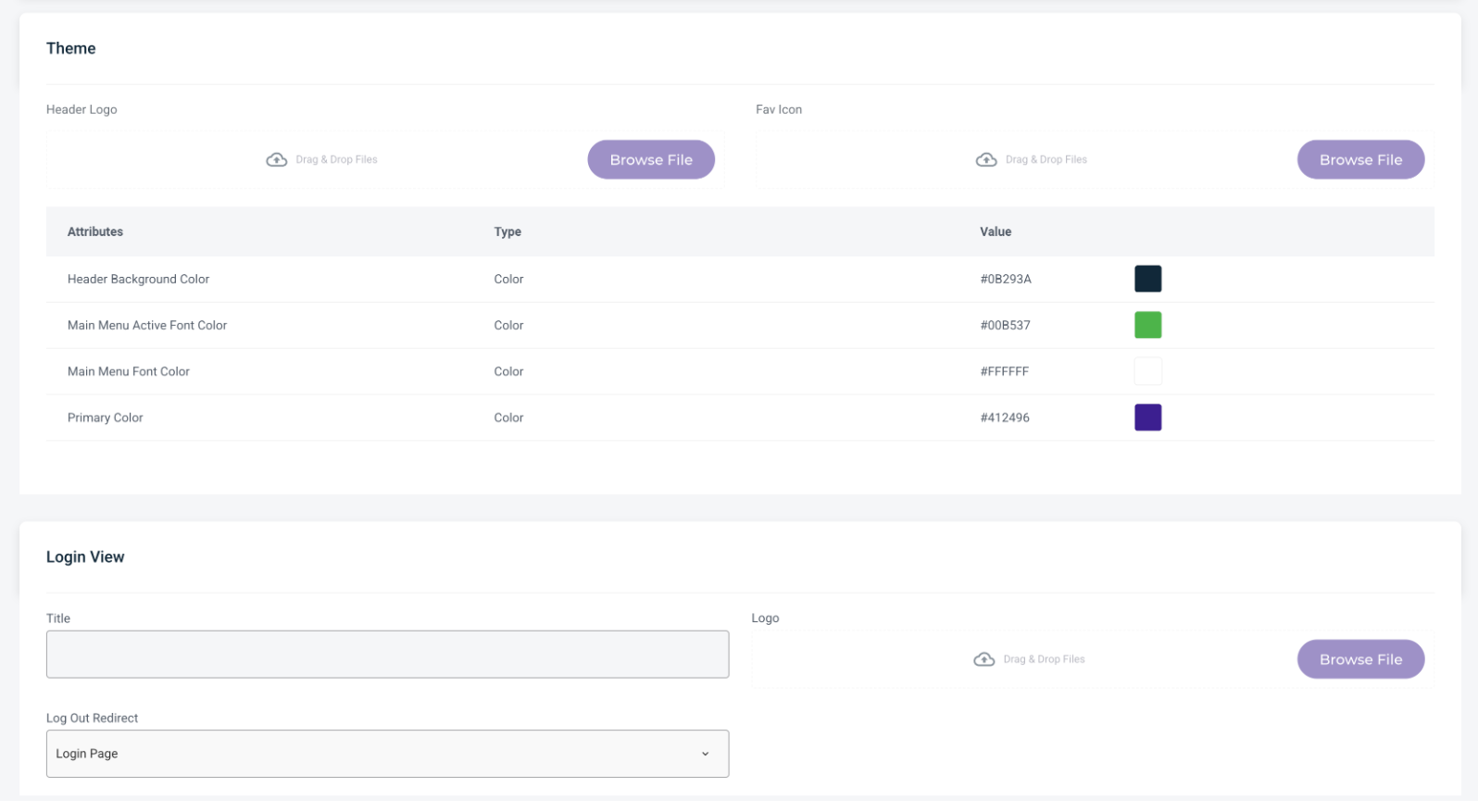
In the Theme section, browse and add your header logo and fav icon, then select your colors.
In the Login View, add a title, select a logout redirect, and then browse and select an image for your login.
Configuring the Custom Console Domain (Optional)
Optionally, you can configure the Console Domain after enabling the Custom Cloud Console.
If you are using the Console domain, create the following DNS CNAME records:
CUSTOMCONSOLEDOMAIN: SLUG.poweredbywasabi.com
acme-challenge.CUSTOMCONSOLEDOMAIN: _acme-challenge.ccc.wasabisys.com
Updating Regions
You can hide any regions you do not want to be available to your customers through CCC. Any regions enabled here can be selectively disabled on a per-sub-account basis. Regions disabled here will not be available for enablement in any sub-account. These region selections apply ONLY to the Custom Cloud Console. Users accessing the standard Wasabi Console will see all Wasabi regions.
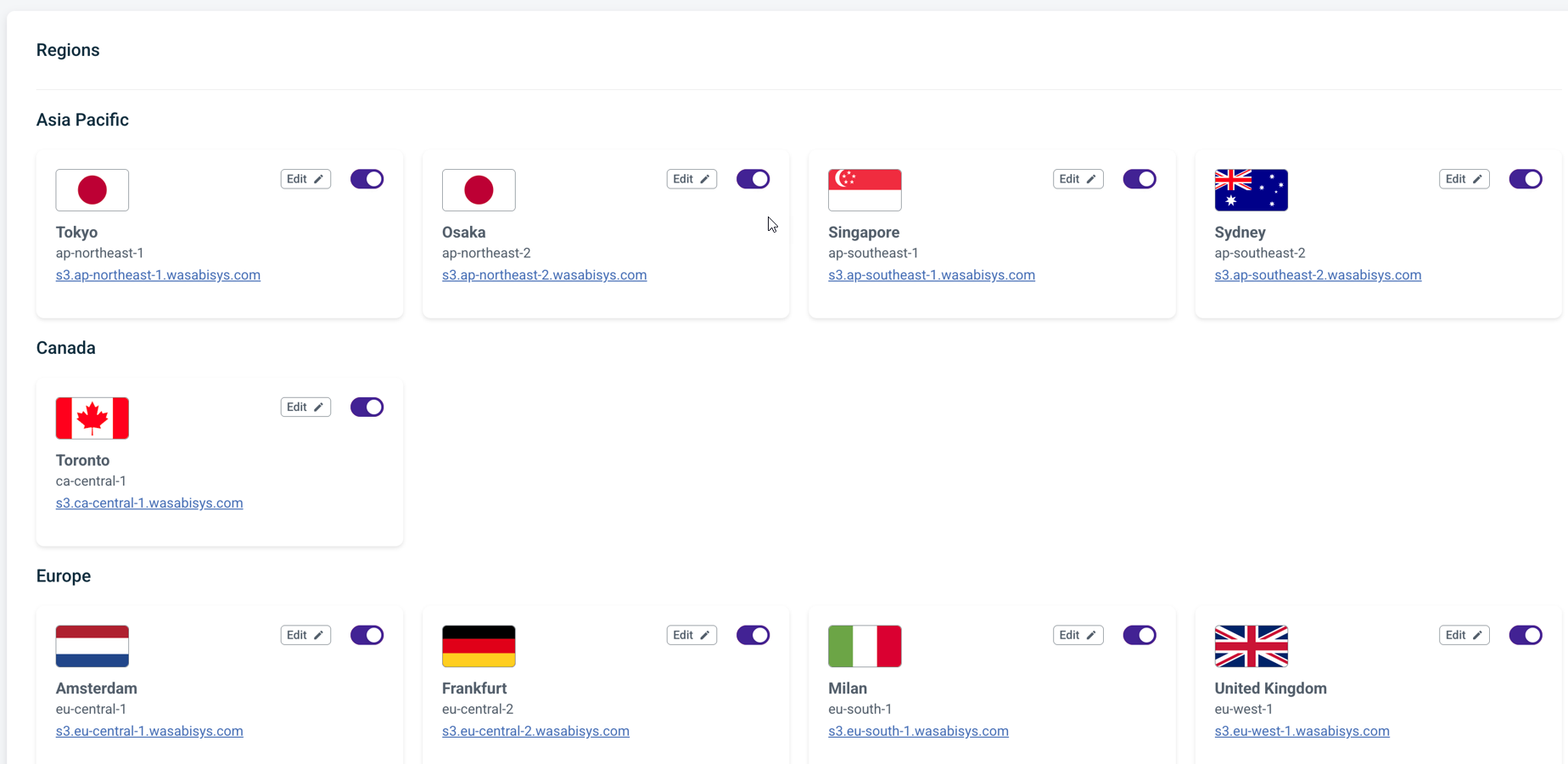
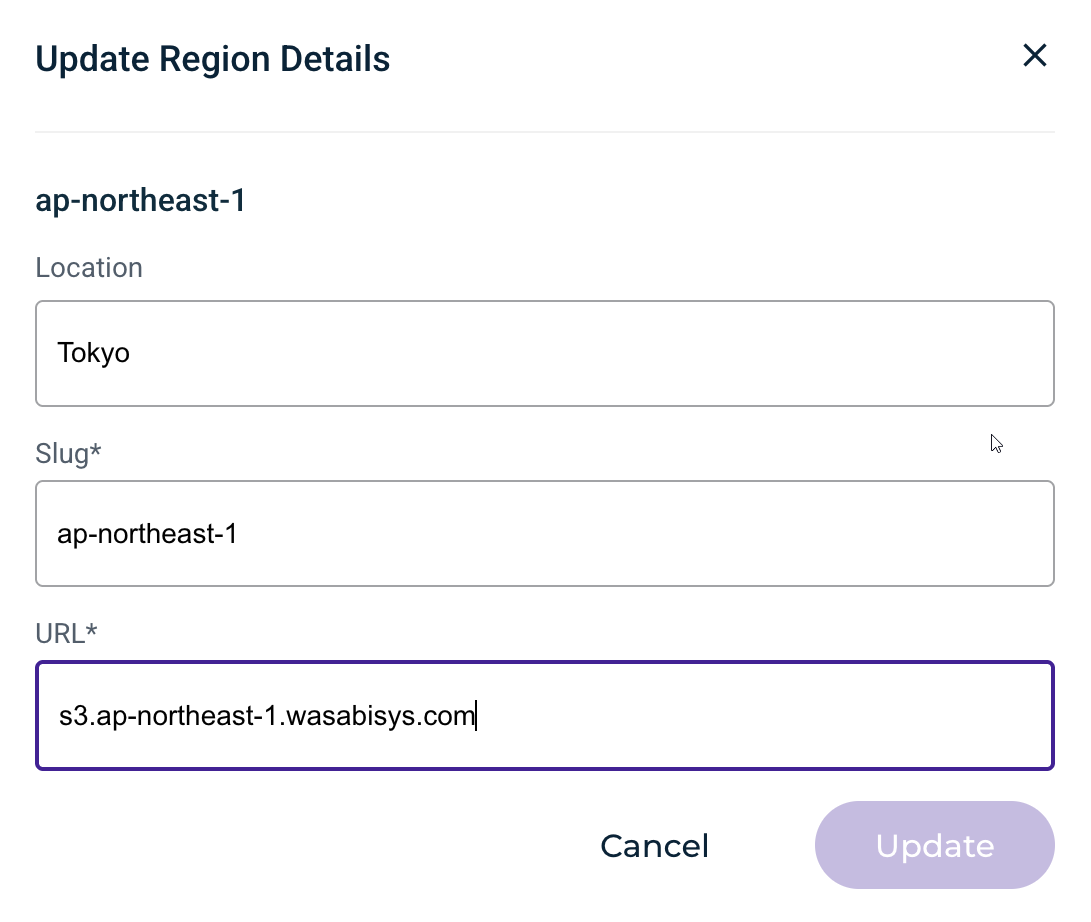
To update Region details, click Edit on a selected region to change how the regions are presented to the user:
Location—The specific s3 region geographical location.
Slug—The name of the region.
URL—The actual region URL. Change this URL if you have white-labeled Wasabi S3 domains.
The following is an example of region details. To fully white-label the regions, use the Wasabi Custom Domain feature alongside the Custom Cloud Console.
Delete Custom Cloud Console
To delete a custom cloud console configuration, click the Delete button.

Objectives Met!
1—Enable Custom Cloud Console.
2—Create a sub-account and add a member or onboard an existing sub-account.
3—Reset a password.
4—Manage region availability.