Shade (ShadeFS) is an application validated to work with Wasabi Hot Cloud Storage. This software allows creative teams to easily curate, collaborate, and share their project assets. The steps below explain how to integrate your Wasabi Hot Cloud Storage with Shade to store your project data.
Requirements
Wasabi Hot Cloud Storage account (see Signing Up For Wasabi)
Be sure to note your Wasabi access and secret key, as these will be used later.
Wasabi bucket (see Creating a Wasabi Bucket below)
Be sure to note your exact bucket name and Wasabi storage region, as these will be used later.
Shade.inc account
For more information, refer to Shade’s quick start article, Get the App.
Refer to Creating a Shade BYOS Drive below.
Creating a Wasabi Bucket
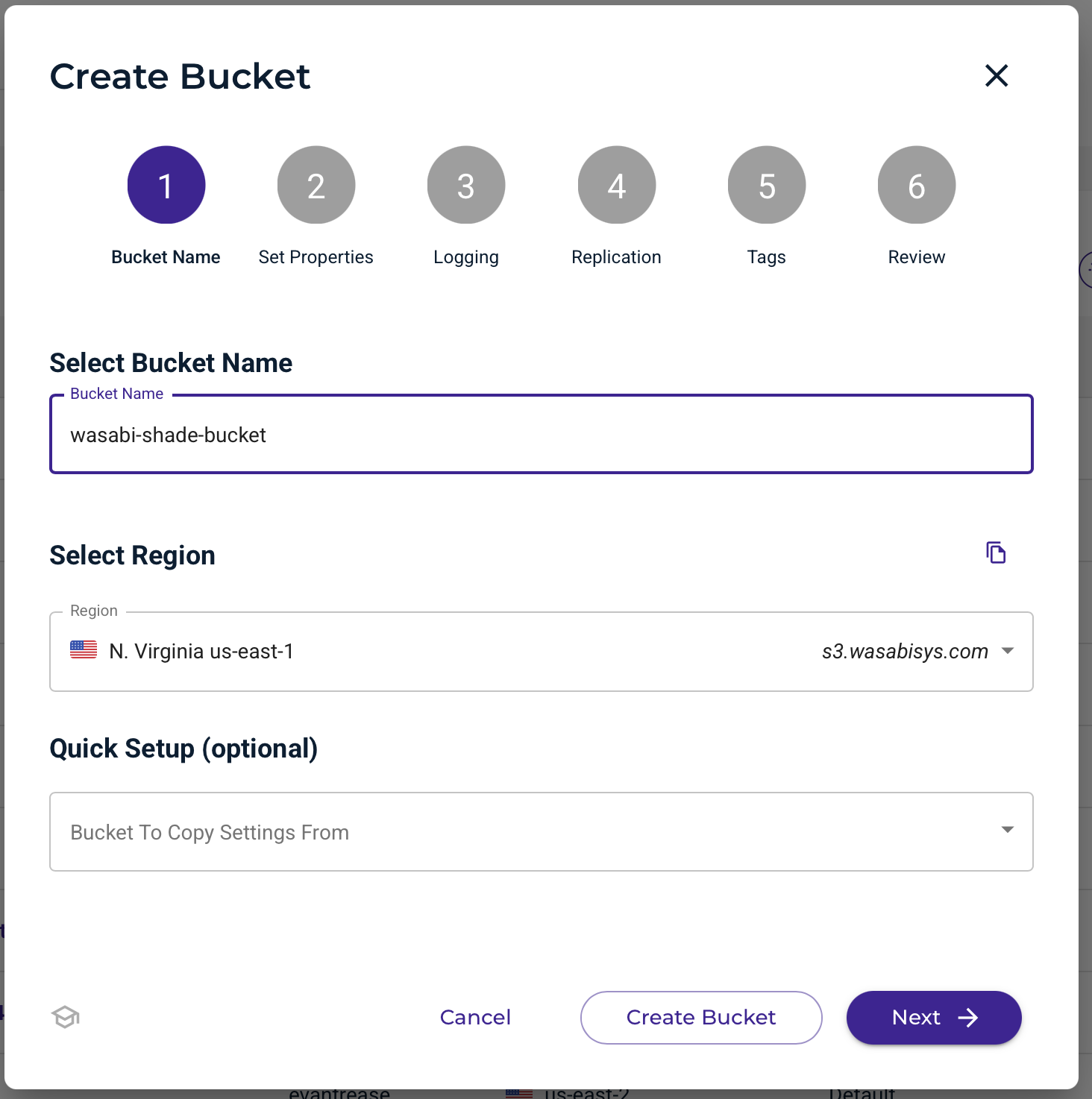
Create a new standard Wasabi Bucket (versioning, logging, and replication are optional). For detailed instructions, see Working With Buckets and Objects.
Be sure to note the bucket name and the storage region where the bucket is located, as you will need them in later steps.
Click Create Bucket.
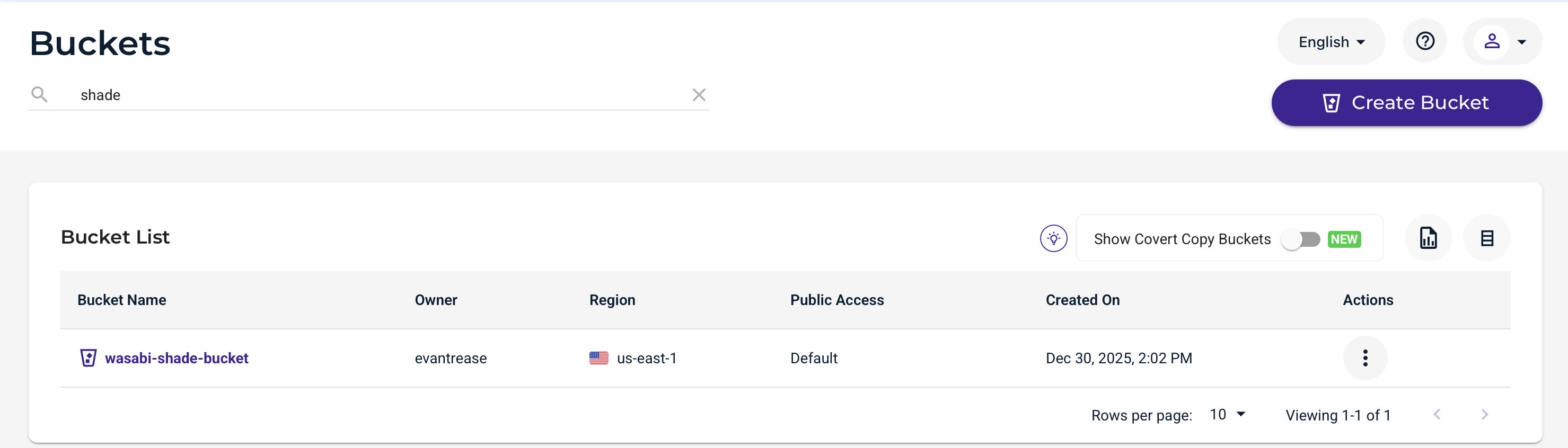
You will now see the bucket listed in the Wasabi Console.
Special note about CORS:
Cross-Origin Resource Sharing is a necessary feature that allows buckets and their contents to be accessible from different origins (for example, https://app.shade.inc). This is necessary for the Shade application to access and download original media for you from the Shade app.
By default, Wasabi allows CORS for all origins. However, if you have changed or restricted your origin, you must whitelist *.shade.inc as an allowed origin.
For more details, refer to Cross-Origin Resource Sharing (CORS).
Creating a Shade BYOS Drive
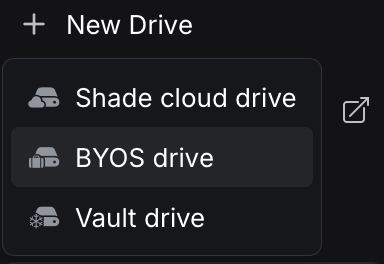
Log in to your Shade workspace and click + New Drive, then select BYOS drive.
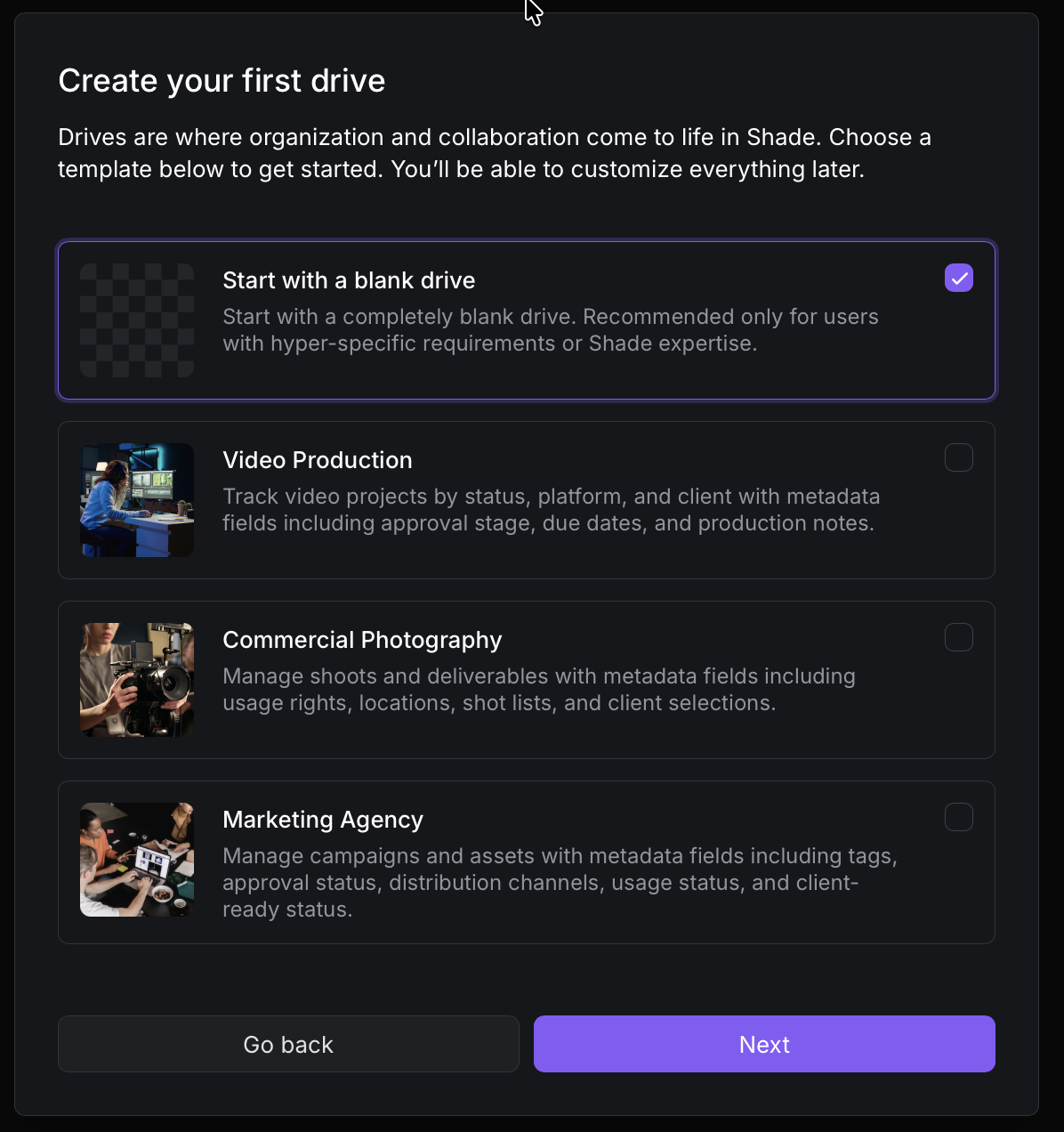
Choose the appropriate drive type for your work (optionally, choose blank). Click Next.
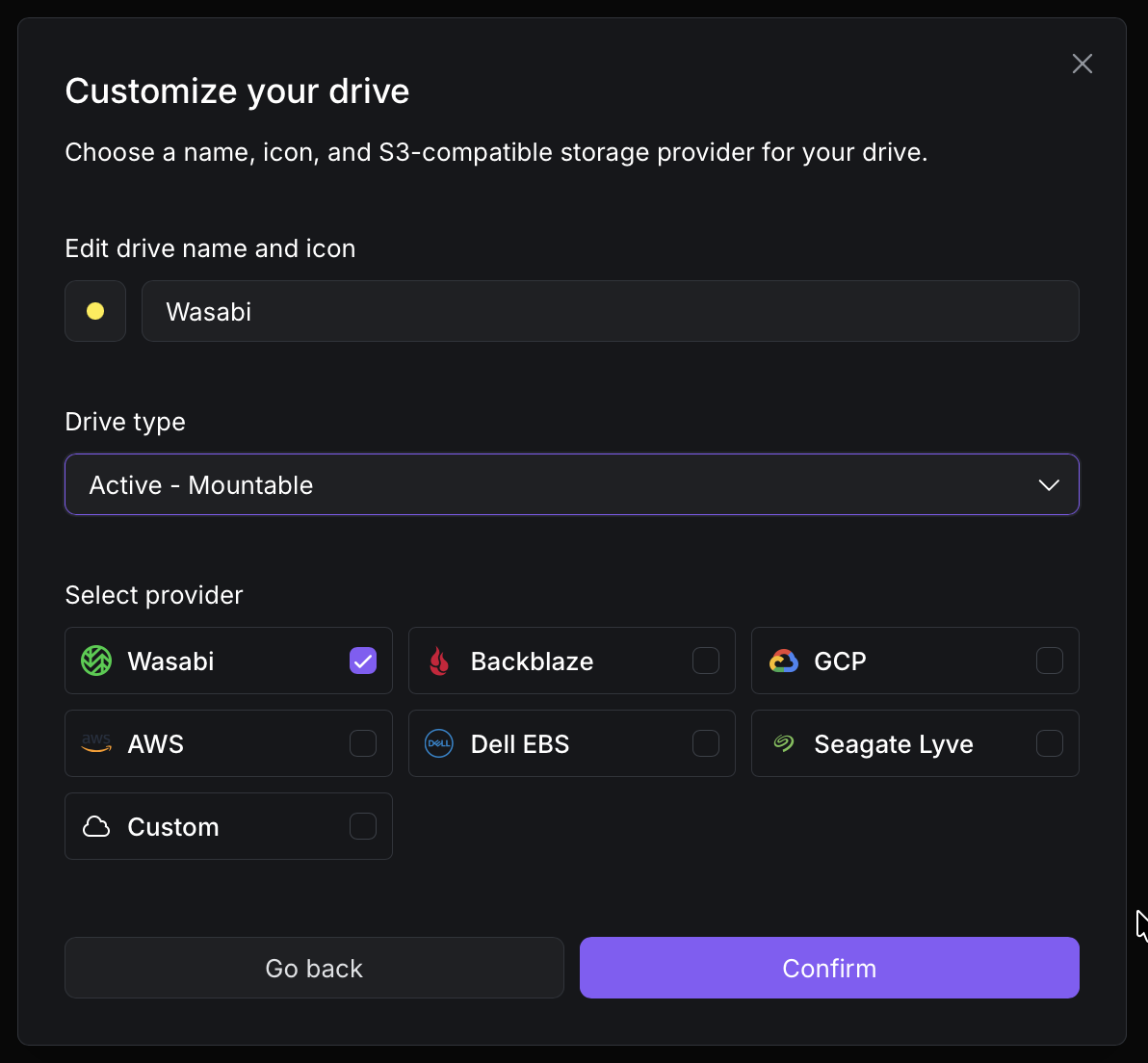
Enter a Drive Name and then check the box next to Wasabi. Click Confirm.
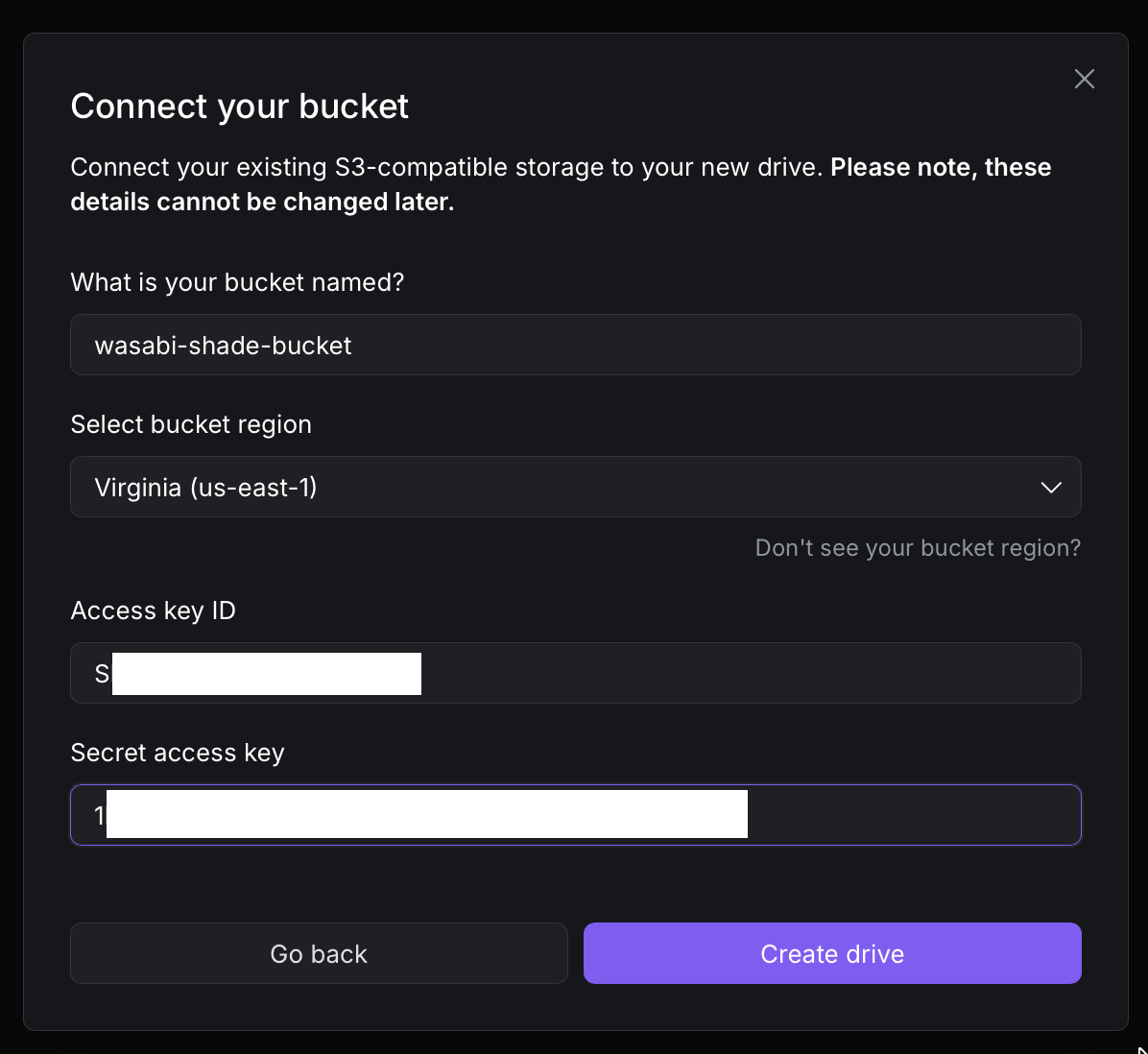
Enter the following information:
Bucket Name—The exact name of the bucket you created earlier in your Wasabi Storage Console.
Wasabi Storage Region—The same region as you had chosen when creating your bucket.
Your Wasabi Access & Secret Key—See Wasabi’s KB Article on Access Keys to generate a new key in your Wasabi Console.
Click Create drive.
This configuration example uses Wasabi’s us-east-1 storage region. Use the region in which your bucket is located. For a list of regions, see Available Storage Regions.
Confirming That You Can Successfully Create a Folder and Upload Files
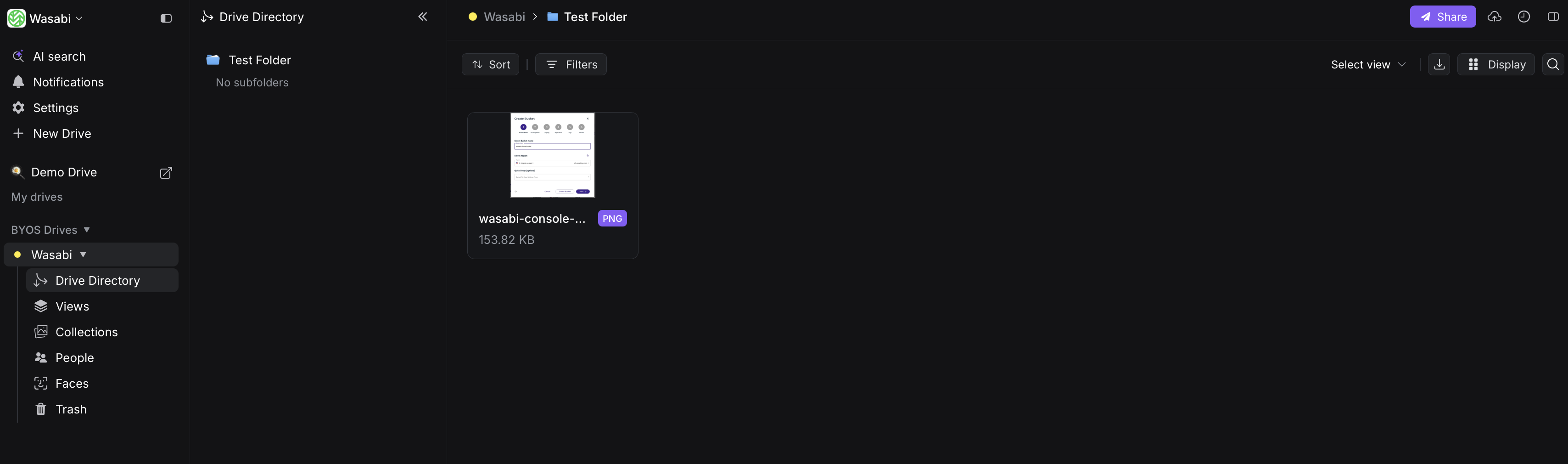
Create a folder or access an existing folder in your Shade Drive.
Upload a file by dragging and dropping it into the application.
Confirm that the file is now in the Shade Drive.
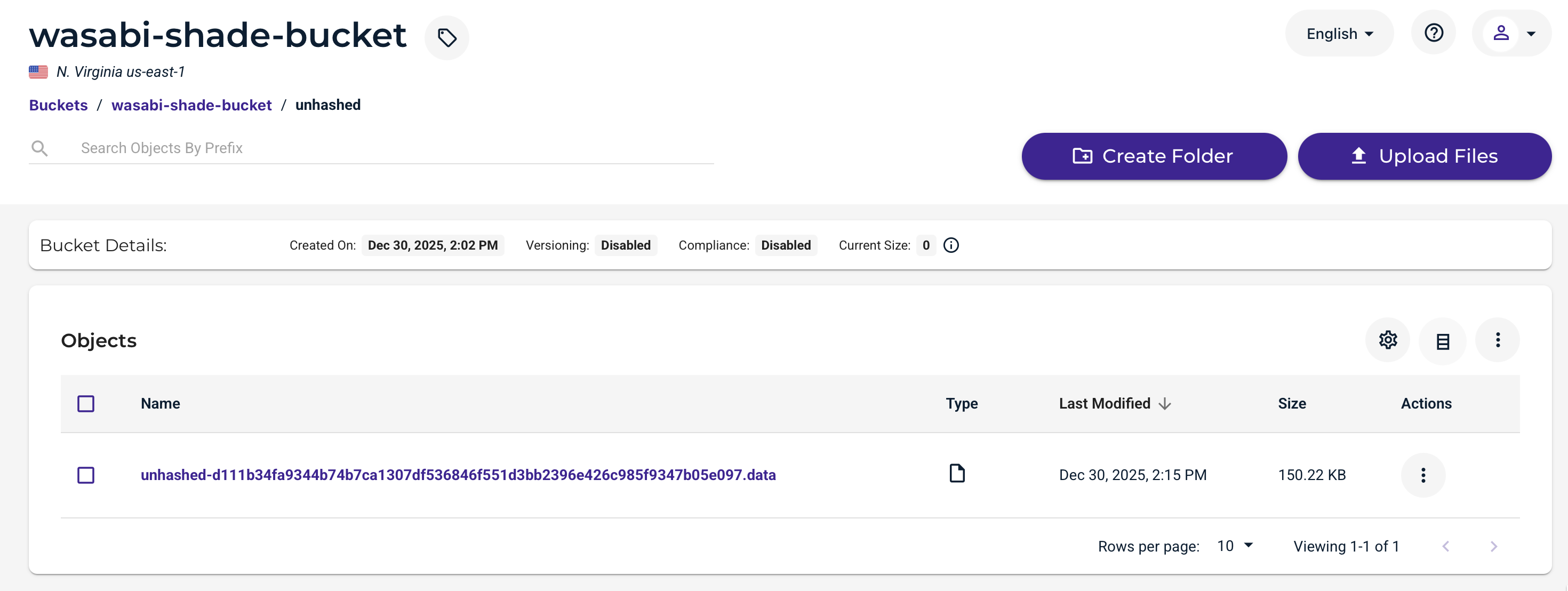
The Shade application stores data in a proprietary format. You will not see the same file names in your Wasabi bucket as they exist in your Shade Drive.
For additional information, refer to Connecting Shade to Wasabi provided by Shade.inc.