Before using the Job Manager, be sure that the source folder is mapped to the bucket in the WSC client. For more information, see Pairing a VMS With a Target.
Select the Job Manager tab.

You have the option to select one of the following job types.
Cameras
Sources
Click the checkbox(es) to select the appropriate camera(s) or source(s) from the list. If you are using Milestone, Genetec, Avigilon, or Valerus VMS and are creating a camera-specific job (for example, downloading the contents of a specific camera or rehydrating the data for that camera), you have the option to select specific cameras. If you are using any other VMS and creating a camera-specific job, click the checkbox to select All cameras.
Optionally, configure job settings. To do so, refer to Configuring Job Settings (described below). Once complete, return to this step.
Click the drop-down to select an operation. The available operations may vary depending on the job type.
The Sync recordings operation is only available for source-based jobs.
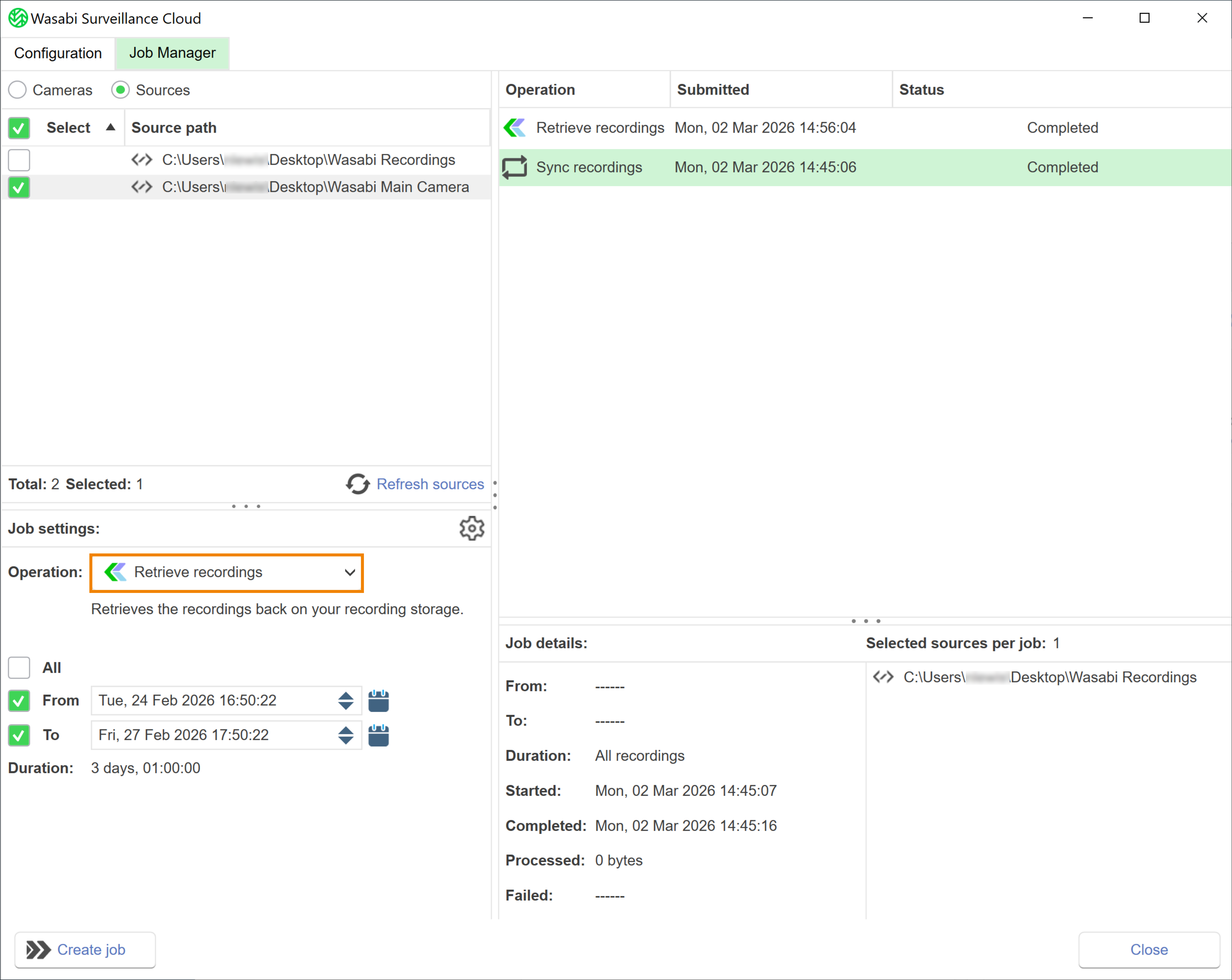
Use the From and/or To fields to provide a date range for the data included in the operation. To do so, click the checkbox to select From and/or To.
Click
.png) to select a date from the calendar.
to select a date from the calendar.Optionally, if no specific date range is required, click the checkbox to select All.
Click Create Job.
A message will request that you confirm the scheduled job. Click Yes.
Once the job is created, the job status will be set to Running. You can view the job details in the Job details panel.
Configuring Job Settings
When creating a job, you can configure optional job settings. Before setting the thread counts, be sure to note that the on-premise infrastructure determines the thread count limit. If there is latency, scale down on thread count.
Click
 in the Job settings field.
On the Settings panel, configure the appropriate settings.
Any updates to the Job threads count in the Job Manager will take precedence over the WSC client performance (uploading and downloading data). Depending on the infrastructure, 2–100 thread counts can be used. However, Wasabi recommends using between 4–12 thread counts. For best performance, the threads count should not exceed 10.
Click Save.