Wasabi Admins and WACM Admins have different views of Sub-Accounts based on their administrator role and account access. Although they have access to similar information and tools, the Sub-Account data and management options available depend on the account and dashboard being viewed.
Wasabi Admin Sub-Accounts Dashboard—Provides Wasabi Admins with a high-level view of Sub-Accounts across the accounts they have access to, including aggregated account and storage data and tools for locating and managing Sub-Accounts.
WACM Control Account Sub-Accounts Dashboard—Provides Control Account Admins with a view of the Sub-Accounts associated with their Control Account, including account and storage data and tools for locating and managing those Sub-Accounts.
Wasabi Admin Sub-Accounts Dashboard
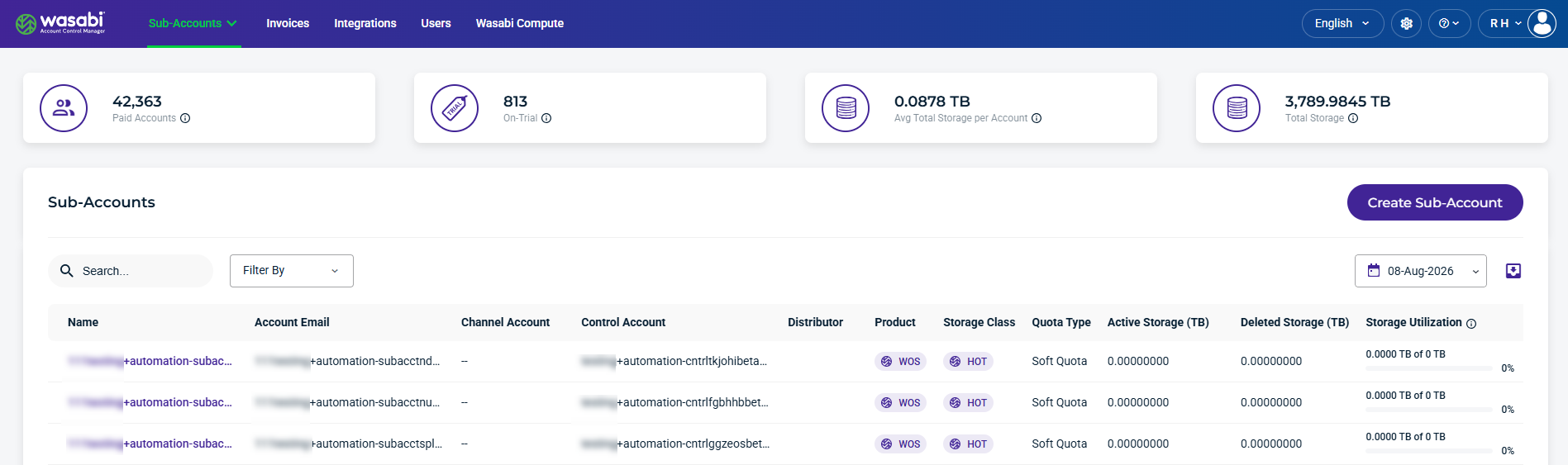
When you sign in to WACM as a Wasabi Admin, the Distributors page is displayed by default. From the navigation bar, select Sub-Accounts from the dropdown. The Sub-Accounts page provides an overview of account and storage activity, along with tools to view and manage Sub-Accounts.
Summary data cards—Provide aggregated account and storage statistics across all Sub-Accounts.
Sub-Accounts—For each sub-account, the table displays account details, assigned products, storage class, quota type, active and deleted storage, and current storage utilization. Additionally, you can search and filter table attributes, select a date to view historical data, export data, and create a Sub-Account.
Understand Sub-Account Summary Data
The top section of the dashboard summarizes account and storage information.

Paid Sub-Accounts—The number of paying Sub-Accounts, including suspended paid accounts.
On-Trial—The number of Sub-Accounts in a trial period, including suspended trial accounts.
Average Total Storage per Account—The average amount of storage used per Sub-Account.
Total Storage—The total amount of storage used for active and deleted Sub-Accounts.
Sub-Account Details and Metrics
This section lists the details and metrics for each Sub-Account:
Name—The Sub-Account’s name. This is based on the name entered when the Sub-Account was created.
Account Email—Email used for the Sub-Account.
Channel Account—Associated with the Sub-Account.
Control Account—Associated with the Sub-Account, if applicable.
Distributor—Associated with the Sub-Account, if applicable.
Product—The product storage type for the account, such as Wasabi Cloud NAS (WCN), Wasabi Object Storage (WOS), or Wasabi Surveillance Cloud (WSC).
Quota Type—The quota type policy for the Sub-Account, either Hard Quota or Soft Quota.
Active Storage (TB)—The amount of currently active storage for the account.
Deleted Storage—The amount of deleted storage for the account.
Storage Utilization—Percentage of storage amount used, based on the configured storage quota value. (Sub-Account Active + Deleted Storage) / Storage Quota.
Creation Date—The date that the Sub-Account was created.
Quota Start Date—The selected start date to begin tracking the object storage used.
Quota End Date—The selected end date to stop tracking object storage used.
Quota Days Remaining—The number of days remaining for the time period selected to track the object storage used.
Quota Date Status—Indicates whether the object tracking period is set or expired.
Deletion Date—The date the Sub-Account was deleted.
Trial Expiration—The date the trial account is set to expire.
MFA—Indicates whether MFA is enabled for the account.
Status—Indicates the sub-account status as Deleted, Denied, On Trial, Paid Account, Password Pending, or Suspended. If the account is On Trial, you will see a colored countdown. If the account is paid, this column entry will be green. If the account is deleted, this column entry will be pink.
Record Date—The date the Sub-Account usage was recorded.
Find and Refine Sub-Accounts
Use the Search, Filter By, and Calendar tools to find and refine the Sub-Account data displayed on the page. You can also use the Export tool to export Sub-Account data for reporting or further analysis.

Search and Filter By
Use the Search field to find specific Sub-Accounts, and use the Filter By menu to filter specific account details and metrics.
The following Filter By menu options are available:
Control Account—Filter Sub-Accounts by their associated Control Account, if applicable.
Distributor—Filter Sub-Accounts by the assigned Distributor, if applicable.
Product—Filter by the storage product assigned to the Sub-Account, such as WCN, WOS, or WSC.
Quota Type—Filter by the quota policy, select Hard Quota or Soft Quota.
MFA—Filter based on whether multi-factor authentication (MFA) is enabled.
Status—Filter by the current status of the Sub-Account.
Channel Account—Filter by the associated channel account.
Quota Date Status—Filter sub-accounts based on the status of their quota dates.
Has quota start date—Show only sub-accounts that have a configured quota start date.
Has quota end date—Show only sub-accounts that have a configured quota end date.
Show Deleted Accounts—Include deleted sub-accounts in the results. By default, deleted accounts are hidden.
Calendar Tool
The calendar dropdown lets you select a specific Record Date to filter account data.
Export Tool
The Export tool lets you filter results and export data to CSV, JSON, or Excel formats.

View and Manage a Sub-Account
Select a Sub-Account from the list to view usage information and access account management settings.
Data Storage Usage
Account Settings and Management
Create a Sub-Account
To create a Sub-Account, see Creating a Sub-Account.
WACM Admin Sub-Accounts Dashboard
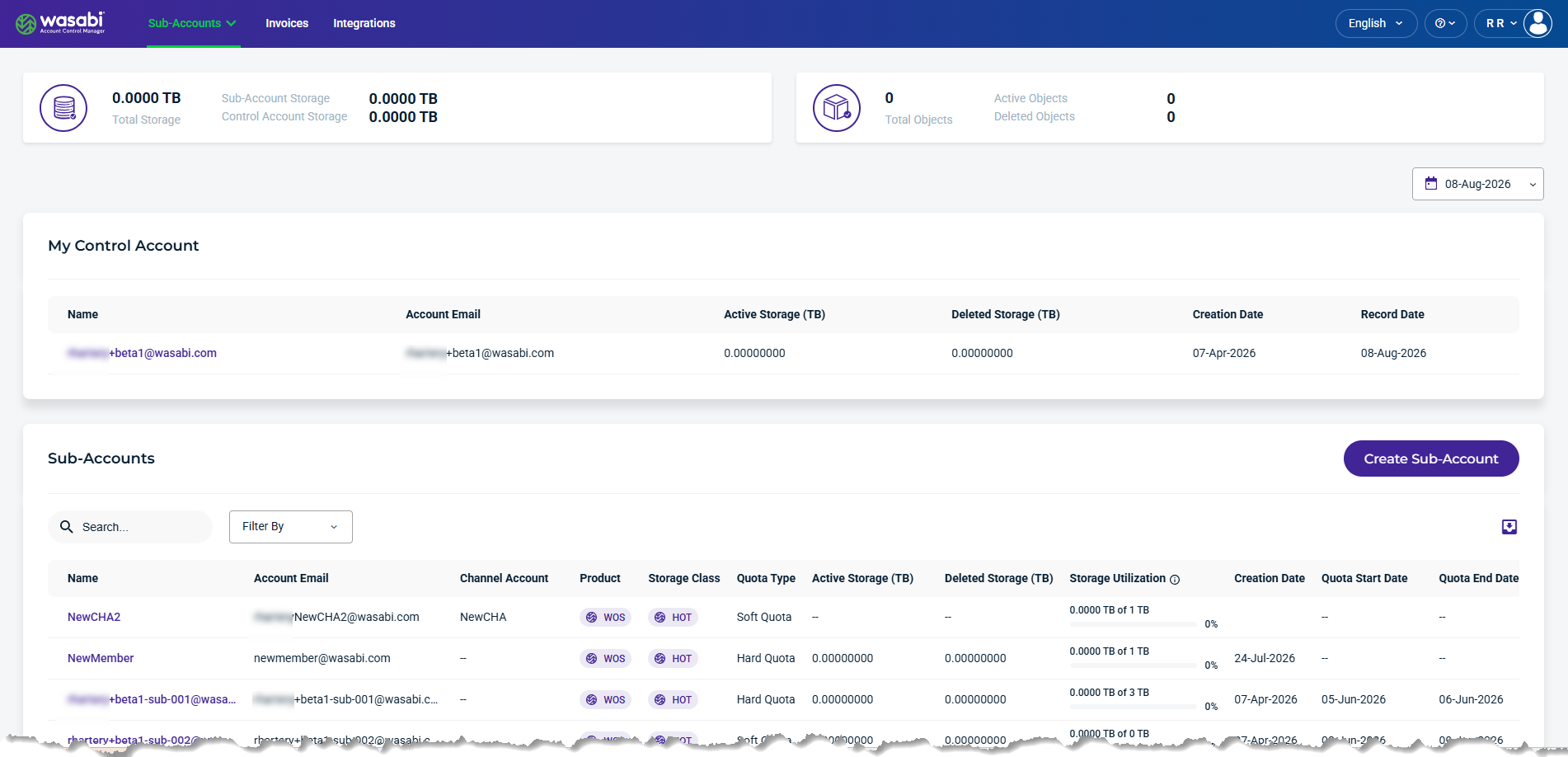
When you sign in to WACM as a Control Account Admin or Channel Account Admin, the Sub-Accounts page is displayed by default. The Sub-Accounts page provides an overview of account and storage activity, along with tools to view and manage Sub-Accounts.
Summary data cards—Provide aggregated storage and object usage statistics across all Sub-Accounts.
My Control Account—Provides account information and storage usage details, and a tool for selecting a date to view historical data.
Sub-Accounts list—Displays all Sub-Accounts and provides tools to search, filter, export Sub-Account data, and create a Sub-Account.
Understand Sub-Account Summary Data
The top section of the dashboard summarizes account and storage information. The summary displayed depends on the Control Account configuration.
View Storage ObjectUsage
The summary data cards provide an overview of storage and object usage for the Control Account and its Sub-Accounts for the selected date.

Total Storage—The total storage used by the Control Account and its Sub-Accounts.
Total Objects—The total number of objects, including active and deleted objects.
View Reserved Capacity Storage (RCS) Summary
For WACM Admin Control Accounts, the Sub-Accounts dashboard provides a summary of reserved capacity storage (RCS) and allocated storage, billable storage usage, and remaining capacity. The utilization bar shows the percentage of RCS currently in use.
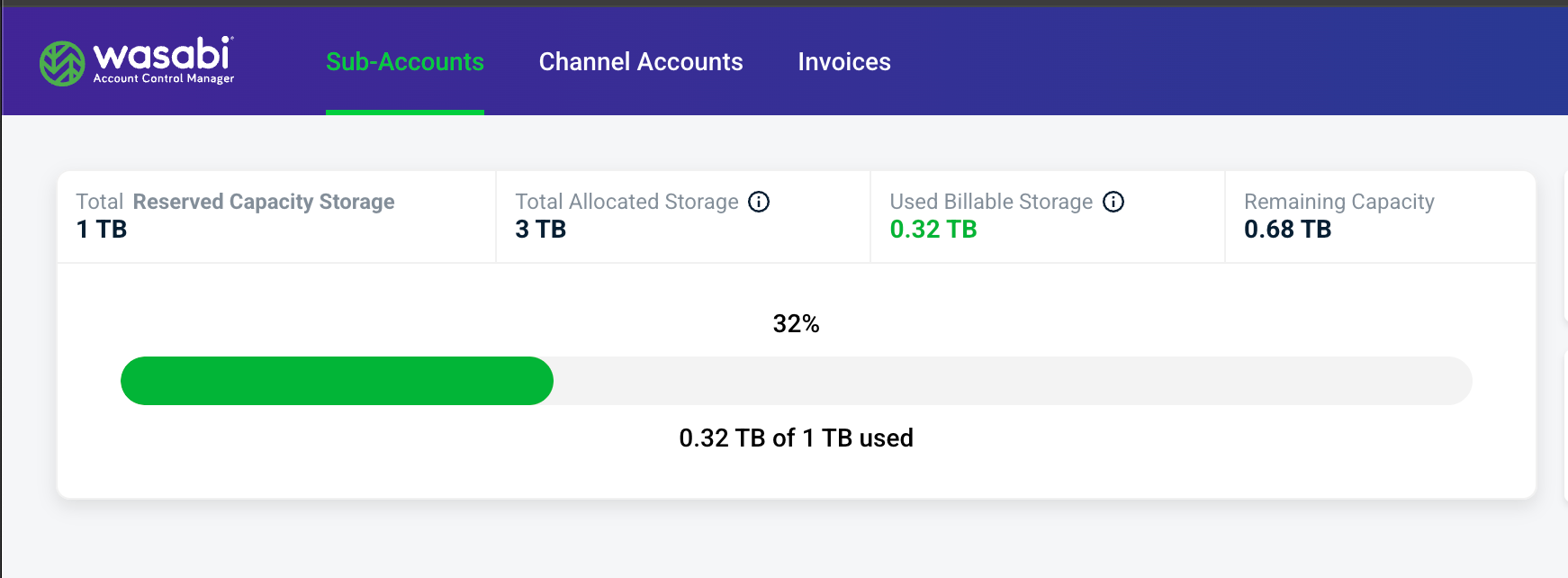
Total Reserved Capacity Storage—The amount of RCS, in TB, purchased by the account.
Total Allocated Storage—The amount of storage, in TB, that the Control Account has allocated to accounts through storage quotas.
Used Billable Storage—The amount of billable storage, in TB, currently consumed.
Remaining Capacity—The amount of purchased RCS remaining after billable storage usage is deducted.
My Control Account
The My Control Account section provides account information and current storage usage for the Control Account.
Name—The name or identifier of the Control Account.
Account Email—The email address associated with the Control Account.
Active Storage (TB)—The amount of active (currently stored) data, measured in terabytes.
Deleted Storage (TB)—The amount of deleted data being tracked, measured in terabytes.
Creation Date—The date the Control Account was created.
Record Date—The date the displayed storage metrics were last recorded or updated. You can select a specific record date using the calendar tool.
Sub-Account Details and Metrics
This section lists the details and metrics for each Sub-Account:
Name—Name of the sub-account. This is based on the name you enter when you create a Sub-Account.
Account Email—Email address associated with the Sub-Account.
Channel Account—The parent Channel Account, if applicable.
Product—The product storage type for the account, such as Wasabi Cloud NAS (WCN), Wasabi Object Storage (WOS), or Wasabi Surveillance Cloud (WSC).
Storage Class—The storage tier assigned to the account, such as HOT or FIRE.
Quota Type—The quota type enabled for the Sub-Account, either Hard Quota or Soft Quota.
Active Storage (TB)—The amount of currently active storage for the account.
Deleted Storage (TB)—The amount of deleted storage for the account.
Storage Utilization—The percentage of storage used, based on the configured storage quota value. (Sub-Account Active + Deleted Storage) / Storage Quota.
Creation Date—The date that the Sub-Account was created.
Quota Start Date—The selected start date to begin tracking the object storage used.
Quota End Date—The selected end date to stop tracking object storage used.
Quota Days Remaining—The number of days remaining for the time period selected to track the object storage used.
Quota Date Status—Indicates whether the object tracking period is Set, Not Set, or Expired.
Deletion Date—The date the Sub-Account was deleted.
Trial Expiration—The date the trial account is set to expire.
MFA (multi-factor authentication)—The MFA status active
 icon if enabled.
Status—Indicates the sub-account status as Deleted, Denied, On Trial, Paid Account, Password Pending, or Suspended. If the account is On Trial, you will see a colored countdown. If the account is paid, this column entry will be green. If the account is deleted, this column entry will be pink.
Record Date—The date the details and metrics were recorded for the Sub-Account.
Find and Refine Sub-Accounts
Use the Search, Filter By, and Calendar tools to find and refine the Sub-Account data displayed on the page. You can also use the Export tool to export Sub-Account data for reporting or further analysis.
Search and Filter By
Use the Search field to find specific Sub-Accounts, and use the Filter By menu to filter by Sub-Account attributes using the dropdown.
The following Filter By menu options are available:
Product—Filter by the storage product assigned to the Sub-Account, such as WCN, WOS, or WSC.
Storage Class—Filter by the configured storage class, such as HOT or FIRE.
Quota Type—Filter by the quota policy, select Hard Quota or Soft Quota.
MFA—Filter based on whether multi-factor authentication (MFA) is enabled.
Status—Filter by the current status of the Sub-Account.
Channel Account—Filter by the associated channel account.
Quota Date Status—Filter sub-accounts based on the status of their quota dates.
Has quota start date—Show only sub-accounts that have a configured quota start date.
Has quota end date—Show only sub-accounts that have a configured quota end date.
Show Deleted Accounts—Include deleted sub-accounts in the results. By default, deleted accounts are hidden.
Calendar Tool
The calendar dropdown lets you select a date to view historical data.
Export Tool
The Export tool lets you filter results and export data to CSV, JSON, or Excel formats.
View and Manage a Sub-Account
Select a Sub-Account from the list to view usage information and access account management settings.
Data Storage Usage
Account Settings and Management
Create a Sub-Account
To create a Sub-Account, see Creating a Sub-Account.